45
Scan
Scan a Document with the Operation Panel
You can scan a document using the Scan mode.
1
Make sure that a computer and the machine are connected (See the
Starter Guide).
2
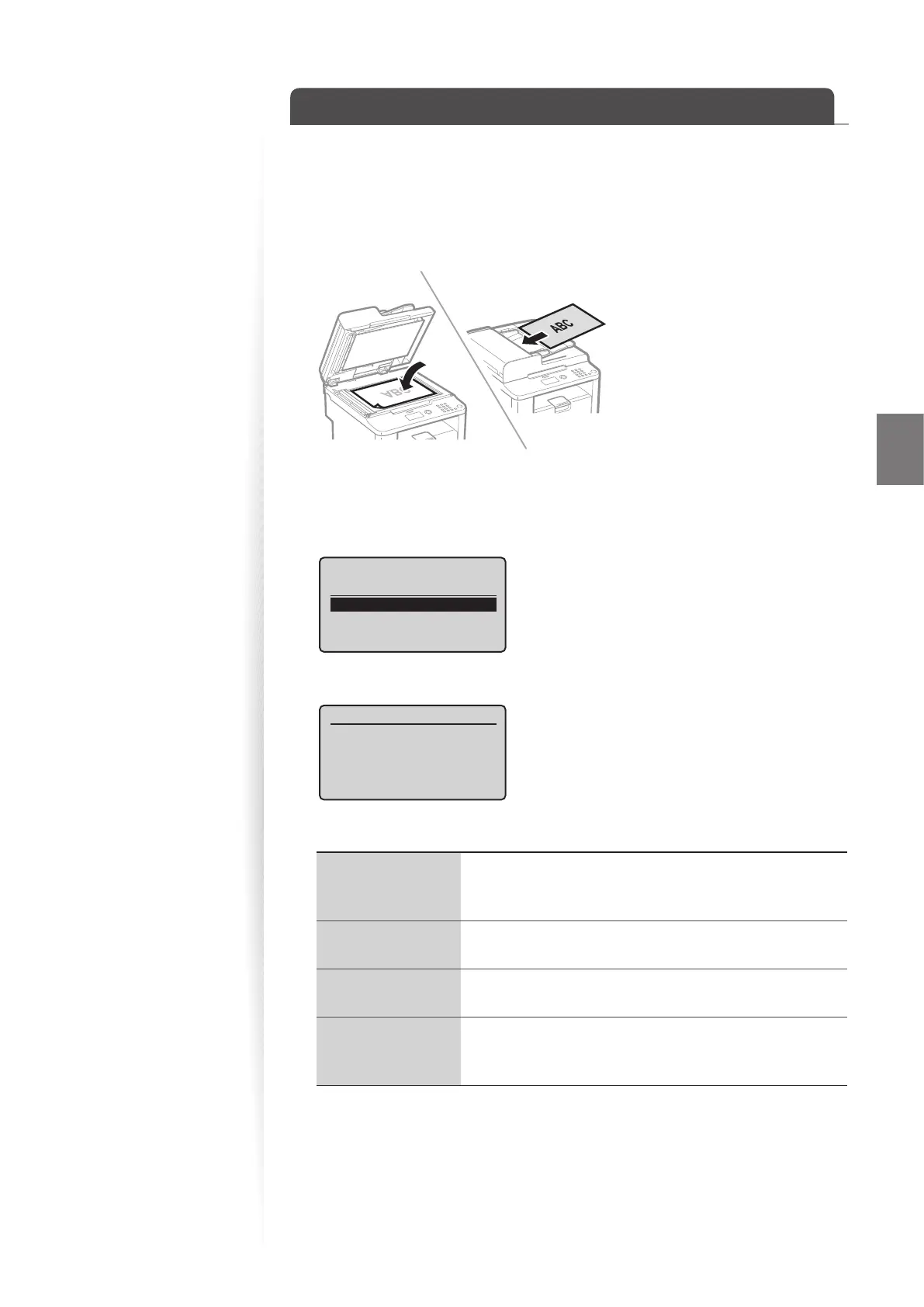
Place your documents (→p.16).
* D530 is not equipped with the feeder.
3
Switch to the Scan mode (→p.13).
4
Press [▲] or [
▼
] to highlight <Computer>, and then press [OK].
Select the scan type.
Computer
Remote Scanner
5
Press [▲] or [▼] to specify a destination, and then press [OK].
Specify destination.
Example 1
Example 2
6
Press [▲] or [
▼
] to specify the scan settings.
<Color Scan>
• Scan the document in color (300 dpi), and then save as a
PDF le.
• PDF settings: Searchable/Compact
<B&W Scan>
Scan the document in black and white (300 dpi), and then
sa
ve as a TIFF le.
<Custom 1>
Scan the document in color (300 dpi), and then save as a
JPE
G/Exif le.
<Custom 2>
• Scan the document in color (300 dpi), and then save as a
PDF le.
• PDF settings: Searchable/Standard















 To Next Page