29
Copy
Enlarge or Reduce Copies
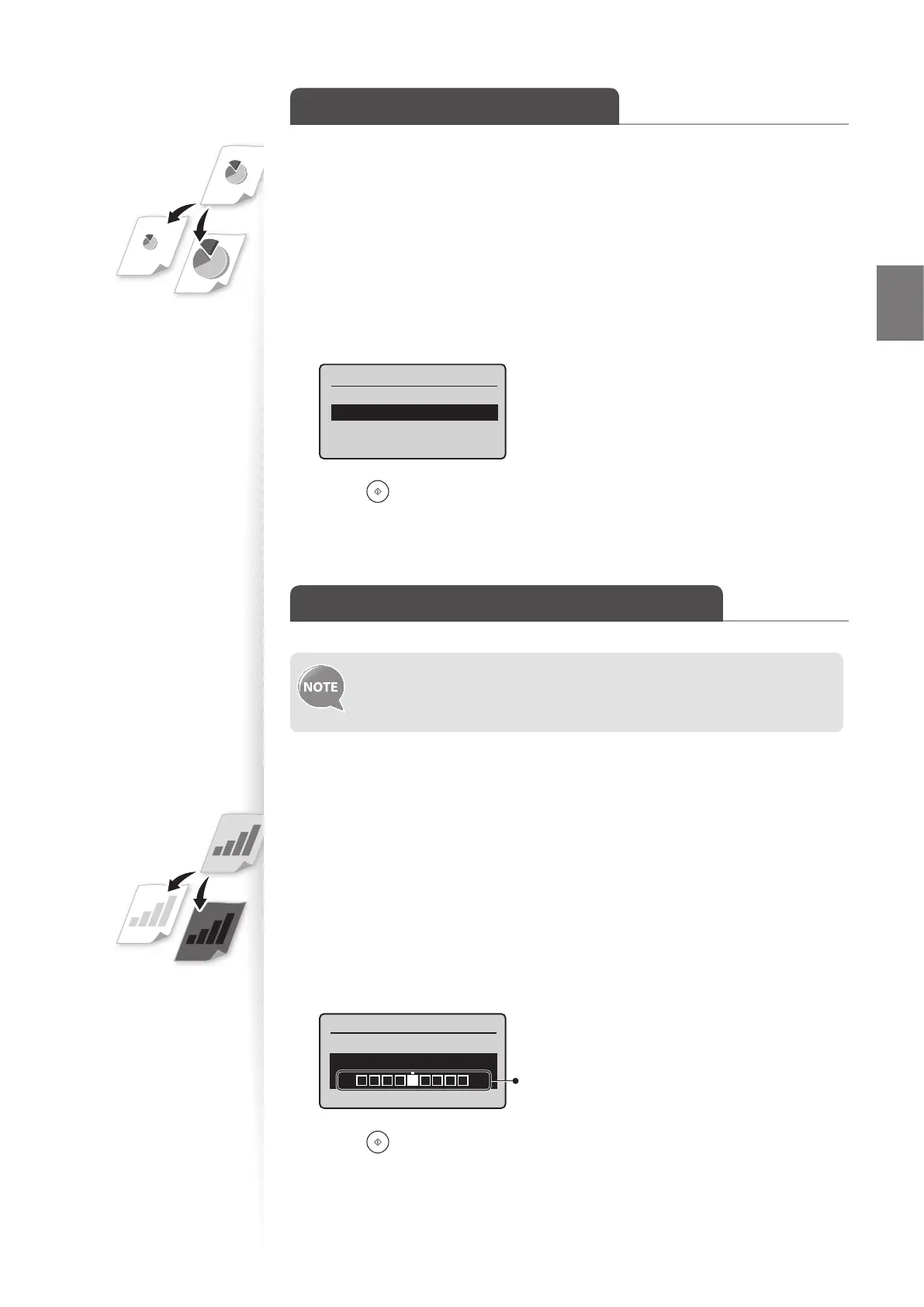
Enlarge or reduce copies using custom copy ratios.
1
Place your documents (→p.16).
2
Switch to the Copy mode (→p.13).
3
Press [▲] or [▼] to highlight <Copy Ratio>, and then press [OK].
4
Press [▲] or [▼] to highlight the desired ratio, and then press [OK].
•
If you want to set a copy ratio in 1% increments, select <Custom Ratio>, and then
enter the copy ratio using the numeric keys or press [▲] or [▼] to specify the ratio.
Copy Ratio
Custom Ratio
100% Direct
400% Max
200%
5
Press [ ] (Start).
Adjust the Image Quality for Copy
Relation between the density and document type:
If <Density> i
s set to <Auto Density>, <Original Type> will be changed
to <Text>.
Adjusting the density
You can make the density brighter or darker than the original documents.
1
Place your documents (→p.16).
2
Switch to the Copy mode (→p.13).
3
Press [▲] or [▼] to highlight <Density>, and then press [OK].
4
Press [◄] or [►] to adjust the density , and then press [OK].
•
Select <Auto Density> to use the density that is most suitable for the document.
Density
Auto Density
Manual Density
- +
– : Less density (lighter)
+ : More density (darker)
5
Press [ ] (Start).















 To Next Page