47
Scan
Select the scan type.
Computer
Remote Scanner
4
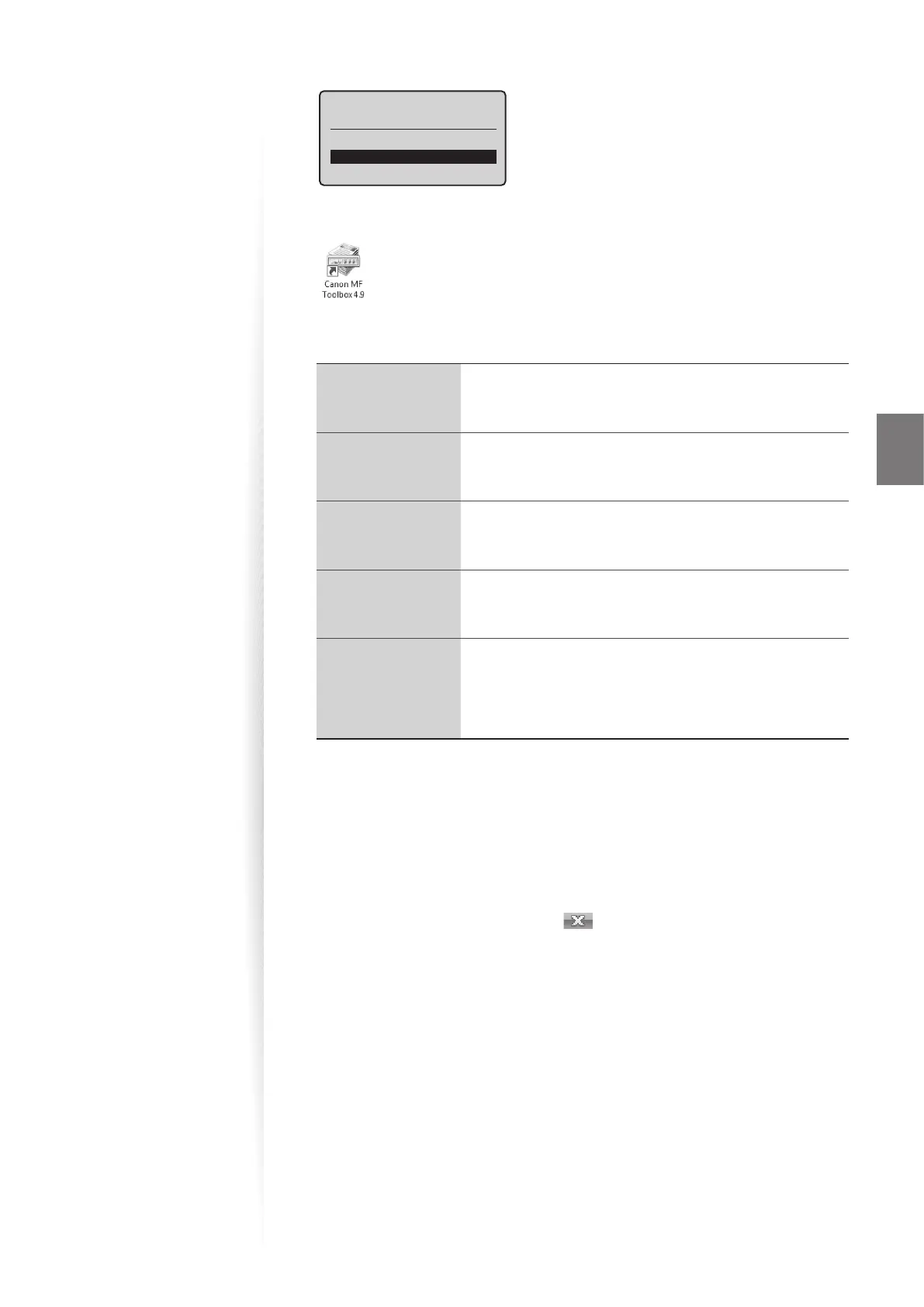
From your computer, double-click the [Canon MF Toolbox 4.9] icon.
5
When the MF Toolbox appears, click the desired scan mode button.
[Mail]
• The scan preset for an e-mail attachment is displayed.
• The scanned document will be attached to a new message
in your e-mail application.
[OCR]
• The scan preset for the OCR (Optical Character Reader) is
displayed.
• The scanned document will be read by your OCR software.
[Save]
• The scan preset for a high quality scanning is displayed.
• The scanned document will be saved in the default folder
or in a destination that you specify.
[PDF]
• The scan preset for the multiple page searchable PDF is
displayed.
• The scanned document will be saved as a PDF le.
[Color Scan]
[B&
W Scan]
[Custom 1]
[Custom 2]
• The custom setting is displayed.
• The scanned document will be saved in a destination that
you specify and opened in the registered application.
6
When the scan setting window appears, specify the scan settings as
needed (
→p.48).
7
Click [OK] to start scanning.
•
When scanning is complete, the folder in which the scanned document is saved is
opened automatically.
• The scanned document will be opened in the registered application.
8
When scanning is complete, click [ ] to close the MF Toolbox.















 To Next Page