Fax
5-18
Specifying Destinations
Specifying Destinations
This section describes how to specify a fax destination. You can select a destination stored
in a one-touch key or coded dial codes, or specify a new destination.
Specifying a New Fax Number
Specifying a New Fax Number
You can specify a new fax number using – ,
[numeric keys] and [Tone].
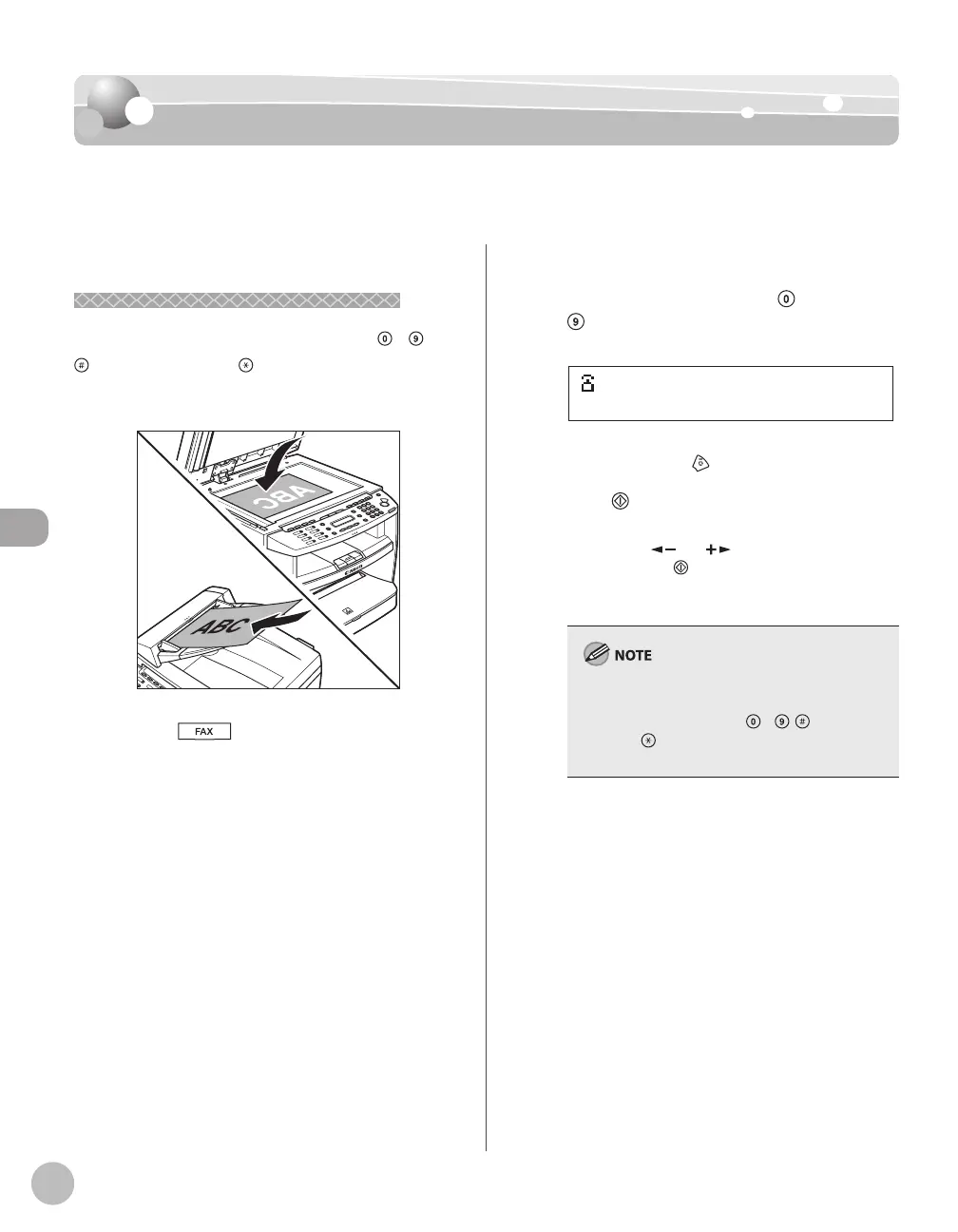
Place documents.
Press [FAX].
Adjust any necessary scan settings for
your documents.
For details, see “Adjusting Density,” on p. 5-23,
“Selecting Image Quality,” on p. 5-24, and
“2-Sided Document (MF4380dn Only),” on p. 5-
25.
Enter the fax number with
–
[numeric keys].
=031XXXXXX
Ex.
If you enter a wrong number when specifying a
fax number, press
[Stop/Reset].
Press [Start].
When you place the documents on the platen
glass, press [
] or [ ] to select the document
size, then press
[Start] for each document.
When scanning is complete, press [OK] to start
sending.
If <CONFIRM FAX NO.> in <ACCESS TO DEST.> in
<SYSTEM SETTINGS> is set to <ON> and you
specify a fax number using
– , [numeric
keys] and
[Tone], you need to enter the fax
number again for comfirmation, then press [OK].






 To Next Page