Fax
5-46
Checking/Changing the Status of Fax Documents in Memory
Checking/Deleting Fax Reception
Checking/Deleting Fax Reception
Documents
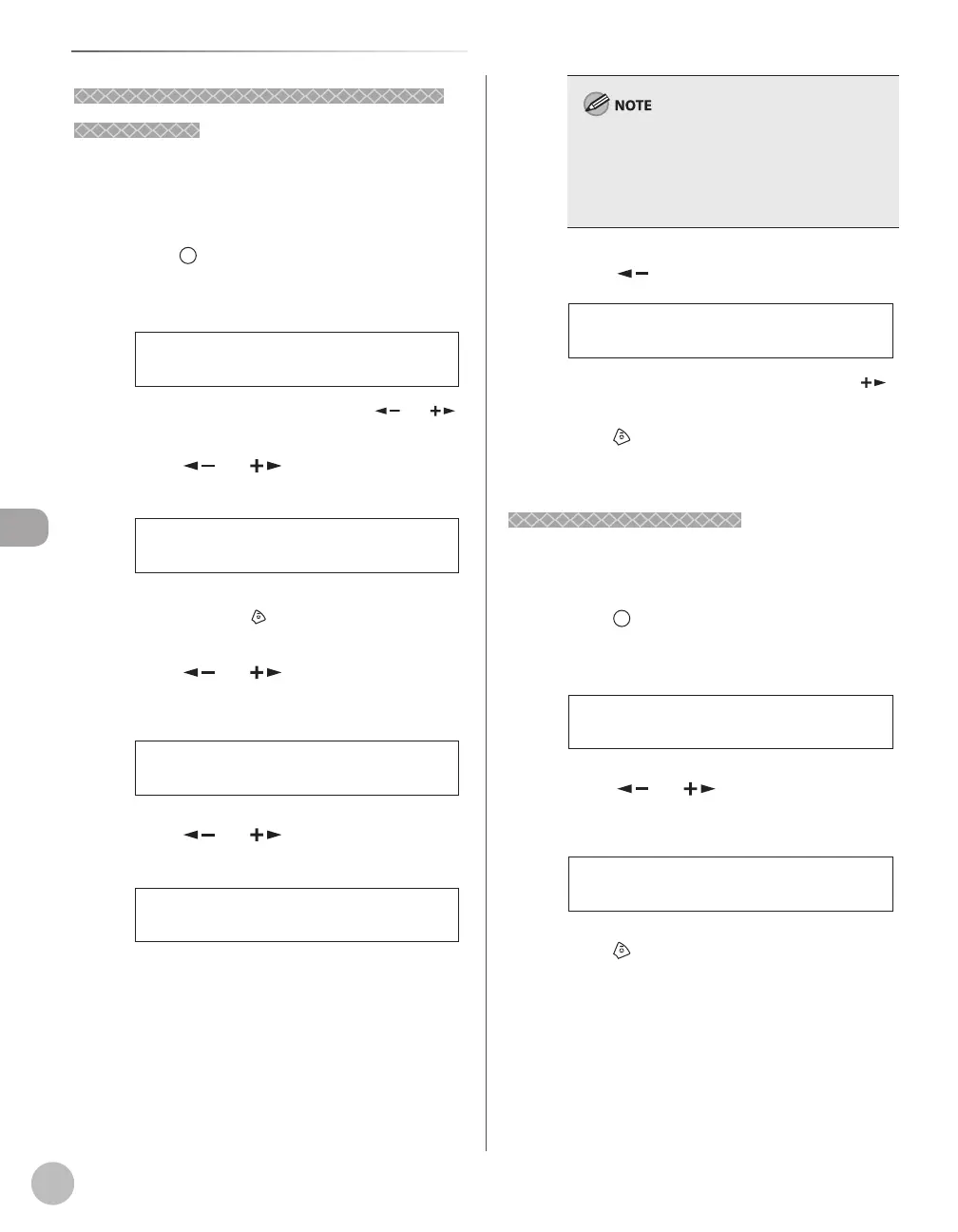
You can delete the received documents in memory.
You can also forward received documents in
memory to a desired destination.
Press [Job Cancel/Status Monitor]
repeatedly to select <TX/RX STATUS> or
<JOB CANCEL>, then press [OK].
TX/RX STATUS
If you select <JOB CANCEL>, press [ ] or [ ]
to select <TX/RX>, then press [OK].
Press [ ] or [ ] to scroll trough the
job list.
031XXXXXXX
001 MEMORY TX
If you want to delete a job, go to the next step.
Otherwise, press
[Stop/Reset] to return to the
standby mode.
Press [ ] or [ ] to select the job you
want to delete, then press [OK].
123
001 RX
Ex.
Press [ ] or [ ] to select <CANCEL>,
then press [OK].
CANCEL
001
If you select <JOB CANCEL> in step 1, you do
not need to perform this procedure. Go to the
next step.
You can forward the selected job to another
destination by selecting <FORWARD>. For
information on forwarding received documents,
see “Forwarding Received Fax Documents in
Memory,” on p. 5-44.
Press [ ] to select <YES>.
< YES NO >
CANCEL?
If you do not want to cancel the job, press [ ]
to select <NO>.
Press [Stop/Reset] to return to the
standby mode.
Checking the Fax Log
You can view the results of fax transactions that list
all faxes sent or received.
Press [Job Cancel/Status Monitor]
repeatedly to select <TX/RX LOG>, then
press [OK].
TX/RX LOG
Press [ ] or [ ] to view the required
transmission/reception result.
123XXXXXX -OK
60 (07/31 14:04) TX
Ex.
Press [Stop/Reset] to return to the
standby mode.






 To Next Page