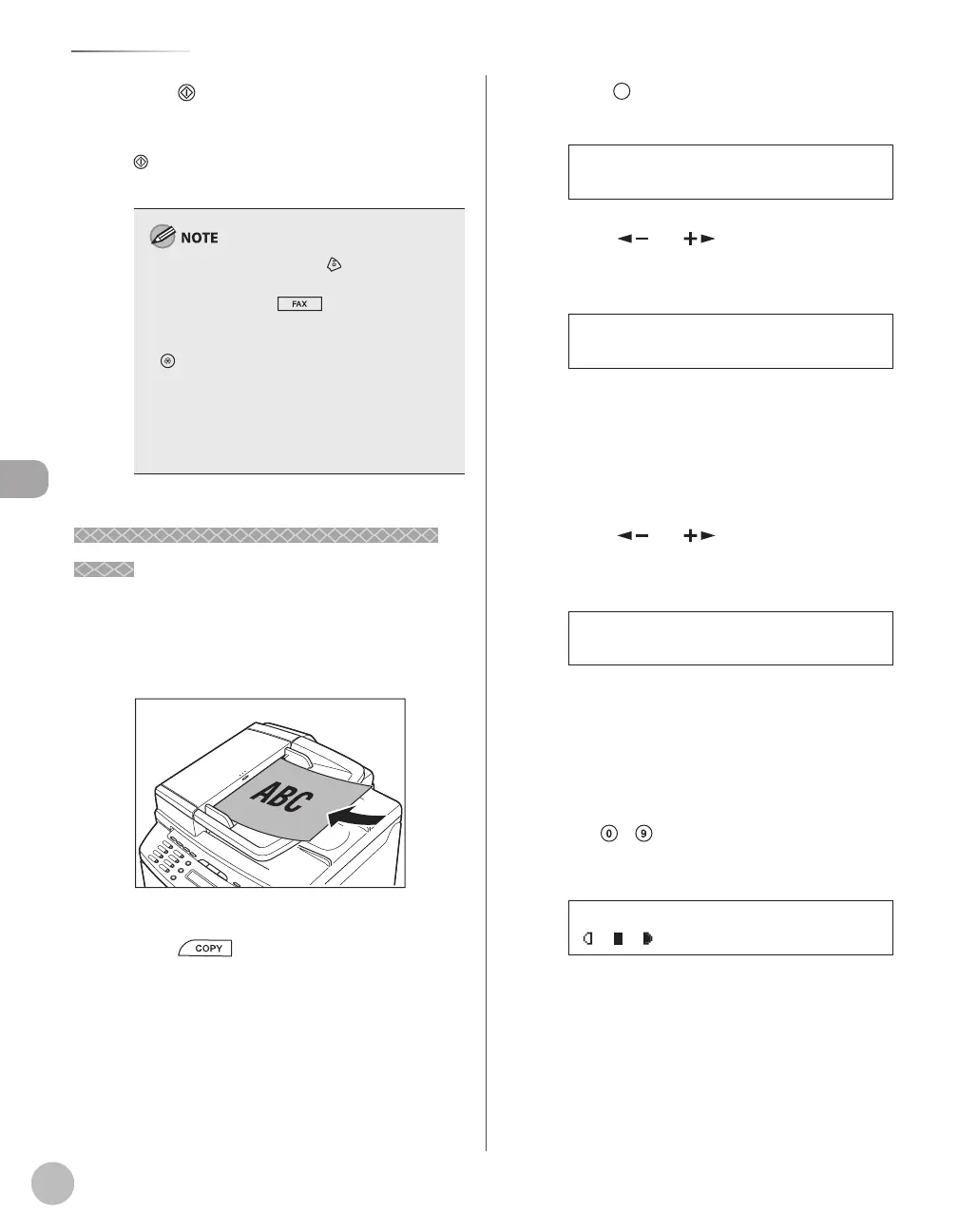
Copying
4-20
2-Sided Copying
Press [Start].
If you want to copy multiple documents using
the platen glass, place a document and press
[Start] once for each page. When scanning is
complete, press [OK].
To cancel all settings, press [Stop/Reset].
When you switch the mode by pressing the
mode keys such as [FAX], all settings will
be canceled. If you want to keep the settings,
store the settings as follows:
[Menu] → <COPY SETTINGS> → <STANDARD
SETTINGS> → <2-SIDED> (See “COPY SETTINGS,”
on p. 12-4.)
You can skip step 4. In this case, the machine
scans 1-sided documents to make 2-sided,
<BOOK TYPE> copies.
–
–
–
2 to 2-Sided Copying (MF4380dn
2 to 2-Sided Copying (MF4380dn
Only)
You can make 2-sided copies from 2-sided
documents.
Place documents in the ADF.
For details, see “Placing Documents,” on p. 2-4.
Press [COPY].
Press [2-Sided] repeatedly to select
<2 > 2-SIDED>, then press [OK].
2 > 2-SIDED
2-SIDED
Press [ ] or [ ] to select <BOOK
TYPE> or <CALENDAR TYPE> for the
document layout, then press [OK].
BOOK TYPE
TYPE OF ORIGINAL
<BOOK TYPE>: The front and back sides of the
document will have the same top-bottom
orientation.
<CALENDAR TYPE>: The front and back sides
of the document will have the opposite top-
bottom orientation.
Press [ ] or [ ] to select <BOOK
TYPE> or <CALENDAR TYPE> for the
output layout, then press [OK].
BOOK TYPE
TYPE OF OUTPUT
<BOOK TYPE>: The front and back sides of the
copy will have the same top-bottom
orientation.
<CALENDAR TYPE>: The front and back sides
of the copy will have the opposite top-
bottom orientation.
Use
– [numeric keys] to enter the
desired copy quantity (1 to 99).
TEXT/PHOTO 1
100% * LTR
Ex.
–
–
–
–






 To Next Page