Chapter 1
1-38
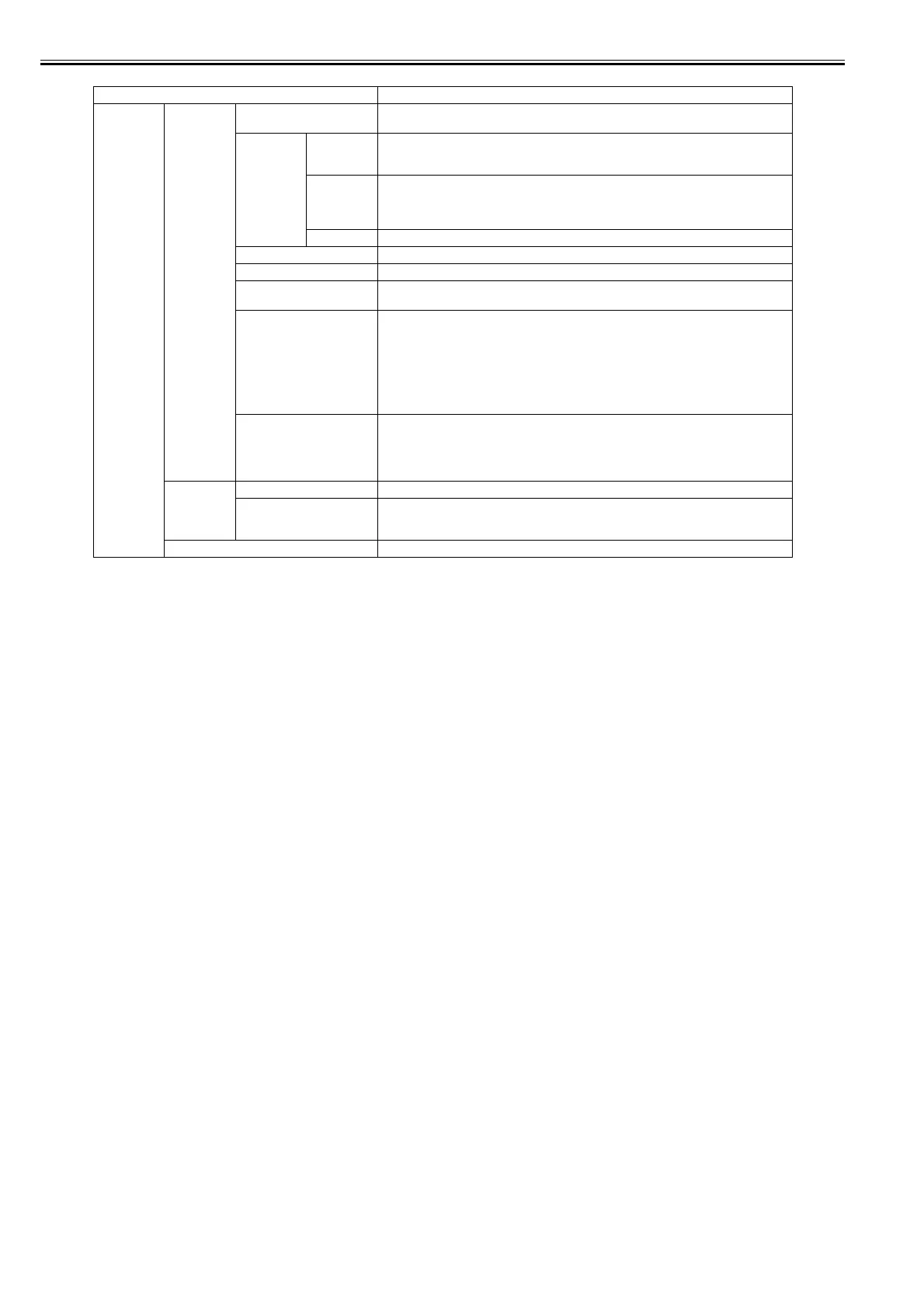
Setting Item Description/Instructions
[GL2 Settings] [Line&Pen
Manager]
[Enable merge] When lines overlap, set whether to merge or overwrite the colors of the overlapping lines.
Select [Off] to overwrite with the line printed later. Select [On] to merge all overlapping colors.
[Pen Setup] [Select
Palette]
Select the value related to pen from [Software], [Palette A], [Palette B], or [Factory].
Select [Software] to print according to the application side instruction. Select [Palette A] or
[Palette B] to print with value set by [Define Palette].
[Define
Palette]
Set [Width], [Color], and [Line Attributes] for the palette's [Pen Number]. Select [Factory] to
check the value when [Factory] is selected for [Select Palette].
For [Line Attributes], select the shape of line end and joint between lines as [No Setting] or
[Circle Setting].
[Reset Palette] Return the [Define Palette] settings to factory settings.
[Smoothing] Choose whether to draw an arc with a smooth curve or with a polygon.
[ThickenFineLines] Select [On] to print thin lines clearly.
[AdjustFaintLines] If thin lines print in a tint of color varied from other patterns, selecting [Off] may provide the
print result as intended, though the thin lines may print, interrupted, depending on the color.
[Ln Wdth correct] Correct the width of lines. (The basic line width is set using the [Pen Setup] funstion)
Select [Black/gray] to correct the width of lines whrere all of the RGB values are the same
(except when R=G=B=255). The setting value can be set in the range of -20 to +20, with the
setting value given in units of correction of 0.025mm. When set to -20, lines become 0.5mm
thinner, and when set to +20, lines become 0.5mm thicker.
Select [Color] to correct the width of lines that are not [Black/gray]. The setting value can be
set in the range of -20 to +20 with the setting value given in units of correction of 0.025mm.
When set to -20 lines become 0.5mm thinner, and when set to +20 lines become 0.5mm thicker
[Detect img size] Set the method for selecting the rendering region.
Select [Off] to use the value from the PS command in the input data. If there are no PS
commands, prints using the maximum size (maximum roll paper width X (maximum roll paper
width X 1.5)). This reduces the printing time compared with the cases whrere [Command
priority] or [Detected size] are set because the data analysis finishes in a shorter period of time.
[ProcessingOp
tion]
[Warning] Select [On] to display warnings during GL2.
[On-the-Fly] In printing data consisting solely of HP RTL, if the data is slow to print, select [On] to expedite
the time at which the data starts printing. Verify the print result to make sure that images are
not chipped in this case.
[GL2 Set Print] Print the GL2 settings.













 To Next Page