Chapter 4 Sending Faxes With the MultiPASS C3500 4-39
5. Click the Stamp tool on the Annotation toolbox.
6. Click the mouse at the location where you want to place the graphic
in the layout area.
7. To add a different graphic to the cover page,choose the Select
Stamp command from the Annotation menu.
8. Click the graphic you want to insert and click OK.
9. Click the Stamp tool on the Annotation toolbox.
10. Click the mouse at the location where you want to place the graphic
in the layout area.
11. Adjust the size and characteristics of the graphics as desired (see
Modifying a Predefined Fax Cover Page on page 4-42.).
12. On the File menu, click Save. The graphic is added to the cover page.
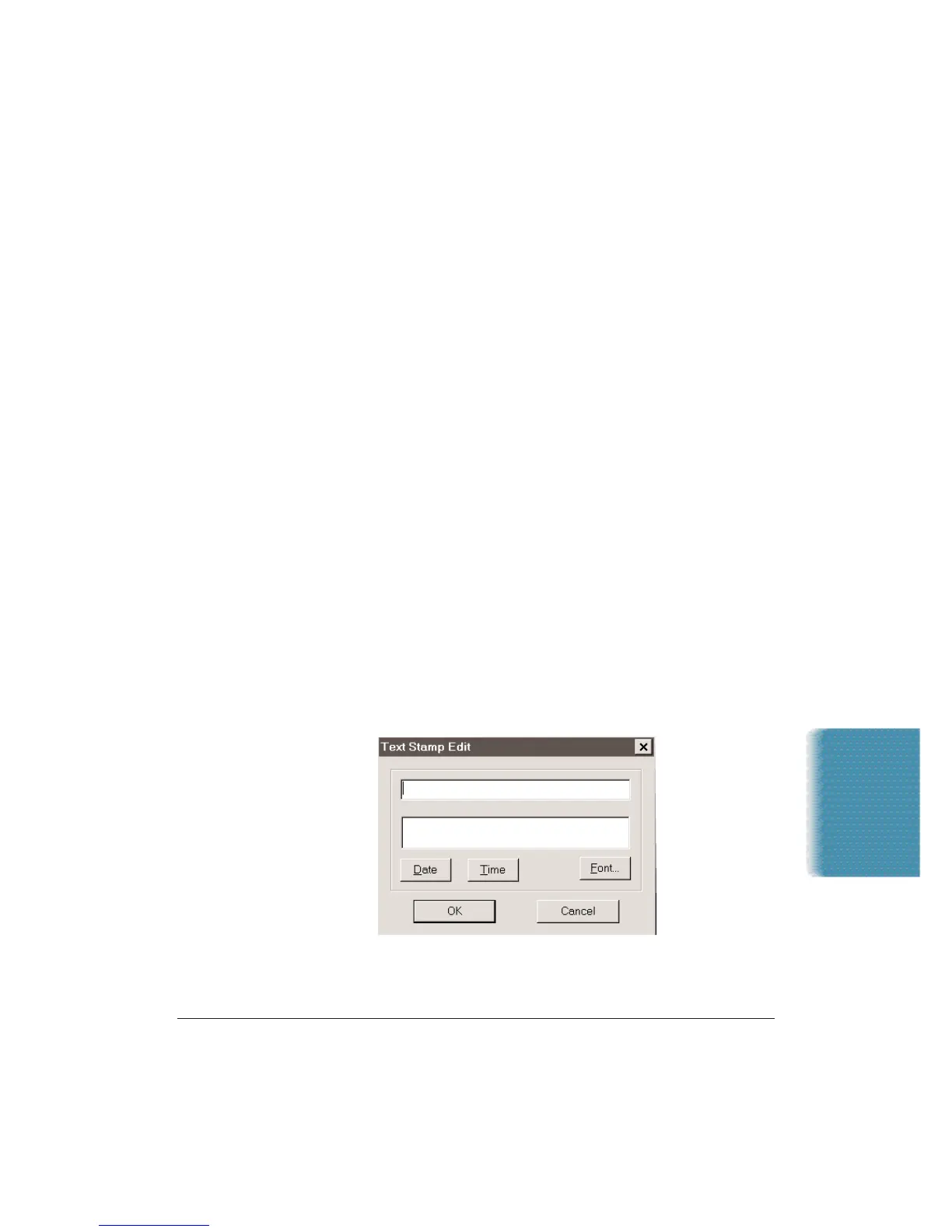
Creating a text stamp
You can also create and use a Text Stamp on your cover page.
1. Choose the Select Stamp command from the Annotation menu. The
Select Stamp dialog box displays.
2. Click the Text Stamp tab.
3. Click Add.
Sending Faxes








 To Next Page