6-8 Scanning With the MultiPASS C3500 Chapter 6
Setting Paper Size
Select a paper size that corresponds to the size of your source document.
If your document does not conform to one of the available sizes, you
can define a custom paper size.
Selecting a Standard Paper Size
1. Click the C3500 tab.
2. From the Paper Size list, select the desired option.
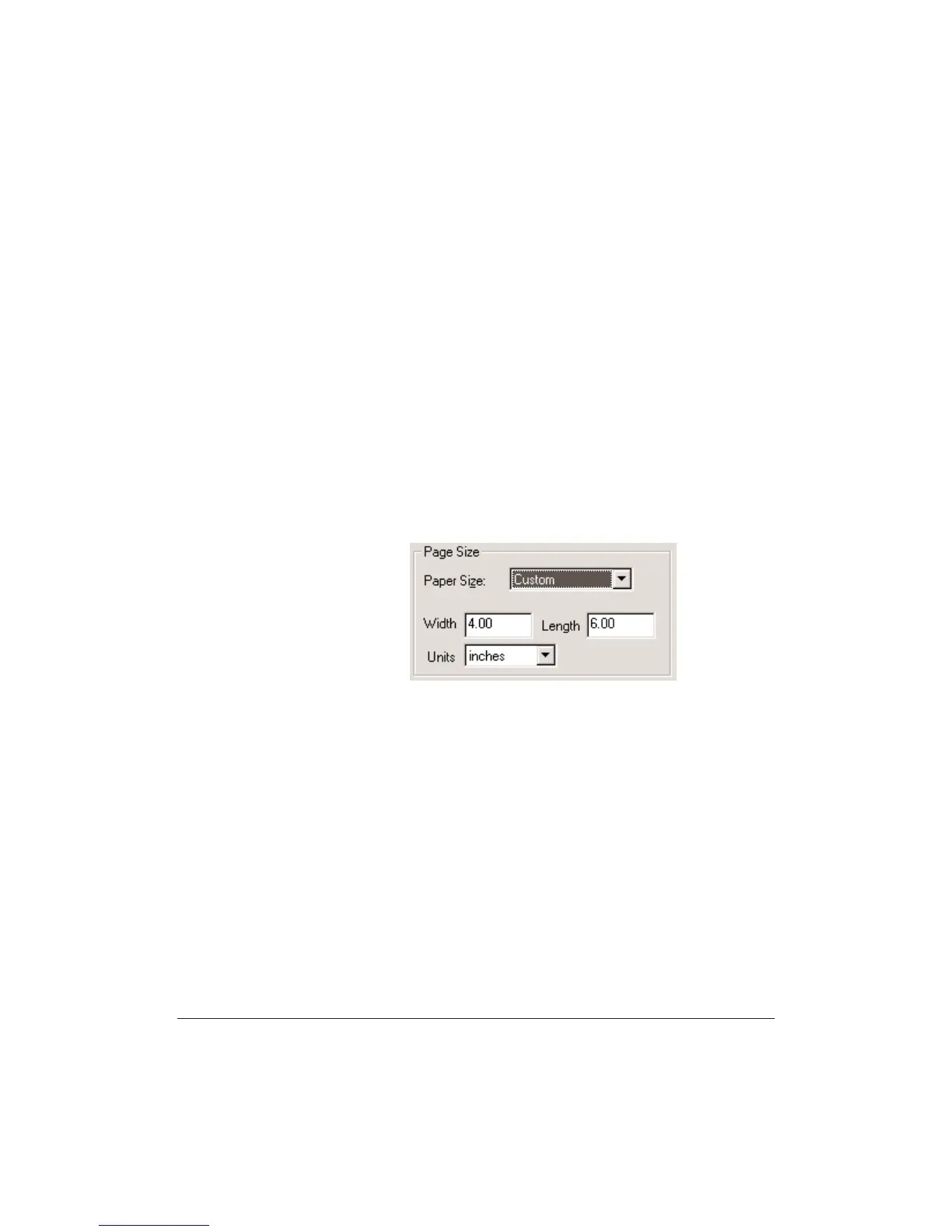
Setting a Custom Paper Size
1. Click the C3500 tab.
2. In the Paper Size list, select Custom.
3. In the Units list, select the unit of measure by which you want to
define your custom size.
4. In the Width and Length text boxes, enter the dimensions of your
source document.







 To Next Page