8-16 Setup and Other Utilities in the Desktop Manager Chapter 8
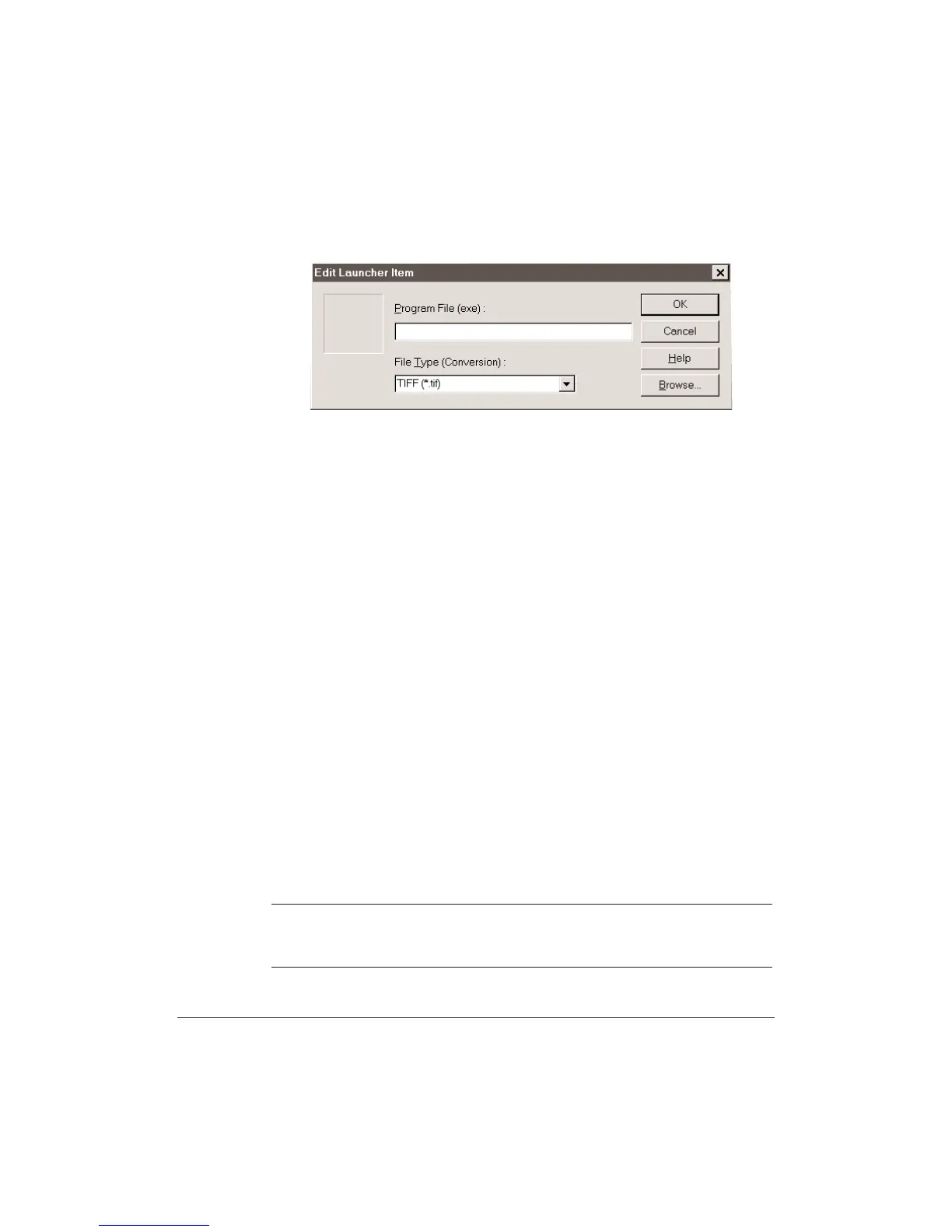
1. Click the next Empty location, then click Edit; or click a blank
launcher icon,click the right mouse button,and click Edit.
2. Click Browse. A standard Windows Browse dialog box displays.
3. Locate the .EXE file you wish to add to the Launcher, highlight it,
and click Open.
4. Select a File Type (Conversion) option from the File Type list. This
allows you to start an application by dragging and dropping a
document onto the Launcher Bar application and have the
document converted into the specified format.You can specify that
documents be converted to:
•
Bitmap (*.bmp)
•
Flashpix (*.fpx)
•
JPEG (*.jpg)
•
PC Paintbrush (*.pcx)
•
TIFF (*.tif)
•
Plain text (*.txt)
5. Click OK to close the Edit Launcher Items dialog box.
6. Click OK to close the Launcher Setup dialog box and add the
program to the Launcher bar.
N
You can also drag and drop an .EXE file from the Windows desktop or
Windows Explorer onto an empty Launcher spot, then edit the
application’s properties as desired.







 To Next Page