Downloading
Images
Using
the
Camera
(Direct
Transfer)
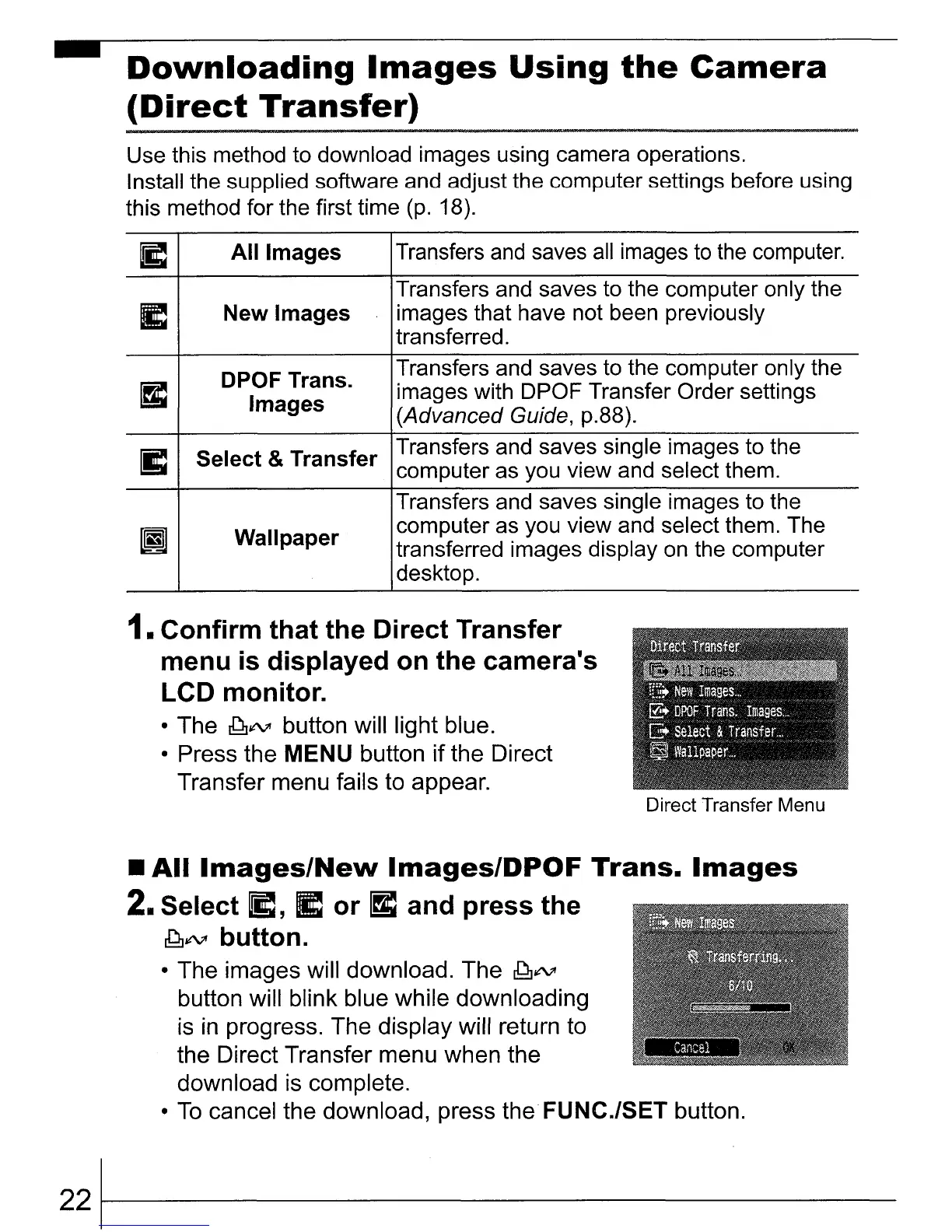
Use this method to download images using camera operations.
Install the supplied software and adjust the computer settings before using
this method for the first time
(p.
18).
~
All
Images Transfers
and
saves
all
images
to
the computer.
Transfers and saves to the computer only the
I:
New Images images that have not been previously
transferred.
DPOF Trans.
Transfers and saves to the computer only the
r4:
Images
images with DPOF Transfer Order settings
(Advanced Guide, p.88).
I:
Select &Transfer
Transfers and saves single images to the
computer as you view and select them.
Transfers and saves single images to the
~
Wallpaper
computer as you view and select them. The
transferred images display
on
the computer
desktop.
1. Confirm that the Direct Transfer
menu
is
displayed on the camera's
LCD monitor.
• The
~1tV
button will light blue.
• Press the MENU button if the Direct
Transfer menu fails to appear.
Direct Transfer Menu
•
All
Images/New
Images/DPOF
Trans.
Images
2. Select
~,
I:
or
r4:
and press the
~1tV
button.
• The images will download. The
~1tV
button will blink blue while downloading
is
in
progress. The display will return to
the Direct Transfer menu when the
download is complete.
•
To
cancel the download, press
the
FUNC.lSET button.
221-----------




 To Next Page