EasyManua.ls Logo

Canon UC10 - White Balance.60

Canon UC10
104 pages
Print Icon
To Next Page IconTo Next Page
To Previous Page IconTo Previous Page
Loading...
Advanced
Operations
61
White
Balance
Lock
Use
the
white
balance
lock
when
shooting
subjects
not
suitable
for
auto
white
balance
and
in
cases
where
a
precise
colour
balance
cannot
be
achieved
with
auto
white
balance.
O
MENU
Button
&
+/—
Buttons
@
SELECT
Button
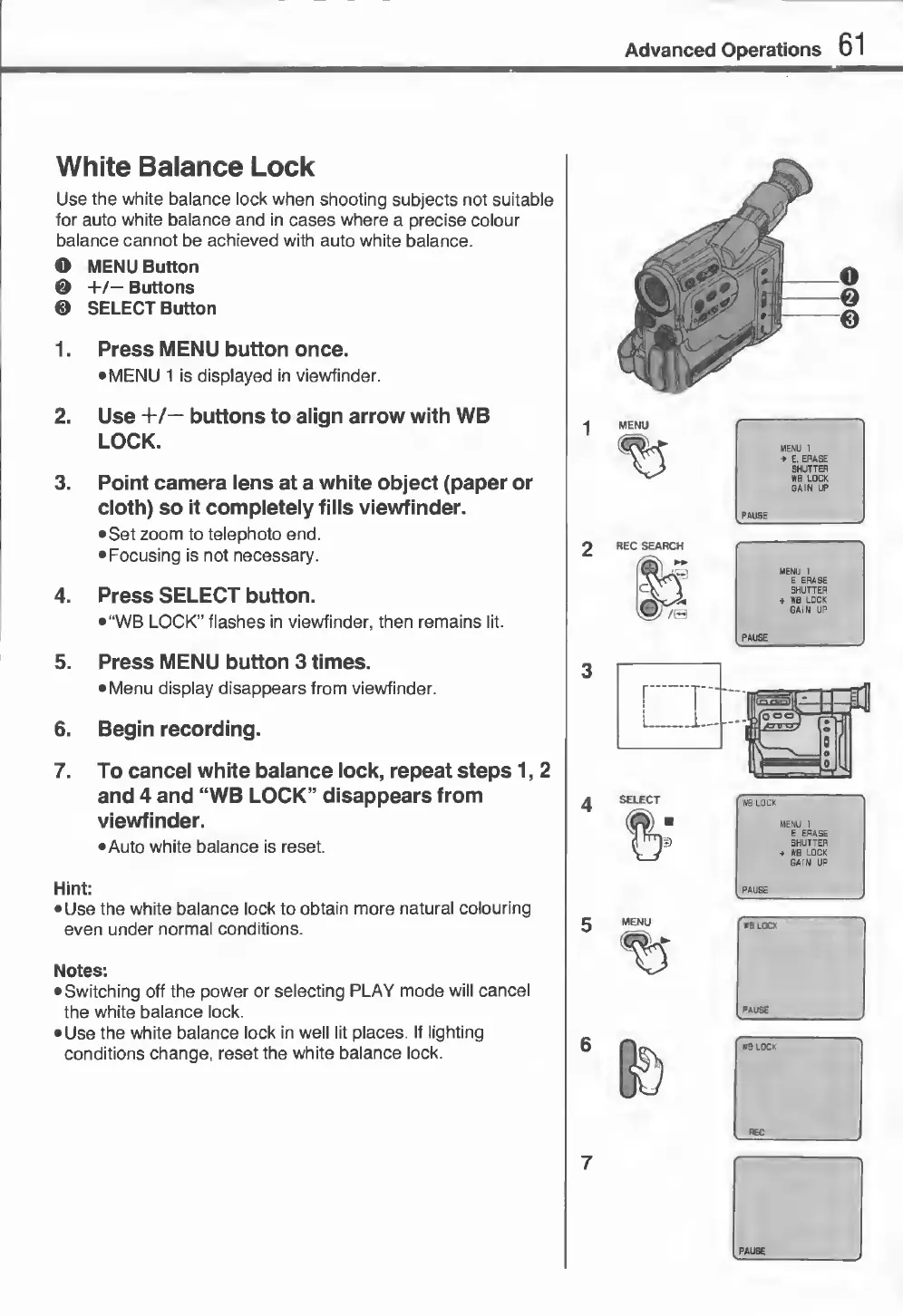
1.
Press
MENU
button
once.
MENU
1
is
displayed
in
viewfinder.
2.
Use
+/—
buttons
to
align
arrow
with
WB
LOCK.
3.
Point
camera
lens
at
a
white
object
(paper
or
cloth)
so
it
completely
fills
viewfinder.
Set
zoom
to
telephoto
end.
Focusing
is
not
necessary.
4.
Press
SELECT
button.
“WB
LOCK”
flashes
in
viewfinder,
then
remains
lit.
5.
Press
MENU
button
3
times.
Menu
display
disappears
from
viewfinder.
6.
Begin
recording.
7.
To
cancel
white
balance
lock,
repeat
steps
1,
2
and
4
and
“WB
LOCK”
disappears
from
viewfinder.
•Auto
white
balance
is
reset.
Hint:
Use
the
white
balance
lock
to
obtain
more
natural
colouring
even
under
normal
conditions.
Notes:
Switching
off
the
power
or
selecting
PLAY
mode
will
cancel
the
white
balance
lock.
Use
the
white
balance
lock
in
well
lit
places.
If
lighting
conditions
change,
reset
the
white
balance
lock.

Related product manuals