EasyManua.ls Logo

Canon UC10 - Record Search.36

Canon UC10
104 pages
Print Icon
To Next Page IconTo Next Page
To Previous Page IconTo Previous Page
Loading...
36
Record
Search
(CAMERA
Mode)
Use
the
record
search
function
to
locate
the
desired
point
to
resume
recording.
Record
search
can
also
be
used
to
eliminate
noise
between
recorded
scenes.
Use
this
function
when
you
make
additional
recordings
on
a
previously
used
video
cassette—there
will
be
no
noise
between
the
previously
recorded
scene
and
the
newly
recorded
scene.
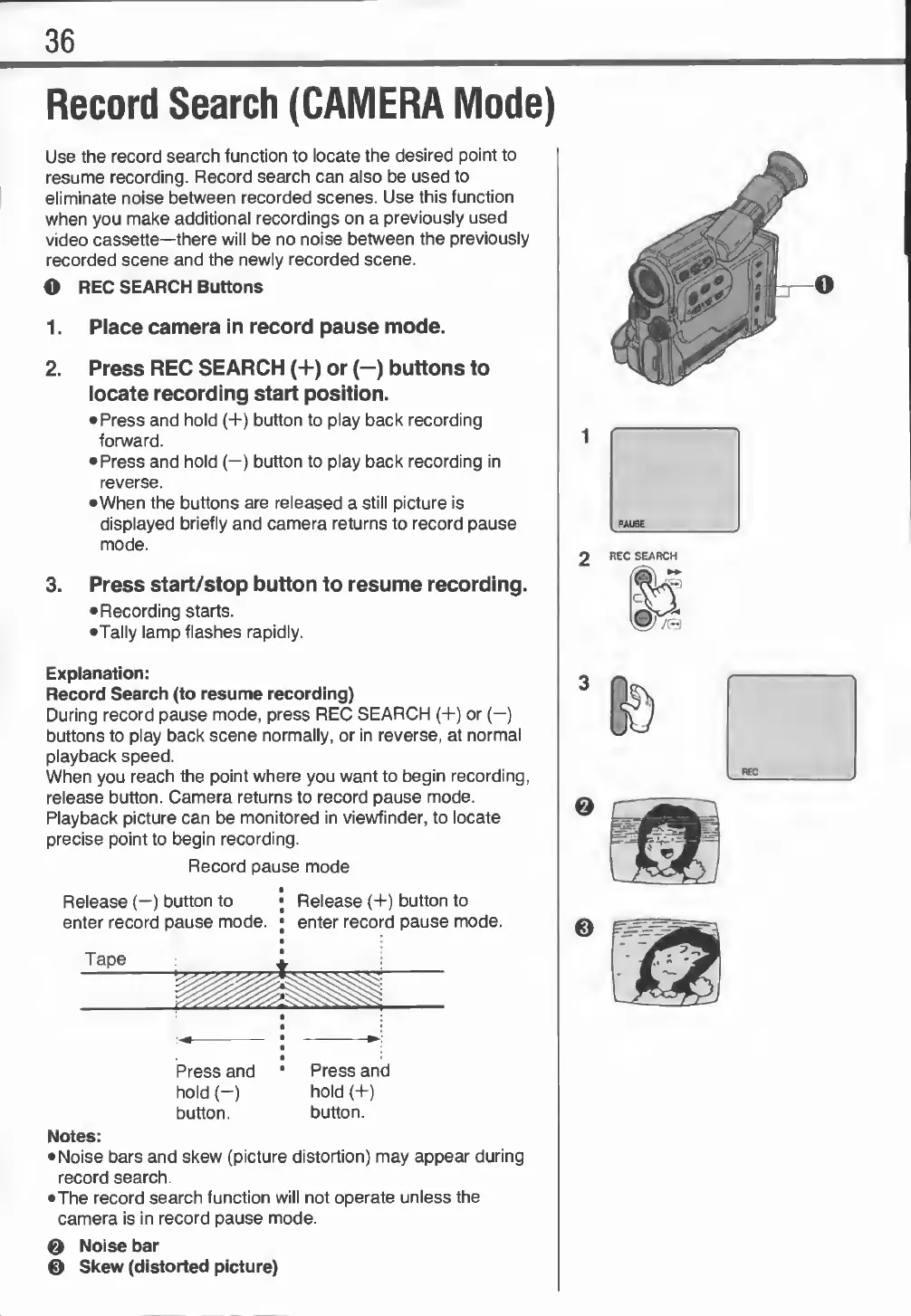
O
REC
SEARCH
Buttons
1.
Place
camera
in
record
pause
mode.
2.
Press
REC
SEARCH
(+)
or
(—)
buttons
to
locate
recording
start
position.
•
Press
and
hold
(+)
button
to
play
back
recording
forward.
•
Press
and
hold
(—)
button
to
play
back
recording
in
reverse.
•When
the
buttons
are
released
a
still
picture
is
displayed
briefly
and
camera
returns
to
record
pause
mode.
3.
Press
start/stop
button
to
resume
recording.
•
Recording
starts.
•Tally
lamp
flashes
rapidly.
Explanation:
Record
Search
(to
resume
recording)
During
record
pause
mode,
press
REC
SEARCH
(+)
or
(-)
buttons
to
play
back
scene
normally,
or
in
reverse,
at
normal
playback
speed.
When
you
reach
the
point
where
you
want
to
begin
recording,
release
button.
Camera
returns
to
record
pause
mode.
Playback
picture
can
be
monitored
in
viewfinder,
to
locate
precise
point
to
begin
recording.
Record
pause
mode
Release
(—)
button
to
;
Release
(+)
button
to
enter
record
pause
mode.
;
enter
record
pause
mode.
Tape
Press
and
Press
and
hold
(-)
hold
(+)
button.
button.
Notes:
•
Noise
bars
and
skew
(picture
distortion)
may
appear
during
record
search.
•The
record
search
function
will
not
operate
unless
the
camera
is
in
record
pause
mode.
©
Noise
bar
©
Skew
(distorted
picture)