Settings
Page 94
Settings
5. Look at the Wired Network button on the Network settings screen. If the button
reads Connected, your network settings changes are valid. If the button reads
Not Connected, one or more of your changes are invalid, and you will need to
modify them (or re-enable DHCP) to connect your CaptionCall phone to your
wired network.
Wireless Network Settings
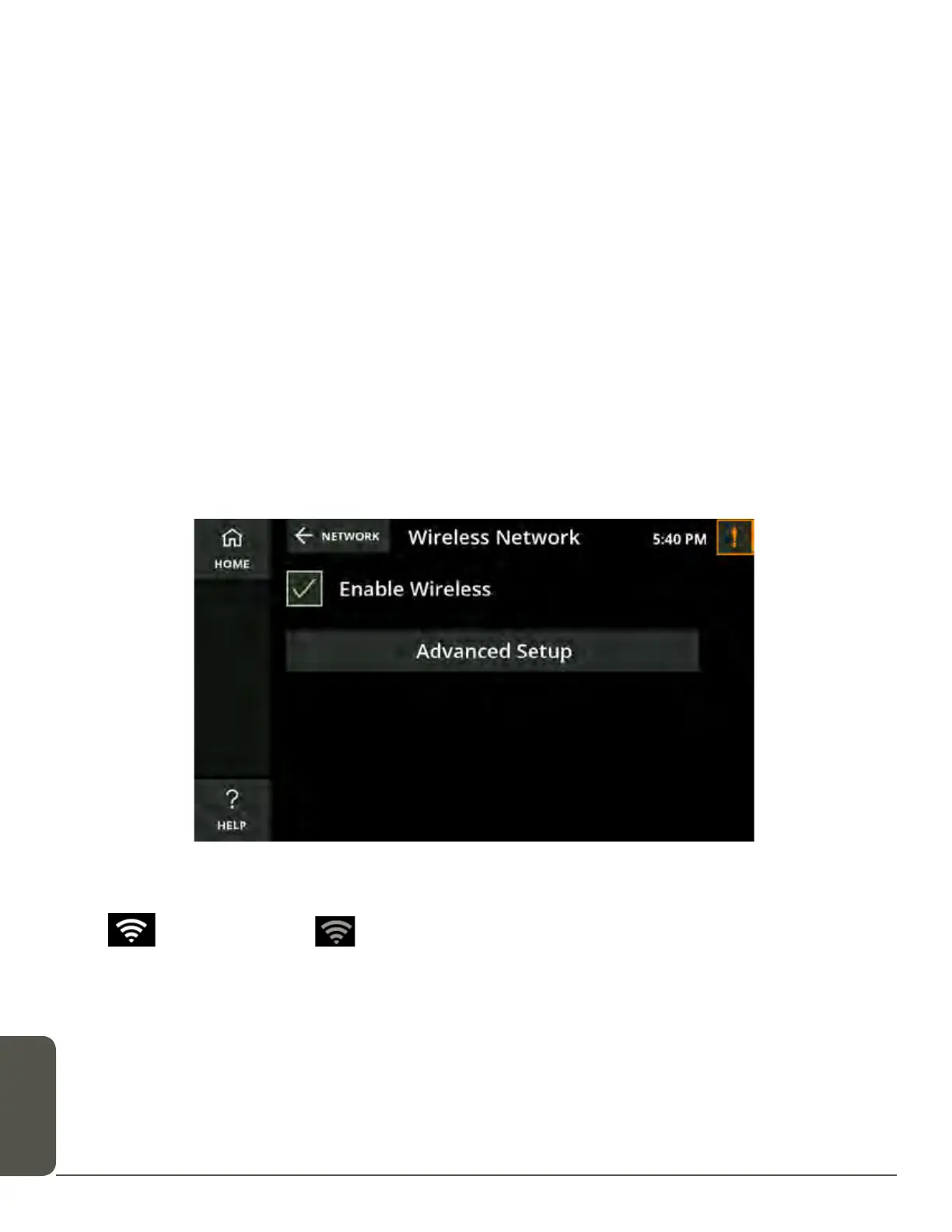
The Wireless Network settings screen lets you select a wireless network to use with
your CaptionCall phone.
Note: If your CaptionCall phone is already connected to a wireless network, the
name of the network will be displayed in green letters.
If you are connecting to a wireless network, touch Not Connected next to
Wireless Network.
1. Touch the Enable Wireless check box to enable wireless networking. A green
checkmark will display in the box.
2. A list of available wireless networks will display. If more than one wireless network
is detected, they will be listed in order, based on signal strength:
= Strong Signal = Weak Signal
A signal strength icon will also display at the top of every screen when your
CaptionCall phone is connected to a wireless network.
3
.
Select the wireless network you want to use from the list
. You will need the
correct network key (password) to connect to the network.
4
.
The Network Key screen will display
. Use the on-screen keyboard to enter the
correct password for the network.


 To Next Page