Page 36
Entry Codes
Entry Codes
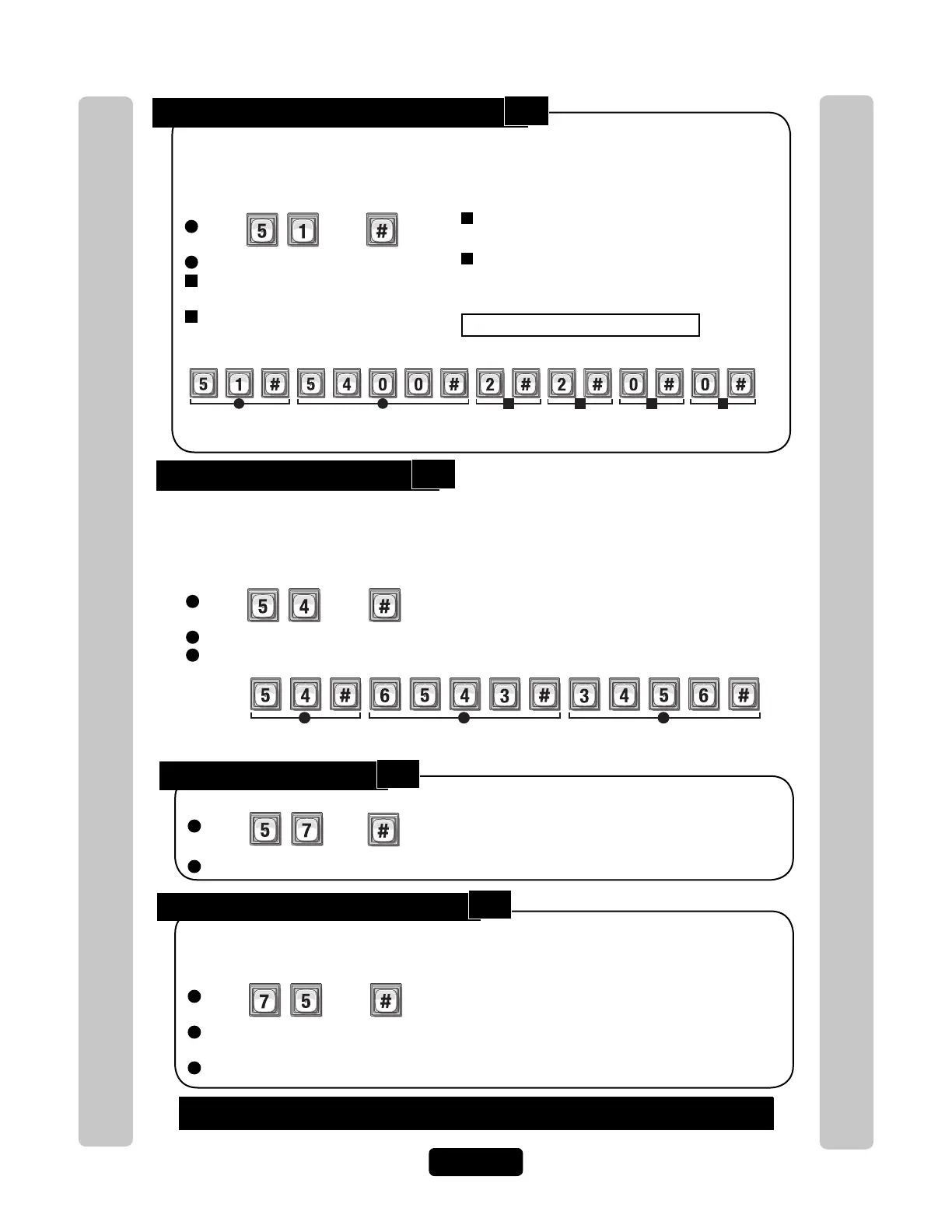
Add or Edit Full Function Entry Code:
1
Press Then
2
Enter Entry Code (3-9 digits). Then (#)
3
Schedule for Door 1 (0 to 63). Then (#)
0=Full Restrictions 1=Full Access
4
Schedule for Door 2 (0 to 63). Then (#)
0=Full Restrictions 1=Full Access
When adding a full Function Entry Code, it will default to "Active" at the current date and time
with no deactivation date. To deactivate a code, or to activate or deactivate on a specific time
and date, see Activate or Deactivate Entry Code on page 38.
Example:
Door 3Door 2Door 1
3
4 5
Door 4
6
1 2
Enables entry code "5400" to activate doors 1 & 2 on schedule #2 and restricts access to doors 3 & 4.
Factory Settings: All Doors = 1 Full Access
5
Schedule for Door 3 (0 to 63). Then (#)
0=Full Restrictions 1=Full Access
6
Schedule for Door 4 (0 to 63). Then (#)
0=Full Restrictions 1=Full Access
Change Entry Code ONLY:
1
Press Then
2
The Current Entry Code Number (3-9). Then (#)
3
The New Entry Code Number (3-9). Then (#)
Change only the Entry Code without affecting the other data associated with the code (e.g.,
schedule, door assignment, etc.). For example, you change only the code and keep the
resident’s existing schedule and door assignment because unauthorized individuals have been
using that resident’s code.
Changes entry code from "6543" to "3456".
Example:
1 2 3
Delete an Entry Code:
1
Press Then
2
Enter the Entry Code number to be deleted (3-9 digits). Then (#)
If you make an error during an entry, press the asterisk key (*) to begin again.
Change Entry Code Door Access:
1
Press Then
2
Enter the Entry Code number (3-9 digits). Then (#)
3
Enter 0 for access at any door. Enter 1,2,3 or 4 for specific door access.
Change which doors or single door an entry code activates. By default new entry codes can
open any door, use this step to have the code open a specific door.
51
54
57
75


 To Next Page