Page 52
Time Zones, Holidays and Clock
Time Zones, Holidays and Clock
Deleting ALL Time Zones
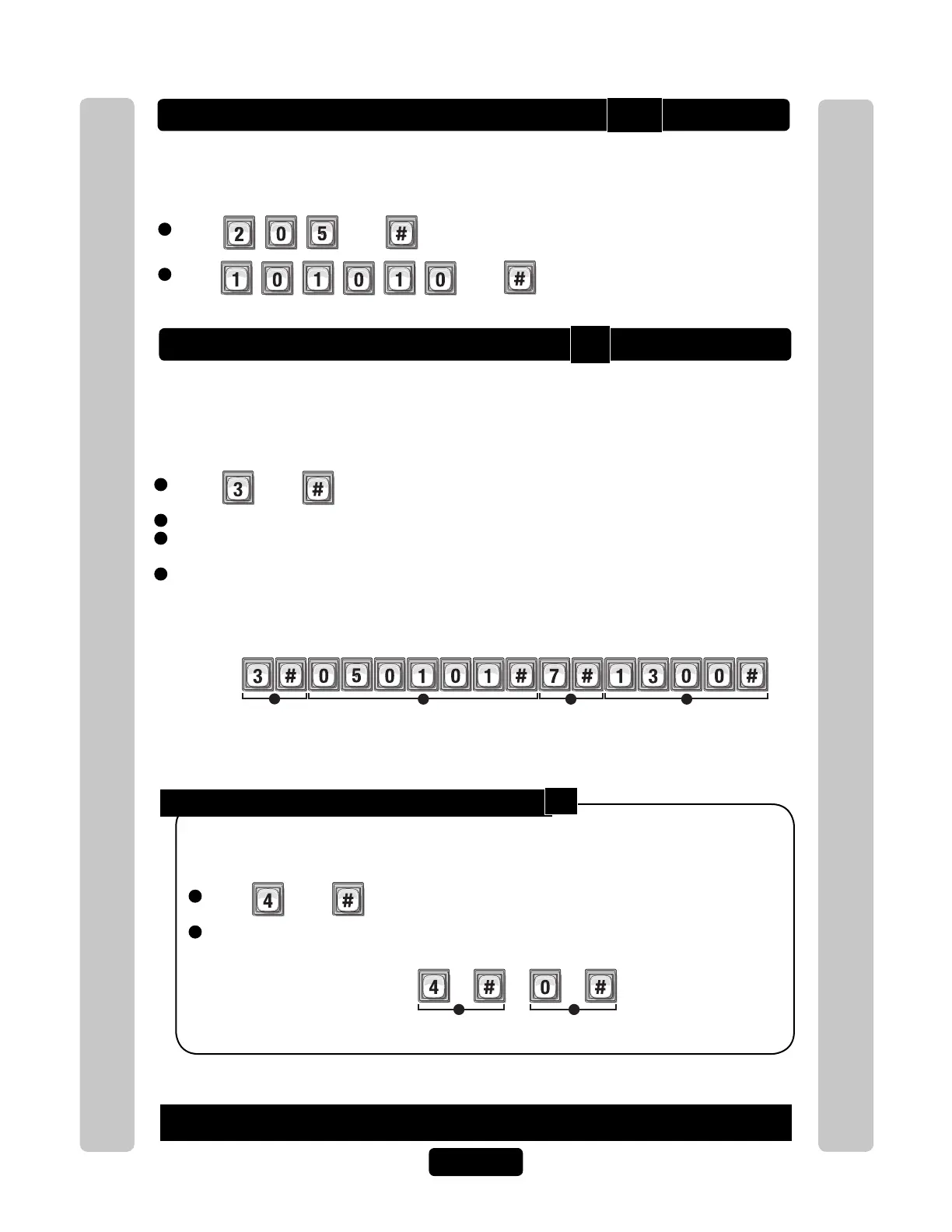
Enable or Disable Daylight Saving Time:
1
Press Then
2
Enable (1) or Disable (0). Then (#)
1
Press Then
2
Enter Then
This will delete ALL time zones from unit.
Important: Once you delete the time zones, you cannot retrieve them unless they are saved in
Versa XS.
1
Press Then
2
Enter Date (yymmdd). Then (#)
3
Enter Day of Week. Then (#)
1=Sunday, 2=Monday, 3=Tuesday, 4=Wednesday, 5=Thursday, 6=Friday, 7=Saturday
4
Time of Day (hhmm). Then (#)
All time must be entered using a 24-hour format (8AM=0800, 3PM=1500 etc.)
Setting the Clock
An accurate clock is critical to the proper use of schedules, time zones and for
accurately reporting transactions. The system will adjust itself to daylight saving time
if enabled.
24-Hour Time
Year Month Day
2
3 4
Sets the clock to 1PM, Saturday, January 1st, 2005.
Example:
1
When enabled, the system will automatically adjust the clock for daylight saving time.
Factory Setting: Enabled
Example:
1 2
Disables Daylight Saving Time.
If you make an error during an entry, press the asterisk key (*) to begin again.
205
3
4


 To Next Page