Complete Station Setup
31
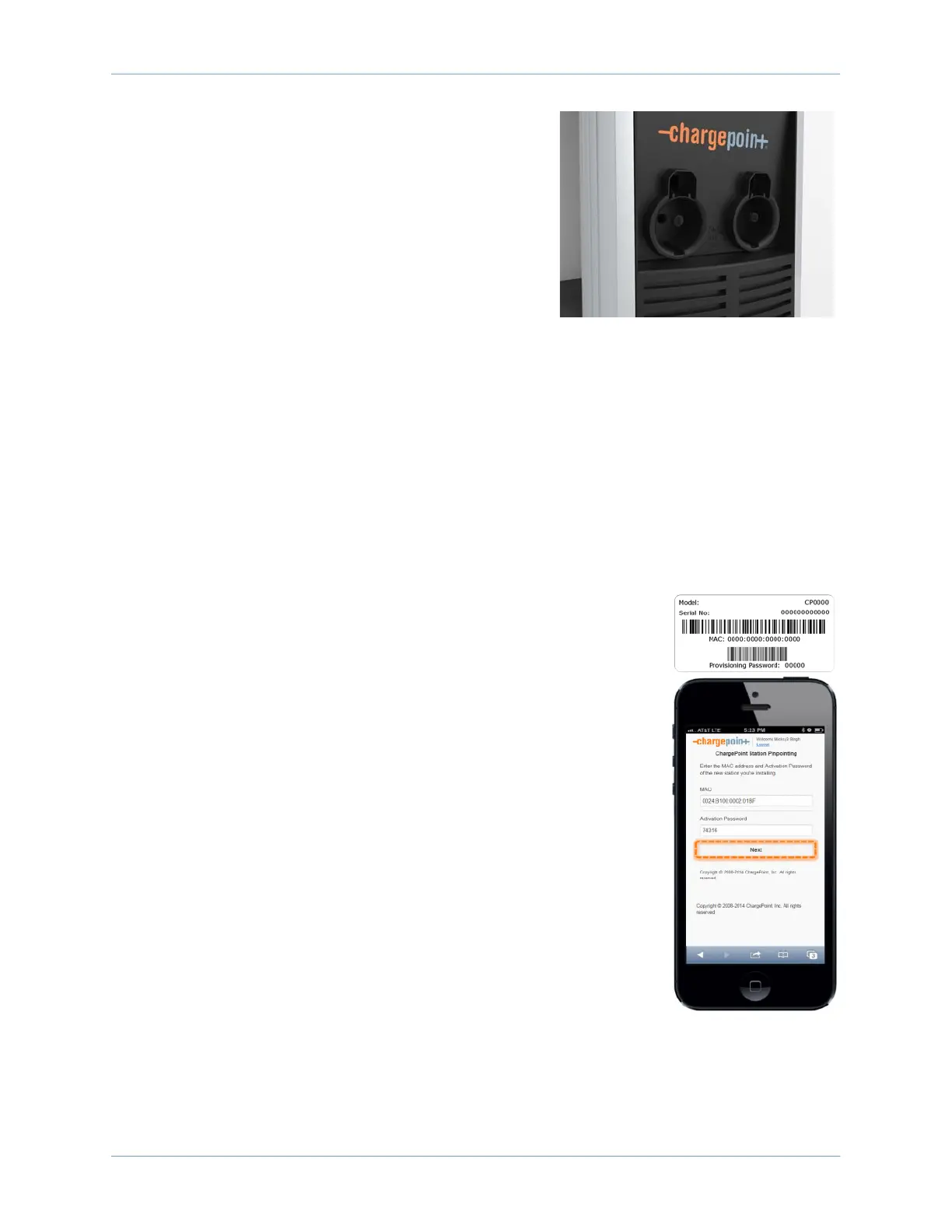
4. Cover the screws using the two rubber plugs.
5. Insert the charging cables into their corresponding
holsters.
Pinpoint the Station
Follow these instructions if your smartphone has a scanning app:
1. Open the QR Code scanning app.
2. Point the camera at the code on the screen. The app automatically reads the MAC address of
the charging station.
3. Follow the online instructions.
Follow these instructions if your smartphone does not have a scanning app:
1. Using your smartphone, navigate to https://m.chargepoint.com.
2. Log into the ChargePoint mobile site from your smartphone with your installer login.
3. Enter the MAC address and activation password printed on the
activation label, and touch Next.
4. Confirm that you are installing a new charging station.
5. When prompted, touch OK to share your GPS location data with the
ChargePoint mobile site.
6. When prompted, touch OK to review the station’s location on Google
Maps.
7. Review the station address and zoom in to review the initial position of
the station’s pin on the map.
8. Using your finger, move the pin to the correct parking spot location.
9. If needed, manually adjust the address of the CT4000 location.
10. Take a picture of the station using your smartphone.
11. Scroll down to “Upload a Station Picture” and choose the station
picture.
12. Add any helpful information for drivers.
13. Touch Submit to pinpoint the CT4000 on the ChargePoint map. The mobile page displays a 3-
digit PIN code.
14. Press Continue on the station.



 To Next Page