Chapter 4: Using the web interface
98-129217-D Administration 106
2. To clear the Call log, click OK next to Clear call log?.
3. To clear the total counters, click OK next to Clear total counters?.
This will reset the Time connected counters on the Calls page.
Data limits
You can set a limit for the use of data services with the SAILOR FleetBroadband system.
Once the entered limit is reached, the connection is automatically stopped. This is recorded in
the menu CALL containing a call log in which you can see information on data sessions. To
continue using the data service you must start a new connection by clicking on the desired
connection on the Dashboard.
To set data limits, do as follows:
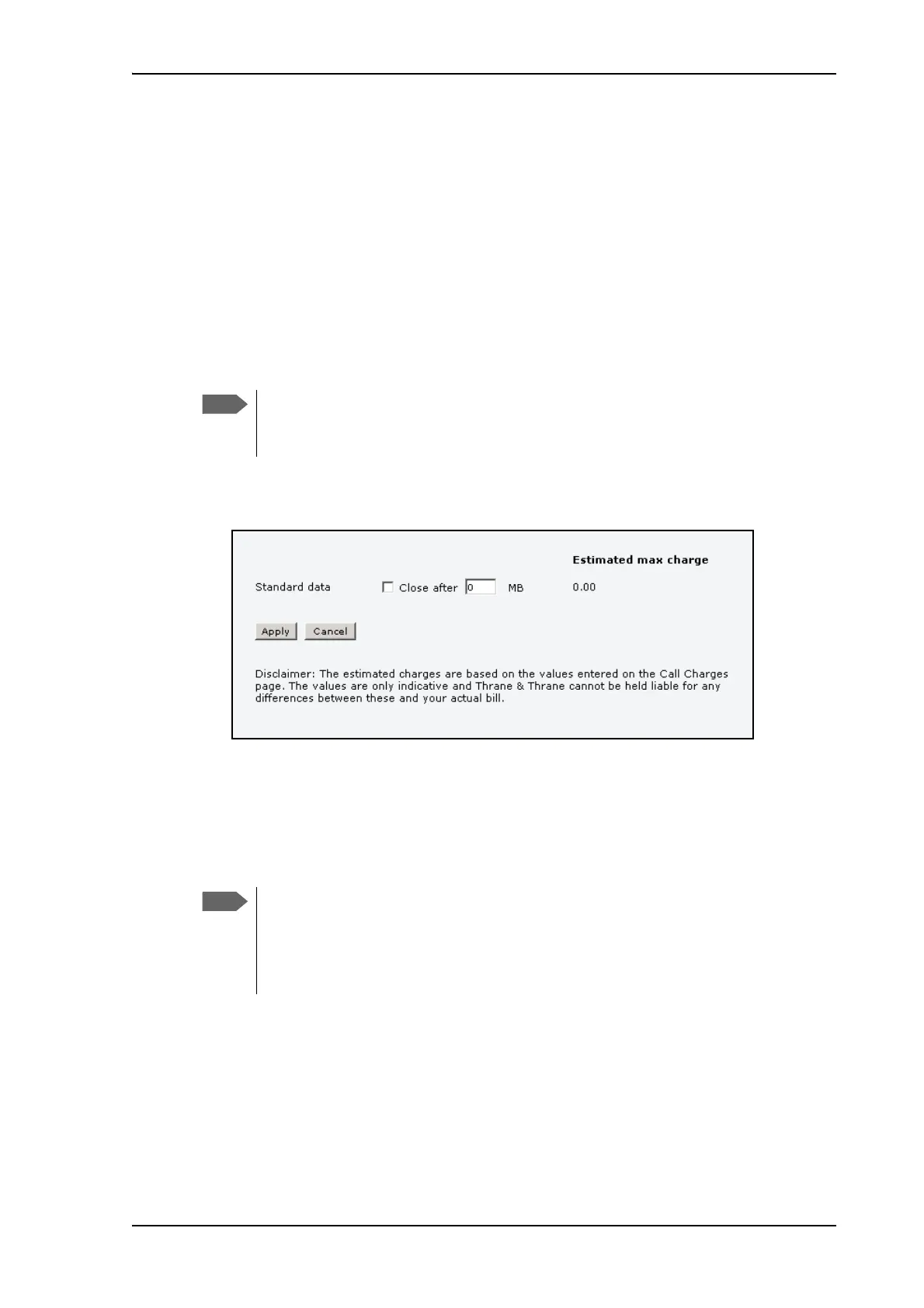
4. From the left navigation pane in the ADMINISTRATION page, select Data limits.
5. Select Close after to close automatically after a fixed amount of data.
Then type in the number of mega bytes (MB) allowed.
6. Click Apply to save the settings.
If you have entered the call charges in the menu Call charges, the system automatically
calculates and displays the maximum charges for your data sessions.
If you set a data limit for the Standard data connection,
automatic activation of the Standard data connections is
disabled.
Cobham SATCOM does not take responsibility for the
correctness of the estimated charges. This calculation is
only an estimate of the charge, based on the tariff entered
by the user. The airtime provider may have different
methods of calculating the charge.



 To Next Page