Chapter 4: Using the web interface
98-129217-D Setting up the interfaces 90
•For Incoming calls, you can select Standard or 3.1 kHz Audio or both.
If you select both, the handset will react (ring) on any incoming call.
If, for example, you select Standard, the handset will only react on calls made to the
Standard phone number.
•For Outgoing calls, you can select either Standard or 3.1 kHz Audio. The selected type
will be used by default, if possible, for any outgoing call.
4. Click Apply.
Setting up the Thrane IP Handset compatibility
If you are connecting your Thrane IP Handset(s) to the terminal through a separate router with
NAT, you must use Thrane IP Handsets with software version 1.8 or newer and set up the
handset compatibility in the web interface of the terminal as described below.
To see the software version of your Thrane IP Handset, select MENU > Status > Software
version in the Thrane IP Handset.
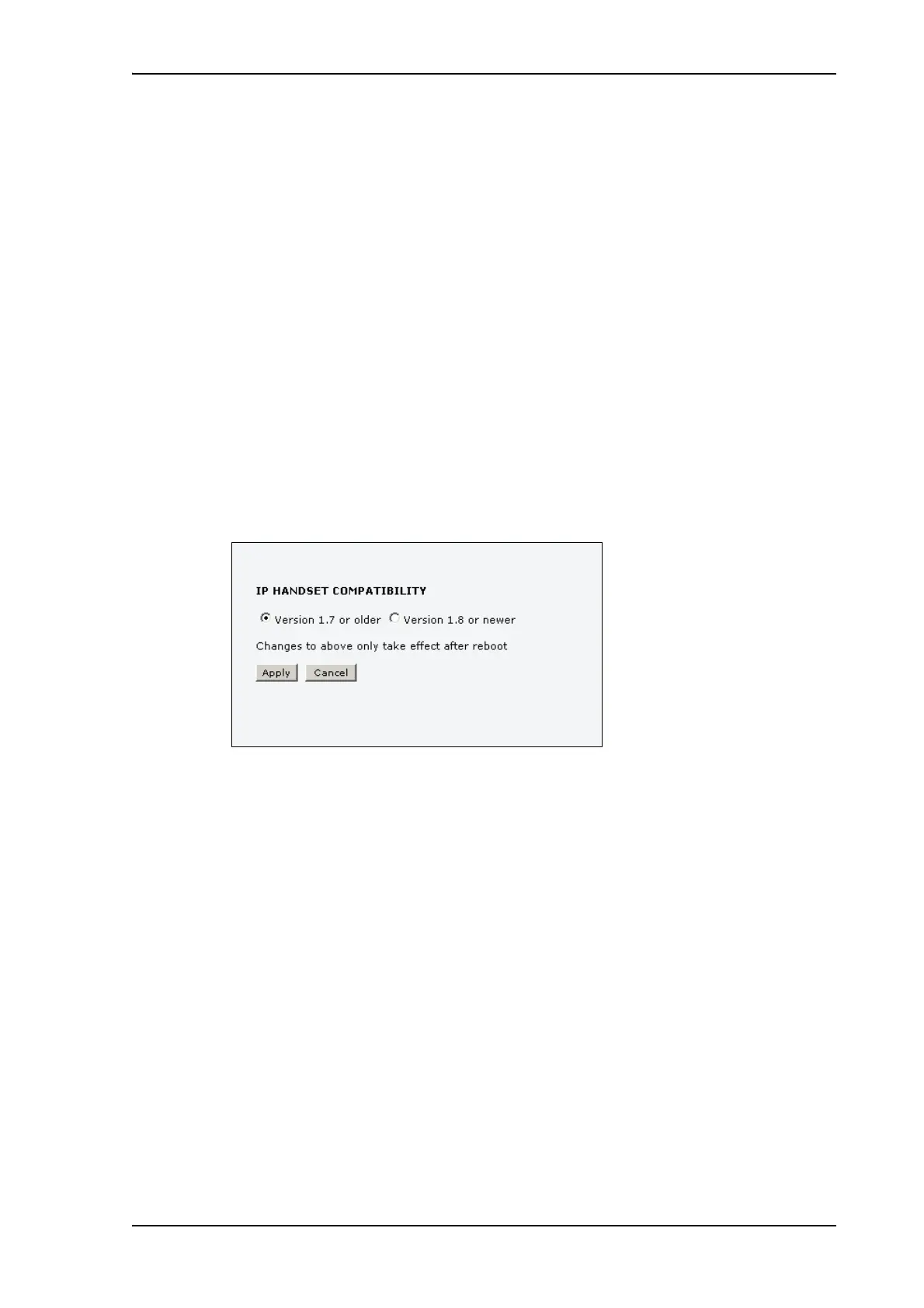
To change the Thrane IP Handset compatibility, do as follows:
1. Select Settings > IP handsets > Server settings.
2. Select the Thrane IP Handset compatibility as follows:
• If you are connecting your Thrane IP Handset(s) through a separate router with NAT,
select Version 1.8 or newer and use Thrane IP Handsets with software version 1.8 or
newer.
• If you are connecting your Thrane IP Handset(s) directly to the terminal or through a
switch without NAT, select Version 1.7 or older. In this case you can use Thrane IP
Handsets with any software version.



 To Next Page