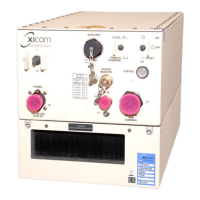
Low Power Outdoor (LPOD) Amplifier/Block Up Converter (BUC)
Revision 15
Firmware Update 3–8 MN-LPOD
3.2.4.2 Use Windows Explorer to Make a Folder
Do these steps:
1. Left-double-click the Windows Explorer icon on the Windows Desktop.
2. Depending in your Windows operating system (OS) version: select File > New > Folder,
or click your Folder Destination (e.g., Windows (C:) and then New Folder to make the
new, temporary folder in the active location.
3. Right-click the New Folder folder name, and then Rename this folder to “temp” or some
other convenient, unused name.
3.2.4.3 Use the Run and Browse Windows to Make a Folder
Select Start on the Windows taskbar and then do these steps:
1. Click Run… to open the Run window.
2. Click Browse… to open the Browse window.
3. Click New Folder. This can be an icon or a text label, depending on the Windows OS
version.
4. Right-click the New Folder folder name, and then Rename this folder to “temp” or some
other convenient, unused name.


 To Next Page