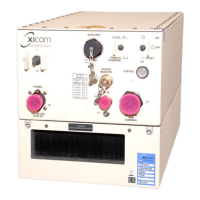
Low Power Outdoor (LPOD) Amplifier/Block Up Converter (BUC)
Revision 15
Firmware Update 3–13 MN-LPOD
3.4.3 “CReflash” Utility Upload (Optional)
The “CReflash” utility is available on request from CEFD Product Support.
To upload the “CReflash” firmware files, do these steps:
1. Obtain the CReflash utility (CReflash.exe) from CEFD. Place the application into the
temporary folder that you created for the firmware update process (or some other easy-
to-remember location, e.g., the Windows Desktop).
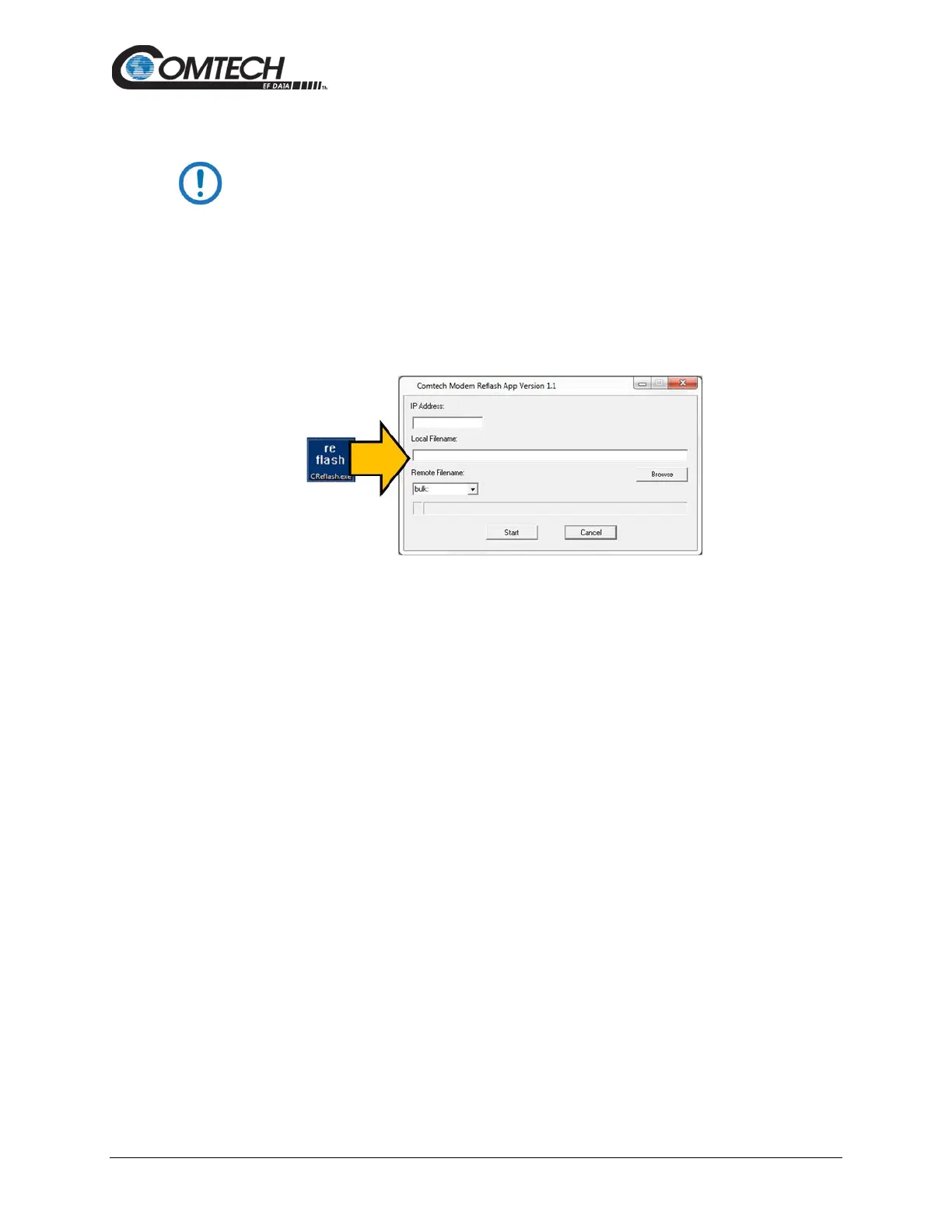
2. From the temporary folder – Locate, and then double-click, the “CReflash.exe” filename
or icon. The CReflash utility opens:
3. Enter your upload parameters information into CReflash:
a. Left-click in the “IP Address:” text box, and enter the default Management IP
Address (e.g., 192.168.1.4).
b. Left-click in the “Local Filename:” text box. Then, click [Browse] and navigate to
the temporary folder created earlier. Click on the firmware “BIN” filename, and
then click [Open]. The filename will appear in the “Local Filename:” text box.
c. Make sure the drop-down list remains set to “bulk:”.
d. Click [Start] to begin the upload process. If the information was correctly entered
into CReflash, the utility displays an animated progress bar at the bottom of the
window, along with a series of messages:
• “Opening FTP”
• “Sending data file to modem:”
• “Writing FLASH: # of #”
• “Success!”
4. When done, click [Cancel] to exit CReflash.


 To Next Page