⚫ Step 2 Select the Enable check box to enable ANPR.
Step 3 Click Regular (default), Blacklist or Whitelist tab to configure it.
⚫ Before activate blacklist alarm or whitelist alarm, you need to add the corresponding plate information.
Refer to "4.7.3.2 B/W List" for detailed information.
⚫ Regular: Device triggers an alarm when it detects any plate number.
⚫ Blacklist: Device triggers an alarm when it detects plate number in the blacklist.
⚫ Whitelist: Device triggers an alarm when it detects plate number in the whitelist. Step 4 Set parameters.
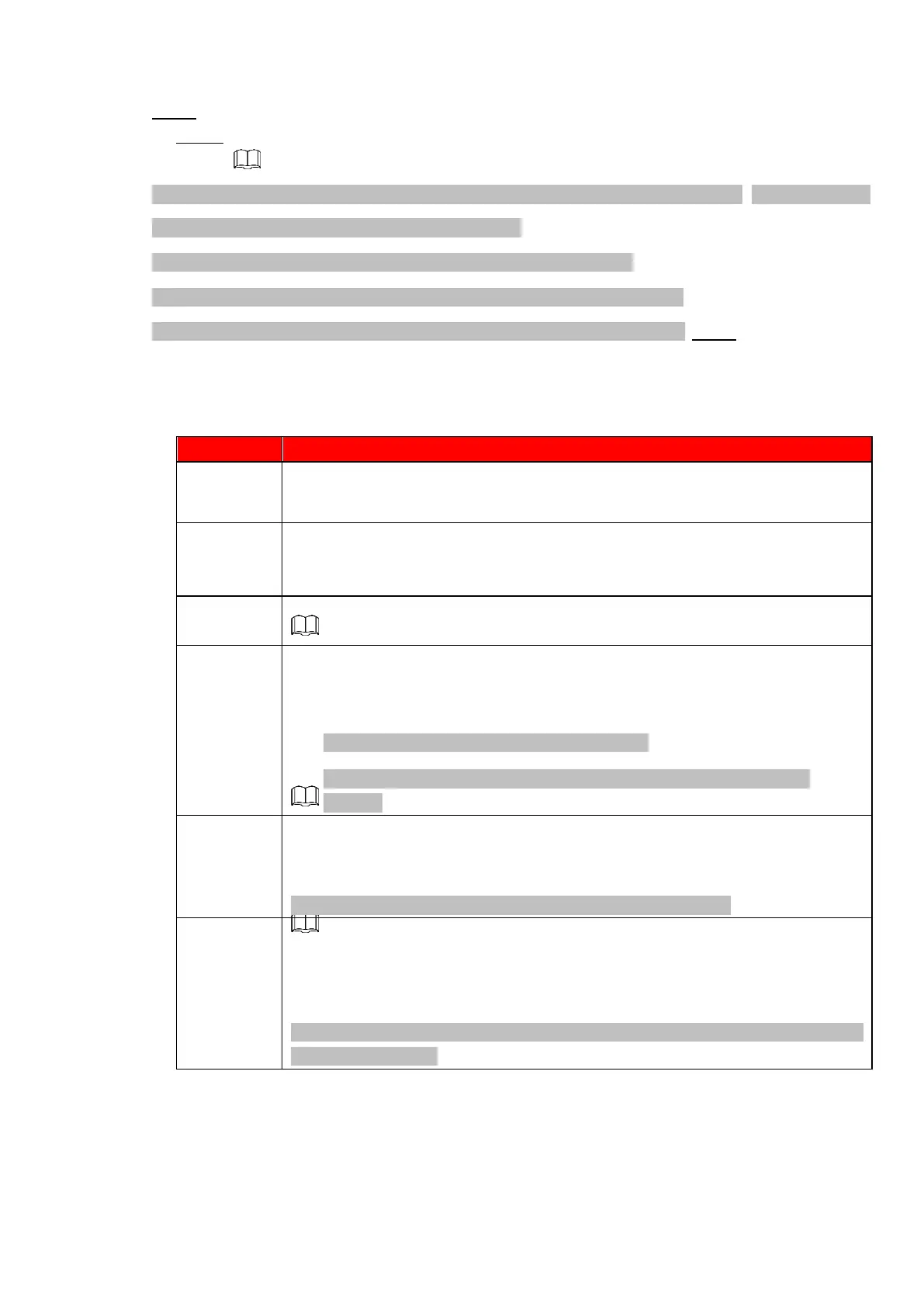
See Table 1-42.
⚫ Table 1-42
Configure the period and in the set time range, the corresponding configuration
item will be linked to start the alarm.
The alarm device (such as lights, sirens, etc.) is connected to the alarm output
port. When an alarm occurs, the NVR device transmits the alarm information to
the alarm device.
When the alarm ends, the alarm extended for a period of time. The time range is
from 0 seconds to 300 seconds.
Select the check box. When an alarm occurs, the NVR device uploads an alarm
signal to the network (including the alarm center).
⚫ This function is for some series products only.
⚫ You need to set the alarm center first. For details, see "1.12.9 Alarm
Centre."
Select the check box. When an alarm occurs, the NVR device sends an email to
the set mailbox to notify the user.
You need to set the email first. For details, see "1.12.6 Email."
Select the check box and select the needed recording channel (support multiple
choices). When an alarm occurs, the NVR device activates the channel for
recording.
Yo u need to enable intelligent recording and auto recording first. For details, see
"1.1.4.6 Schedule."



 To Next Page