71D-Link G530 User Manual
Section 3 - Conguration
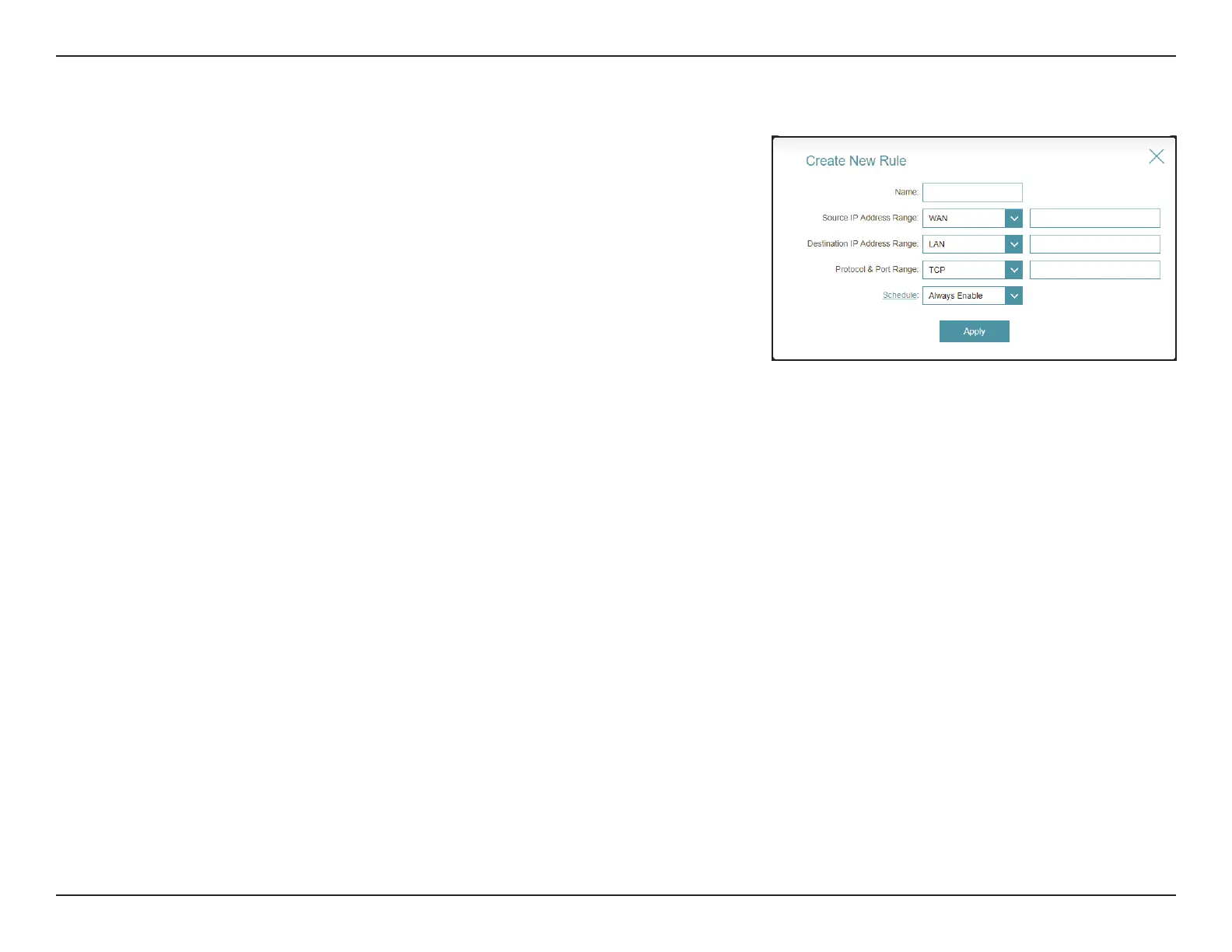
Edit or Add Rule, the following options will appear:
Name: Enter a name for the rule.
Source IP Address
Range:
Enter the source IP address range (e.g. 1.1.1.1-1.1.1.2 for IPv4 or
2001::1-2001::2 for IPv6) that the rule will apply to, and using
the drop-down menu to specify whether it is a WAN or LAN IP
address. Both a single IP address and a range of IP addresses
can be entered.
Destination IP Address
Range:
Enter the destination IP address range (e.g. 1.1.1.1-1.1.1.2 for
IPv4 or 2001::1-2001::2 for IPv6) that the rule will apply to, and
using the drop-down menu to specify whether it is a WAN
or LAN IP address. Both a single IP address and a range of IP
addresses can be entered.
Protocol & Port Range: Select a trac protocol to allow or deny (Any, TCP, or UDP)
and then enter the range of ports (e.g. 21-23) that the rule will
apply to. Select Any to allow/deny all types of trac regardless
of the port number.
Schedule: Use the drop-down menu to select a time schedule that
the rule will be enabled on. The schedule may be set to
Always Enable, or you can create your own schedules in the
Schedules section. Refer to Time & Schedule - Schedule on
page 82 for more information.
Click Apply when you are done.
A maximum of 24 rules can be dened.


 To Next Page