88D-Link G530 User Manual
Section 3 - Conguration
Upgrade
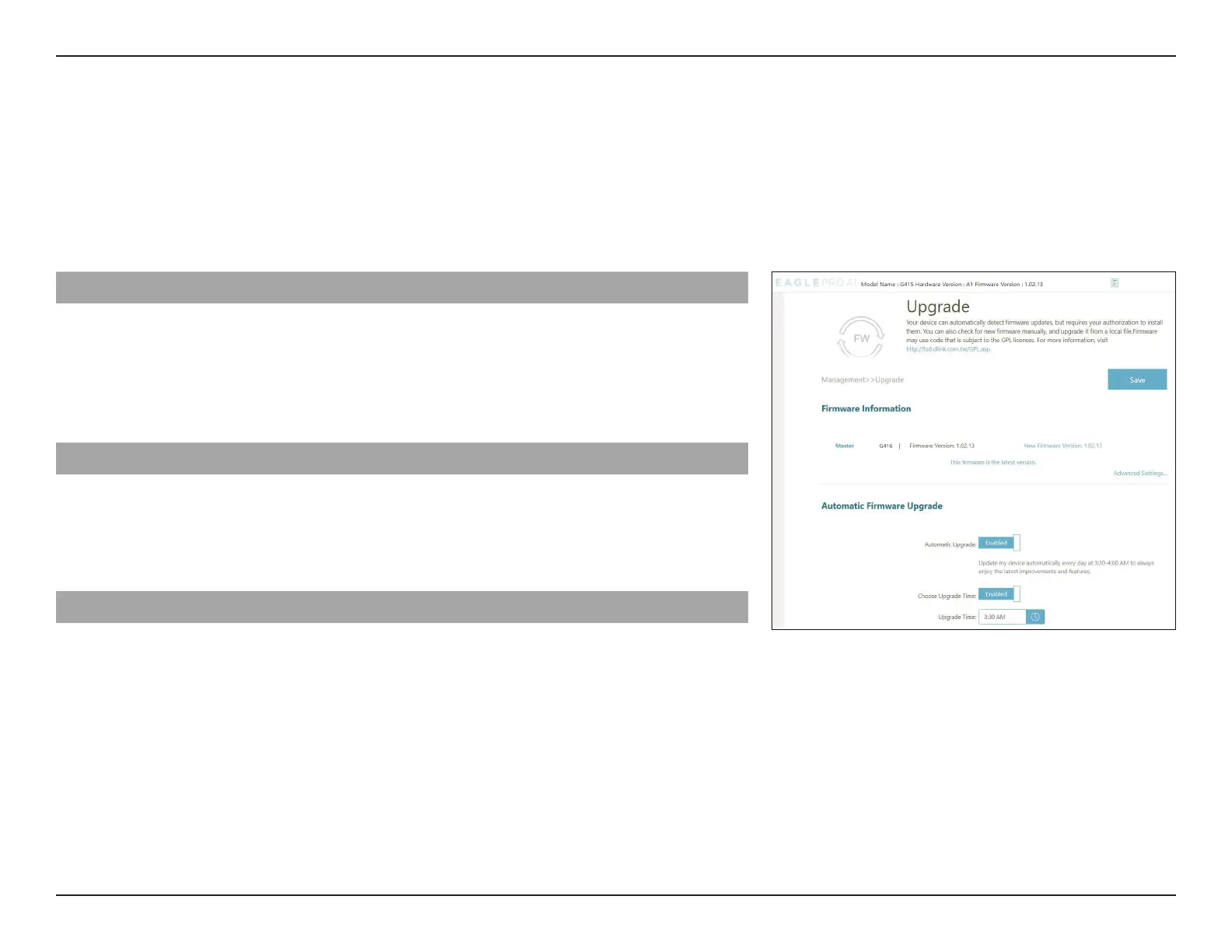
Go to Management > Upgrade. This page allows you to upgrade the router’s rmware, either automatically or manually. To
manually upgrade the rmware, you must rst download the rmware le from http://support.dlink.com.
Click Save at any time to save the changes you have made on this page.
Firmware Information
Current Firmware
Version:
Displays the current rmware version for both the main router
as well as the extenders.
Check for New
Firmware:
Click this button to prompt the router to automatically check
for a new rmware version. If a newer version is found, it will
prompt you to install it.
Advanced Settings...Upgrade Manually
Device Name: Select the device in the mesh network for manual update.
Select File: If you wish to upgrade manually, rst download the rmware
le. Then, click the Select File button and locate the le to
install the new rmware.
Automatic Firmware Upgrade
Automatic Upgrade: If enabled, the router will automatically upgrade to the newest
rmware. The system will automatically upgrade to the latest
rmware every day at 3:30-4:00 AM.
Choose Upgrade
Time:
Enable this function to set the router to automatically upgrade
its rmware at a set time every day.
Upgrade Time: Congurable if Choose Upgrade Time is enabled. Set the hour
and minute to automatically upgrade the router.


 To Next Page