ENGLISH
44
4. If correctly connected, the LAN Green Led and the DAB Service Centre Connection led
will light up.
5. Download the Dconnect DAB App from Google PlayStore or App Store with your smartphone or tablet.
6. Follow the instructions provided in the Dconnect DAB App.
6.2 Connection via WLAN (Wi-Fi)
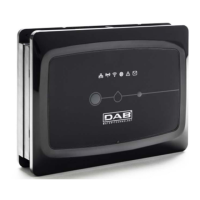
1. Connect the DConnect Box to the power socket with the feeder supplied.
During starting, the Service Centre Connection led blinks.
2. The DConnect Box is ready for use about 90 seconds after starting and the.
WiFi status led blinks. At the first start, the DConnect Box automatically sets a Wi-Fi network called
“DConnectbox-xxxxx”. ”.
3. Download the DConnect DAB App from Google PlayStore or App Store.
4. Follow the instructions provided in the DConnect DAB App.
Note
: The local Wi-Fi network “dconnectbox-xxxxx” generated during configuration by the DConnect
Box does not have an Internet connection. Your device may therefore be disconnected by accident. If this
happens, we advise deactivating the respective option on your device (smartphone / tablet).
6.3 Advice for Ideal Installation:
If you want to establish a Wi-Fi connection between the DConnect Box and the Access Point/Antenna,
position the DConnect Box in such a way that it can receive an excellent Wi-Fi signal near its
installation; otherwise you can install Wireless repeaters to strengthen the signal arriving from the
Access Point/Antenna, positioning them ideally in the centre between the DConnect Box and the
nearest Access Point/Antenna.
Be sure to respect a sufficient distance from potential sources of interference such as microwaves or
electrical devices with large metal structures.


 To Next Page