ENGLISH
63
11.8 Example of DConnect Box Connection with e.sybox
(Sw versions 5.X)
Initial Requirements:
Make sure that the product has a software version (Sw) 5.X or higher (see page VE of the pump
menu); if it is lower, e.g. “4.X”, a manual update is necessary, see section "Example e.sybox Update
(Sw 4.X or previous versions)" of this manual.
DConnect Box already updated and powered, see section Updating the DConnect BOX of this
manual.
Manual of the product to be connected.
If you want to connect multiple e.sybox pumps to the DConnect Box, be sure to first create the group
among the pumps (see pump manual) and then associate any of them to the DConnect Box as
explained below.
The connection between the e.sybox and the DConnect Box does not require any cable. Proceed
in the same way as when associating two e.sybox units.
1. Make sure that the e.sybox and the DConnect BOX are powered.
2. Access the Installer menu, for 5 sec, and scroll to the page. AS
3. Press the button for 5 seconds until the blue LED under the e.sybox display starts
flashing.
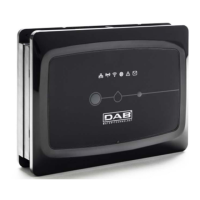
4. Press the left button of the DConnect Box for 5 sec until you hear a beep and the wireless
connection icon starts flashing.
5. As soon as the connection is established, the same LED will remain on and the "DBox"
symbol will appear on the "AS" page of the e.sybox.
Note: DConnect Box and e.sybox are dissociated by holding down the right button of the
DConnect Box for 5 seconds, a beep sounds and the wireless connection icon
flashes once. This will delete all wireless connections in the DConnect BOX.
6. Start the DConnect DAB APP and proceed to configure the product.


 To Next Page