ENGLISH
56
11.3 Example of DConnect Box connection with EBOX
Before starting work, disconnect the power from the supply line and use only the recommended
cables and accessories.
Initial Requirements:
Special USB cable available as product accessory.
Make sure that the product is set up for DConnect and that the appropriate symbol appears on the
box.
You have installed the DConnect APP on your smartphone/tablet and have registered with the service
centre.
Manual of the product to be connected.
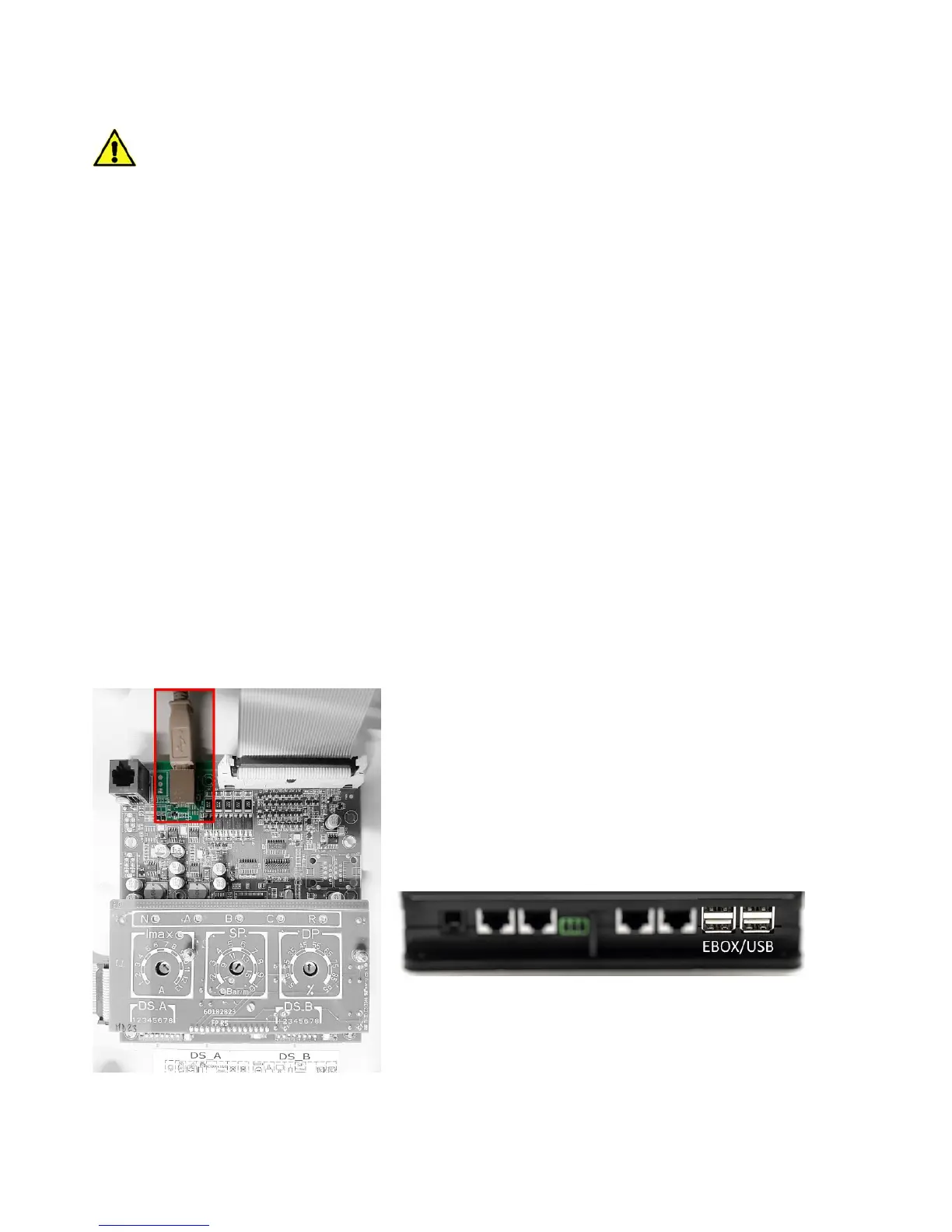
The connection between the EBOX and the DConnect Box requires the use of the special USB cable
available as an accessory.
1. Insert one end in the appropriate connector inside the front panel of the EBox.
2. Fix the appropriate cable gland to the body of the EBox.
3. Insert the remaining connector in one of the 4 USB ports available on the rear of the
DConnect Box.
4. Power the products.
5.
Start the DAB DConnect APP and configure the product.
.
Figure 6 - USB connector in the EBox panel and in the DConnect
Box


 To Next Page