EasyManua.ls Logo

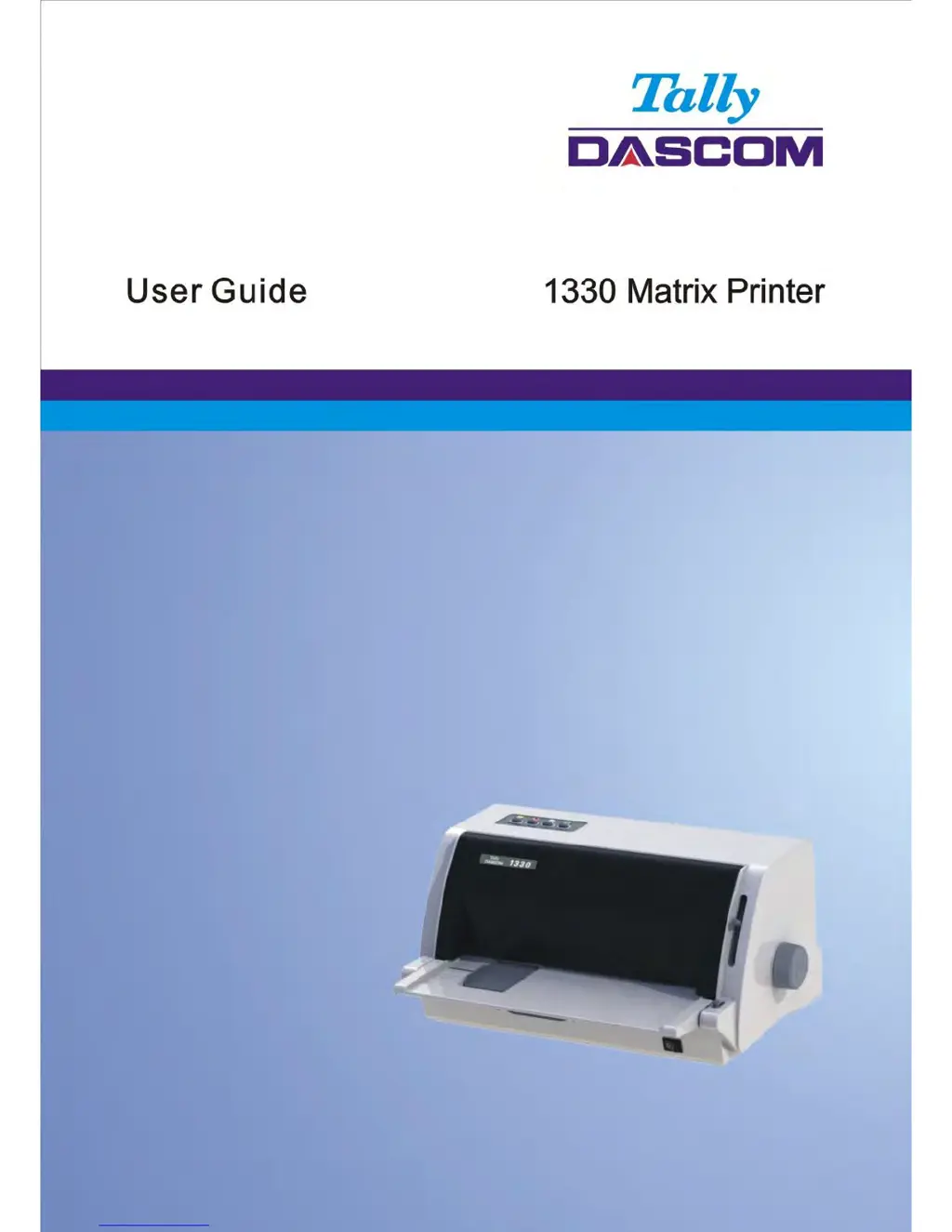
Dascom 1330 - User Manual

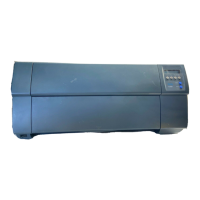
Dascom 1330
135 pages
Print Icon
To Next Page IconTo Next Page
Loading...

Table of Contents

Questions and Answers

  • J
    jose54Sep 2, 2025
    Why does my Dascom Printer print vertically misaligned (jagged)?
    • S
      Steven MilesSep 2, 2025
      If your Dascom printer's output is vertically misaligned, use the printer's vertical alignment function to check the print alignment. Adjust the print alignment if necessary.
  • R
    Richard PerkinsAug 31, 2025
    What to do if Dascom 1330 Printer paper cannot be loaded or fed?
    • S
      Shelby HahnAug 31, 2025
      If your Dascom printer is unable to load or feed paper: * Verify that the paper select lever on the top right of the printer is correctly set. Move it to the front for single sheets or to the rear for continuous forms. * Ensure that the paper sufficiently covers the paper-out sensor.
  • S
    Stephen MillerAug 29, 2025
    How to fix light or dark printing on Dascom 1330 Printer?
    • N
      nmillerAug 29, 2025
      To correct light or dark printing issues on your Dascom printer: * Ensure the ribbon cartridge is properly installed and the ribbon feeds smoothly. * Replace the ribbon if it is worn. * Adjust the print gap lever to match the thickness of your paper.
  • R
    Russell JarvisAug 27, 2025
    What to do if I have smears and stains appear on the page from my Dascom 1330?
    • R
      Ryan HernandezAug 27, 2025
      If your Dascom printer is producing pages with smears and stains: * Ensure the print gap lever is set correctly for the paper thickness. * Inspect the ribbon for wear and replace it if needed. * Check the print head for dirt; clean it gently with a soft cloth if necessary. * The print head may need replacement if the issue persists.
  • D
    Denise GarciaAug 26, 2025
    Why does my Dascom 1330 paper jam while loading?
    • B
      Brandon CookAug 26, 2025
      If your Dascom printer jams while loading paper, take these steps: * Turn off the printer and gently remove the jammed paper, clearing any obstructions in the paper path. * Make sure that the Print Gap lever is set appropriately for the thickness of the paper you are using. * Ensure that the paper is free from folds, creases, or tears. * If using continuous forms, check that the left and right tractors are adjusted to keep the forms stretched taut.
  • J
    jenniferrichardsAug 25, 2025
    Why does my Dascom 1330 Printer paper jam while printing?
    • M
      Mr. Joseph WestAug 25, 2025
      If your Dascom printer is experiencing paper jams during printing: * Turn off the printer and carefully remove the jammed paper, clearing any obstructions from the paper path. * Ensure that the Print Gap lever is correctly set for the thickness of your paper. * If using continuous forms, verify that the incoming and outgoing paper stacks are correctly aligned to ensure straight paper feed.
  • S
    Sara LoganAug 22, 2025
    What to do if my Dascom Printer is on but it will not print?
    • S
      scottdebraAug 22, 2025
      If your Dascom printer is on but not printing, ensure the following: * The Online indicator is lit. * The interface cable is securely connected to both the printer and the computer. * Paper is loaded. * The printer driver selected in your software matches the emulation selected on the printer. You can also run the printer Status Page to check if the problem is caused by the interface, the computer, incorrect printer settings, or incorrect software settings.

Summary

Important Safety Instructions

2 Setting Up Printer

2.1 Install Ribbon

Detailed steps for correctly installing the printer ribbon cartridge.

2.3 Connecting the Interface Cable

Instructions on how to connect the printer to a computer using various interface cables.

2.4 Connecting the Mains Power

Guide for safely connecting the printer to the power outlet, ensuring correct voltage.

2.5 Installing the Windows Driver

Steps to install the necessary printer driver software on a Windows operating system.

3 Paper Installation

3.1 Adjusting Print Gap

How to adjust the print gap lever to ensure optimal print quality for different paper thicknesses.

4 Control Panel Operation

5 Printer Setting Changes

5.1 System Setup

Configuration options for system-wide settings like language, emulation, and print direction.

5.2 Paper Setup

Settings related to page length, margins, and paper loading for various paper types.

5.3 Interface Setup

Configuration options for printer interfaces, including Plug and Play and USB ID settings.

5.4 Character Setup

Settings for character sets, fonts, pitch, and code pages to control text appearance.

10 Interface

Dascom 1330 Specifications

General IconGeneral
Print TechnologyDot Matrix
Print SpeedUp to 300 characters per second
Resolution240 x 144 dpi
Paper HandlingCut Sheets
ConnectivityParallel, USB
Print Resolution240 x 144 dots per inch (dpi)
Power Supply50-60Hz
Paper Width76.2 to 254 mm

Related product manuals