Maintenance M7/M7L/M7LT Modular Satellite Modem
3-34 M7/M7L/M7LT - Rev. 0.05
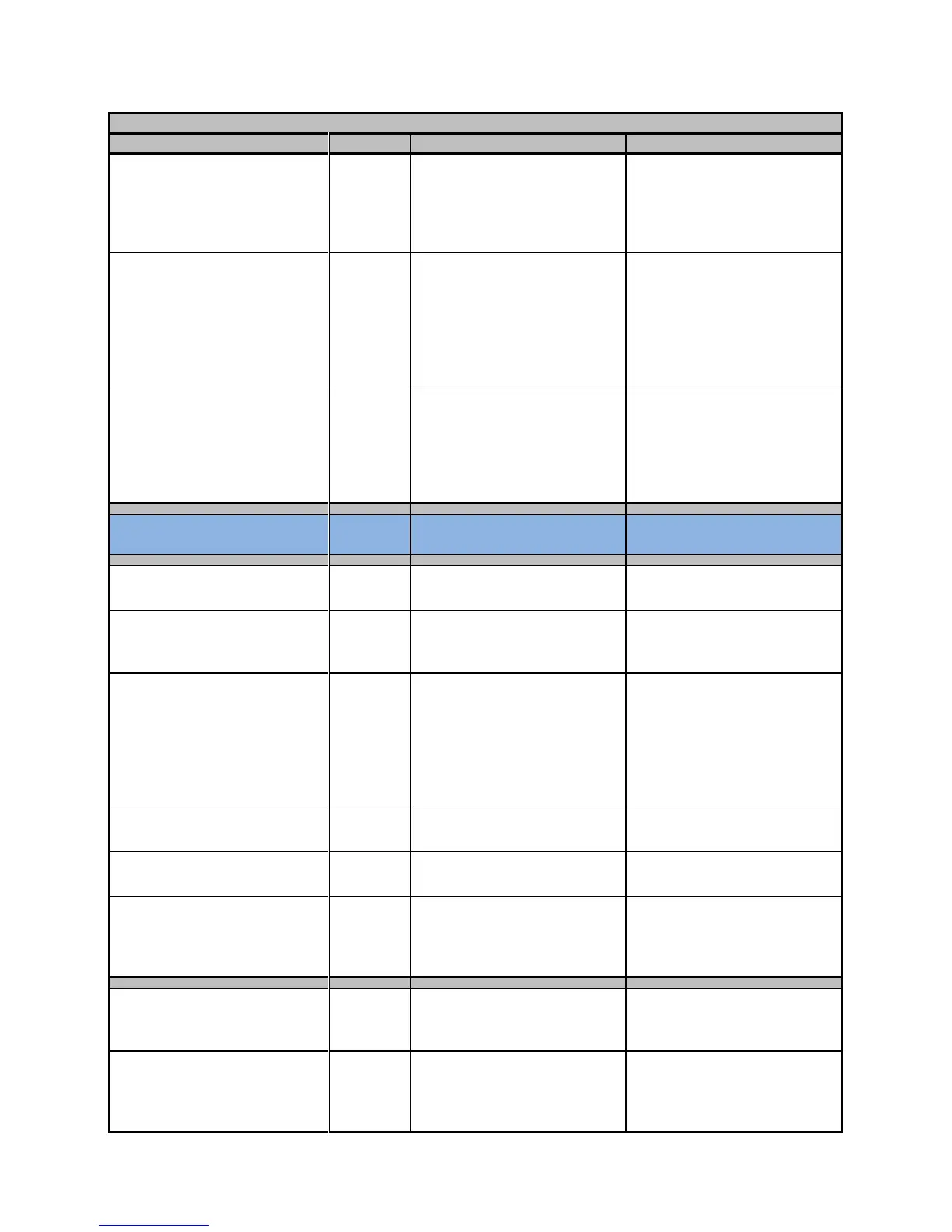
Event Log Debounce Time
5.0 Sec
Configuration of a filter in the
Event log to set the time for
logging and display of
consecutive instances of the
same event.
Event Log Send Alert To
Disabled
0 = Disable
1 = SNMP trap
2 = Email
3 = SNMP Trap & Email
4 = Future Option
5 = Future Option
6 = MCC Port
Setting to determine the alert
action to take when there is
an event logged based on the
configuration of the Event
menu in each functional area
0 = None
1 = Beep
2 = Blink Online Lamp
3 = Beep & Blink Online
Setting to determine the front
panel alert action to take
when there is an event logged
based on the configuration of
the Event menu in each
functional area
Redundancy Mode
(Future Option)
Config Recall
Factory, 1 to 99
Location number of a stored
modem configuration to recall.
Config Store
Factory, 1 to 99
Location number to store the
current configuration to recall
at a later time.
Config Auto Restore
Disabled
Set a modem configuration
defined in the “Config Restore
#” menu, based on loss of rcv
carrier for the time set in the
“Config Restore After” menu.
This can be referred to as a
’user default configuration’
Config Restore After
30 Sec
Time after loss of rcv carrier
to restore this configuration.
Config Restore #
Disabled
Setting the configuration to
use for the “Auto Restore”
Behavior on power-up. Either
the last settings or try to lock
using one of the stored
configurations.
Front Panel Mode
Full Access
0 = Disable,
1 = Read Only,
2 = Full Access
Front Panel Keyboard access
control.
0 = Quick,
1 = Edit Only
2 = Confirm
Front Panel Keyboard Entry
method.
Quick is the normal default
mode. Refer to Section 3.3.3


 To Next Page