69
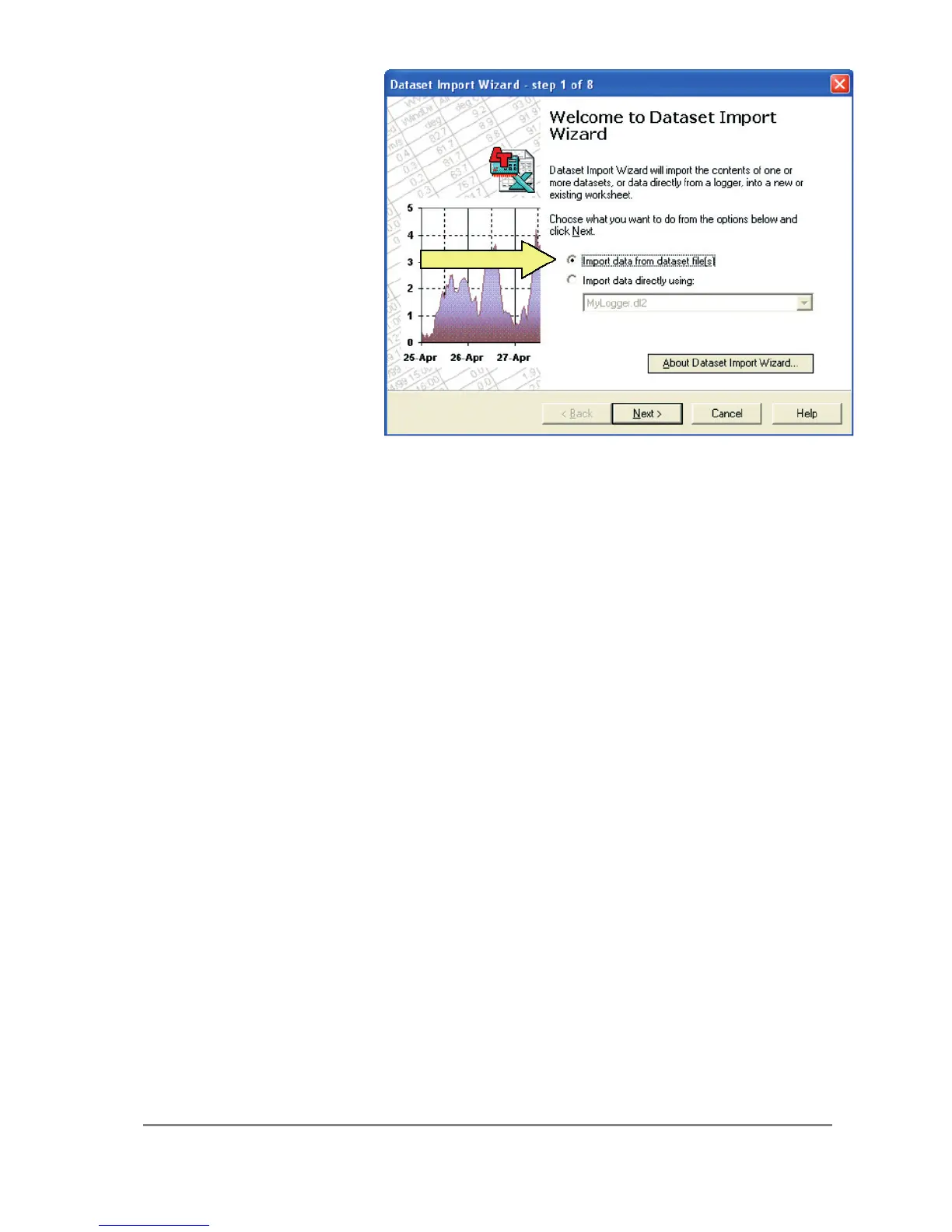
Note: Dataset Import
Wizard will not import
data directly from the
HH2.
Always use HH2Read,
Retrieve first to save the
data as a .CSV file on
your PC first, and import
that.
To manually
install Dataset Import Wizard
Try this if the automatic installation process does not work.
Start Excel and select Tools, Add-Ins.
In the Add-Ins dialog, click Browse and select DTImpWiz.xll in your
C:\Program Files\Common Files\Delta-T directory.
Dataset Import Wizard should report that it has installed itself. The Excel File menu
should now contain an additional command, Import Dataset(s), which starts the
Dataset Import Wizard. It will remain in the File menu, available each time you start
Excel.
References
See "Dataset Import Wizard Notes for HH2 Users" installed on your PC with
HH2Read as a .PDF file.
In the Examples folder under HH2Read inspect the following:-
PR1 Example Book 1.xls shows what the wizard can do with Profile Probe data.
Just accepting the wizard default settings will produce time series graphs.
PR1 Example Book 2.xls shows how you can simplify the data, make it easier to
plot, and create a simple graph of water content vs. depth.
Click on Help when running the Dataset Import Wizard.
Note: the online Help was written primarily for DL2e data logger users. It has not
been updated to support HH2.
The wizard can import data directly from DL2e, data loggers, but will not directly
import data from the HH2. (Use HH2Read, Retrieve to save the data as a .CSV file
on your PC first, and import that.)


 To Next Page