38
6.8 Vacuum test
(Furnace Parameters submenu Section 4.5.2.2)
Only for Service use.
6.9 Print/PC (PC program optional)
You will get firing protocols, if data output has been set to "Printer" in the basic settings, or a
data transmission to the PC, if data output is set to PC. The nominal and actual values will be
printed out automatically after firing if the printer has been chosen in the basic settings.
The Print/PC touch button within the soft keys will start a printout of the nominal values only.
The Printer has to be configurated as follows (see DFU of your printer):
(9600 Baud/ 8 bit/ 1 Stop bit/ No parity.)
Note: For connecting a printer you need:
" 1x modem V24 cable, serial or
" 1x two-way converter serial to parallel with connection cable.
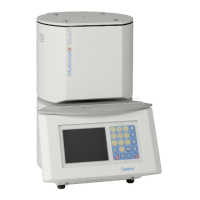
Connect printer with the Multimat
®
Touch via RS 232 port.
6.10 Acoustic Signal
Short signal tone: at each key press
Long signal tone: When an impermissible entry is made
Triple signal tone: When program terminates. In press program: furnace has reached
start temperature; insert investment ring.
6.11 Software Update
To connect the furnace with your PC you have to use the serial Interface of the furnace and
the serial interface of the PC. if you do not have any more free interfaces left on your
computer/ laptop you might be able to use the mouse port (very often a serial Interface), To
connect the interfaces use a serial cable (D-SUB, 9 St/D-SUB, 9 jacks, 9 pins) (available in
any computer shop):
1. Boot PC / Laptop
2. Open the Windows Explorer (Start/Programs/Windows Explorer).
3. Insert Floppy Disc or CD-ROM containing the new software.
4. Click on 3,5” Disc (A:) or CD-ROM.
5. On the right hand side of this window you should see a file called MumaUpdt.exe, which
has a sattelite dish as a symbol.
6. Click on this file
7. Choose your language from the options shown.
8. Connect your Multimat
®
Touch to your PC via cable (at furnace side: middle interface
on the right hand side at your PC: any free interface or mouse interface, which you will
no longer need).
9. Disconnect the furnace from the mains supply (pull out the plug).
10. Re-connect the furnace to the mains supply (put the plug back in the socket).
11. The computer will now start with the data transfer (approx. 2-3 minutes). The update is
finished, when “Ready!” appears in the dialogue window of your furnace.
12. Disconnect the power cable and the serial cable from the furnace. Wait for 5 seconds,
then reconnect only the power cable.
13. Multimat
®
Touch display now shows the latest software version.



 To Next Page