E • Technical Information | Dexcom G7 User Guide 159
l
Auto-lock: In smart device settings, turn on screen auto-lock and use a strong
password
Before plugging the receiver into a computer, follow these tips to help keep the
receiver secure:
l
Secure network: Don’t connect the computer to an unsecured or public network
when uploading data to Dexcom Clarity
l
Virus-free: Make sure the computer has anti-virus software installed and set to
update automatically
If you suspect your display device security is compromised and affecting your Dexcom
data, contact technical support and use your BG meter until the issue is resolved.
Unless disabled, the G7 mobile application regularly communicates with Dexcom
Servers. Both the G7 mobile application and communication between the G7
applications and Dexcom Servers are protected by a number of mechanisms,
designed to safeguard data integrity and data confidentiality.
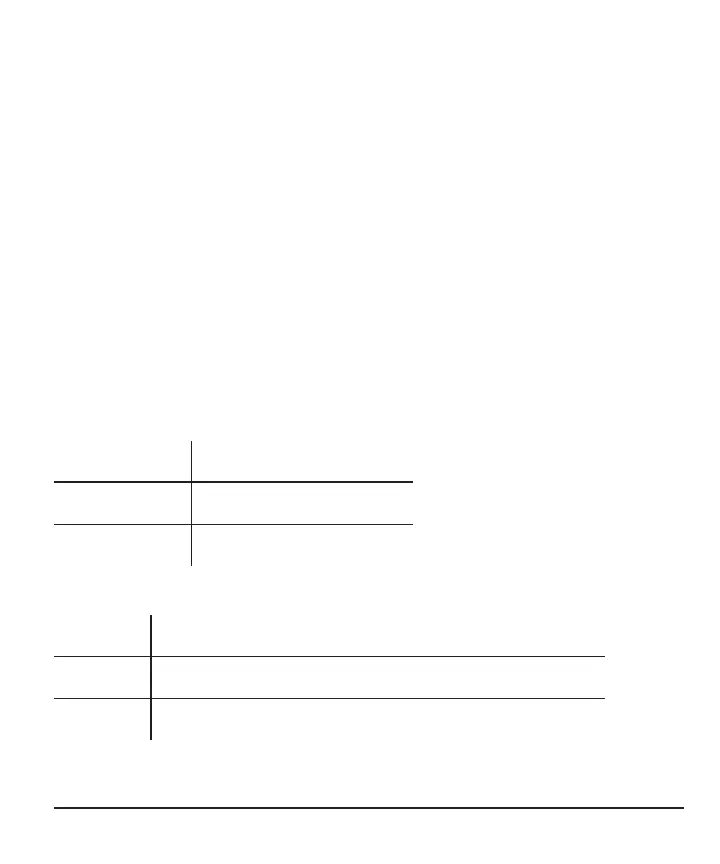
USB charging/download cable specifications
Input/Output 5 V DC, 1A
Type USB A to USB micro B
Length 3feet
Power supply/charger specifications
Class II
Input AC Input 100–240 Vac, 50/60Hz, 0.2A, 0.2A rms at 100 Vac
DC output 5V DC, 1A (5.0 Watts)



 To Next Page