5 • Alerts | Dexcom G7 User Guide 61
Receiver
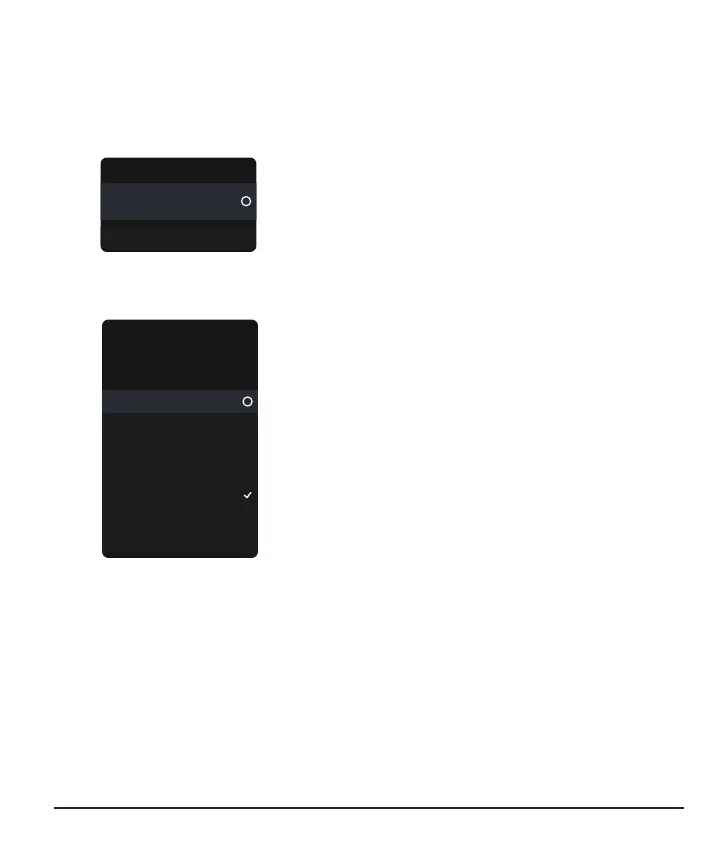
Choose a sound theme, such as Soft Tone or Normal Tones, for all receiver alerts.
Within each theme, every alert is assigned a different sound. Go to Menu > Settings
> Alert Sounds to change your alert sounds.
Soft Tones
Alert Sounds
Preview Sounds
Alert Sounds
Alert Sounds: Choose sound theme here.
Preview Sounds: Select this to hear sound
samples for the theme you selected. Make sure
you can hear them. This doesn't select the
sounds; it just plays samples.
Select Alert Sounds to choose a sound theme or to choose vibrate only.
Alert Sounds
Vibrate Only
Soft TonesG7 Soft
G7 Medium
G7 Intense
Soft Tones
Normal Tones
Melodies
Choose how you want your
alerts to notify you. All alerts
will notify you this way.
Vibrate Only: Alerts won't sound but will display
and vibrate. Urgent Low and technical alerts act
differently; if you don't acknowledge them, they
will add sound. In the receiver, these alerts
include: Urgent Low, Replace Sensor Now, Sensor
Failed, Set Date/Time, System Check, Very Low
Battery, Weak Charger
G7 Soft, G7 Medium, G7 Intense, Soft Tones,
Normal Tones, and Melodies: Choose a sound
theme.



 To Next Page