7 • App Connections | Dexcom G7 User Guide 79
Follow status and settings
Status
Followers can see if the Sharer turns off Share, removes them, or if sharing stops for
any other reason.
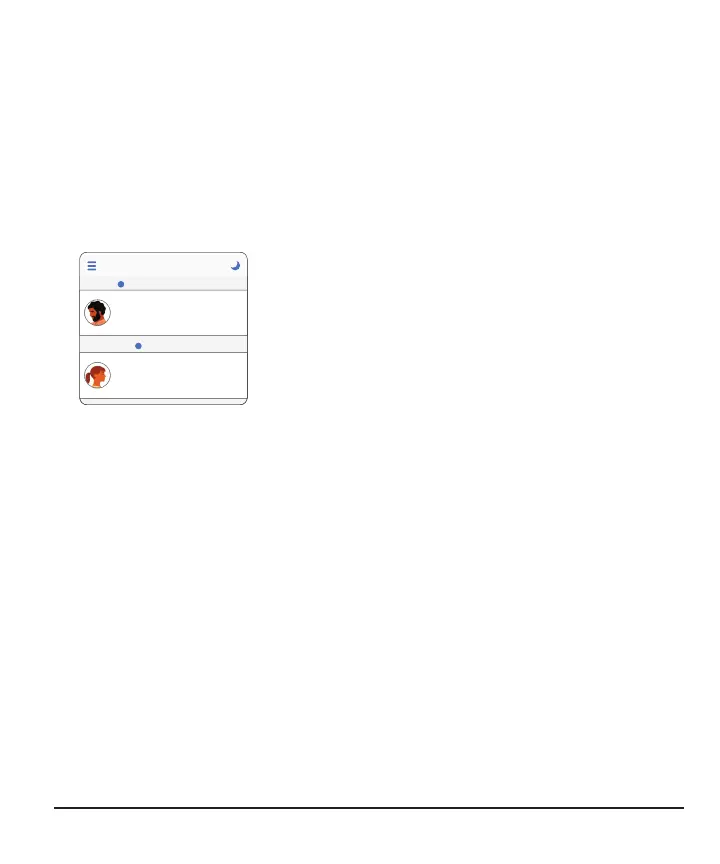
In the Follow app on the Follower's smart device, tap the blue help icon next to the
Sharer's name for more information about the Sharer's status.
Follow
Jake
Active
Disconnected
---
Jane
mg/dL
mg/dL
---
?
?
For example:
l
Active with ---: The Follower should ask the
Sharer to check their Dexcom G7 app
l
Disconnected: Sharer turned off Share
l
Not Sharing: Sharer stopped sharing with the
Follower
l
Removed by Sharer: Sharer deletes the Follower
There are times when the Follow app information may be out of sync with the Sharer's
G7 information. Because of the delay, Sharers should always treat using the primary
G7 app, not the Follow app.
Smartphones for Follow app
For a list of compatible devices, go to dexcom.com/compatibility.
Apple Watches for Follow app
Using their Apple Watch, Followers can get their list of Sharers, each one’s glucose
information and notifications, exactly as it shows on the Followers' phones. There’s
even a complication for the watch face.
To install the Follow app on the Apple Watch, use the Watch app on the iPhone. See
watch instructions for details about installing apps.
Use Follow on the phone to change settings.



 To Next Page