OPERATOR’S MANUAL
Control Point
®
11001-1489-201702 Rev B
KEYBOARD PROGRAMMING / 27
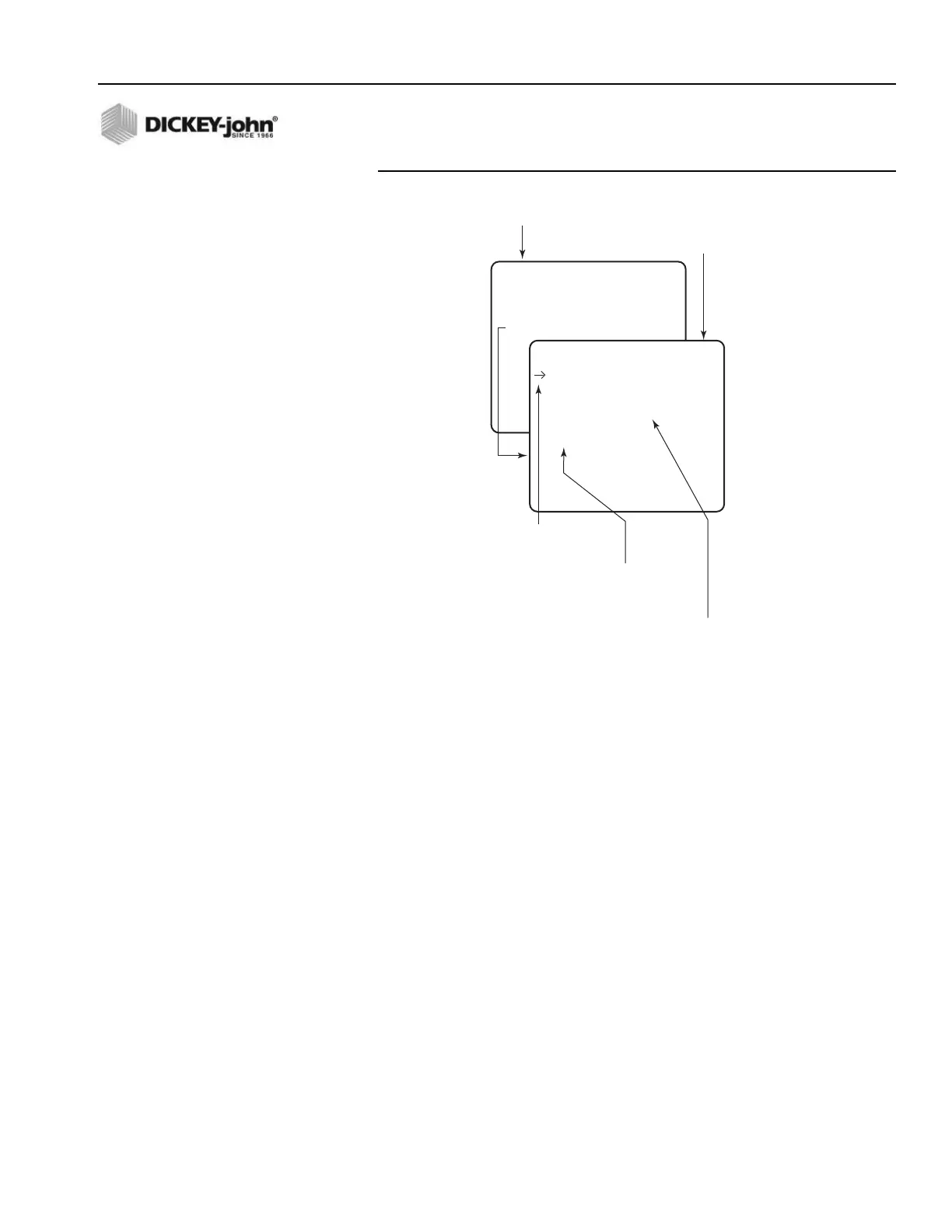
Figure 17
Basic Screens Layout
Editing a parameter – The up and down arrow keys move the index
arrow to other parameters for editing. To change the selected
parameter, key in the desired value. When finished, press the Enter
key to accept the new value and advance the index arrow to the next
line. Failing to use the Enter key (except for YES/NO and serial port
configurations) loses the new value.
Other keys – The Backspace key erases incorrectly keyed numbers
or text. To restore previous values after keying in a new number,
press either arrow key instead of Enter. Invalid keystrokes are not
accepted for entry and cause an audible warning.
Pressing the Escape key returns to the previous screen. Pressing any
function key (F1 through F12) transfers directly to that function.
Screen prompts – If “MORE...” appears on a screen, additional
parameters are on an extended screen. Access this screen by
moving the index arrow to the “MORE...” line (refer to Figure 18).
MISCELLANEOUS MENU
SELECT A MENU ITEM
1 BLAST SETUP
2 TIME / DATE
3 SYSTEM UNITS
4 SERIAL PORT CONFIGURATION
5 CHANGE LANGUAGE
6 SERVICE MENU
PROGRAM TIME / DATE
24 HOUR NO
HOUR 6
MINUTES 39
AM / PM P
MONTH 11
DAY 26
YEAR 98
• First level after
pressing Function key
Parameter Screen
• second level after
selecting menu item number
Index Arrow
•Selects parameter to edit
Parameter Subject List
• Each line is selected
separately with index arrow
Parameters for Editing
• Numbers are changed using
the number keys,
• Words are changed by typing
first letter or keying some words
Note: In some cases, a Sub-Function screen appears
between the Function and Parameter screens
with additional selections.


 To Next Page