OPERATOR’S MANUAL
Control Point
®
11001-1489-201702 Rev B
KEYBOARD PROGRAMMING / 45
ACCESSING THE OPERATE MODE (F1)
F1 accesses the Operate screens anytime during programming to verify
selections. No programming parameters are available from this screen. The
following information is a brief outline of the Operate mode screens. For full
details, see the Startup & Familiarization section.
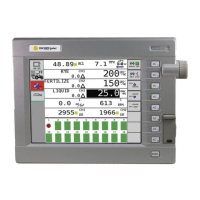
OPERATE screen – Shows programmed values ready for spreading
product in a normal fashion with keyboard connected.
MATERIAL/MANUAL SPEED SELECT screen – A dual screen showing
only items configured. The MATERIAL SELECT half displays if more than
one granular and/or liquid products are enabled in the Granular (F2) and
Liquid (F4) Application Rate functions. The MANUAL SPEED SELECT
appears if MANUAL DRIVER is programmed YES in the Ground Speed
Configuration function (F7, selection 1).
CURRENT TOTALS screen – Shows totals accumulated for each product
dispensed since the last reset (See Accumulator Function - F9). These
totals are those products selected on the Material/Manual Speed Select
Screen. To see other totals, select those products from that screen.
SEASON TOTALS screen – Shows the amount of material applied, miles
traveled during application, and hours elapsed this season for each product
in both the AUTO and BLAST modes. The season totals can only be
cleared from the Accumulator function (F9).
SETTING UP GRANULAR CONFIGURATION (F3)
Configuration parameters specify types of hydraulic valves and sensors
used and related performance specifications. To prepare for system
calibration, the granular configuration parameters for each granular material
used must be verified or programmed. These parameters do not change
unless system hardware changes or related calibration routines are rerun.
1. From the keyboard, press Function key F3 to obtain the GRANULAR
CONFIG screen (refer to Figure 28). Four (4) granular product names
appear with each followed by the word ENABLED or DISABLED.
Products are enabled/disabled from the GRANULAR APPL RATE (F2)
screen.
2. Select a material using the corresponding number key.
3. Edit the parameters on the screen.


 To Next Page