SD12 - Getting Started
1-18
1.5.4 Opto V220 (DiGiRacks) and Opto V221 (SD Racks) ............
IMPORTANT NOTE: The SD12 can only use Optocore via the optional Optocore connections on the console itself.
The SD12 cannot use an Optocore DMI card to connect to an Optocore system
SD Series consoles can operate with either one of two different Optocore rmware versions - V220 and V221.
V220 is compatible with DiGiRacks and MiNiRacks and cannot be used with SD Racks or DRacks.
V221 is compatible with SD Racks, SD MiNiRacks, NaNoRacks and DRacks, and cannot be used with DiGiRacks and MiNiRacks.
Note: Any type of rack can be used with an SD Series console if it is connected with Coaxial BNC MADI irrespective of the
Optocore version that the console is using.
Sessions that have been created using Optocore connected DiGiRacks and MiNiRacks can be used with SD Racks and DRacks but a
procedure must be followed to achieve this.
Sessions created using Optocore connected SD Racks and DRacks can also be used with DiGiRacks and MiNiRacks but this also
involves a “conversion” procedure.
Note: For detailed information on Optocore system setup please refer to the SD Software Reference manual Appendix - DiGiCo
Optocore V221 - For SD Rack Optocore Operation
1.5.5 Single SD Console System ....................................................
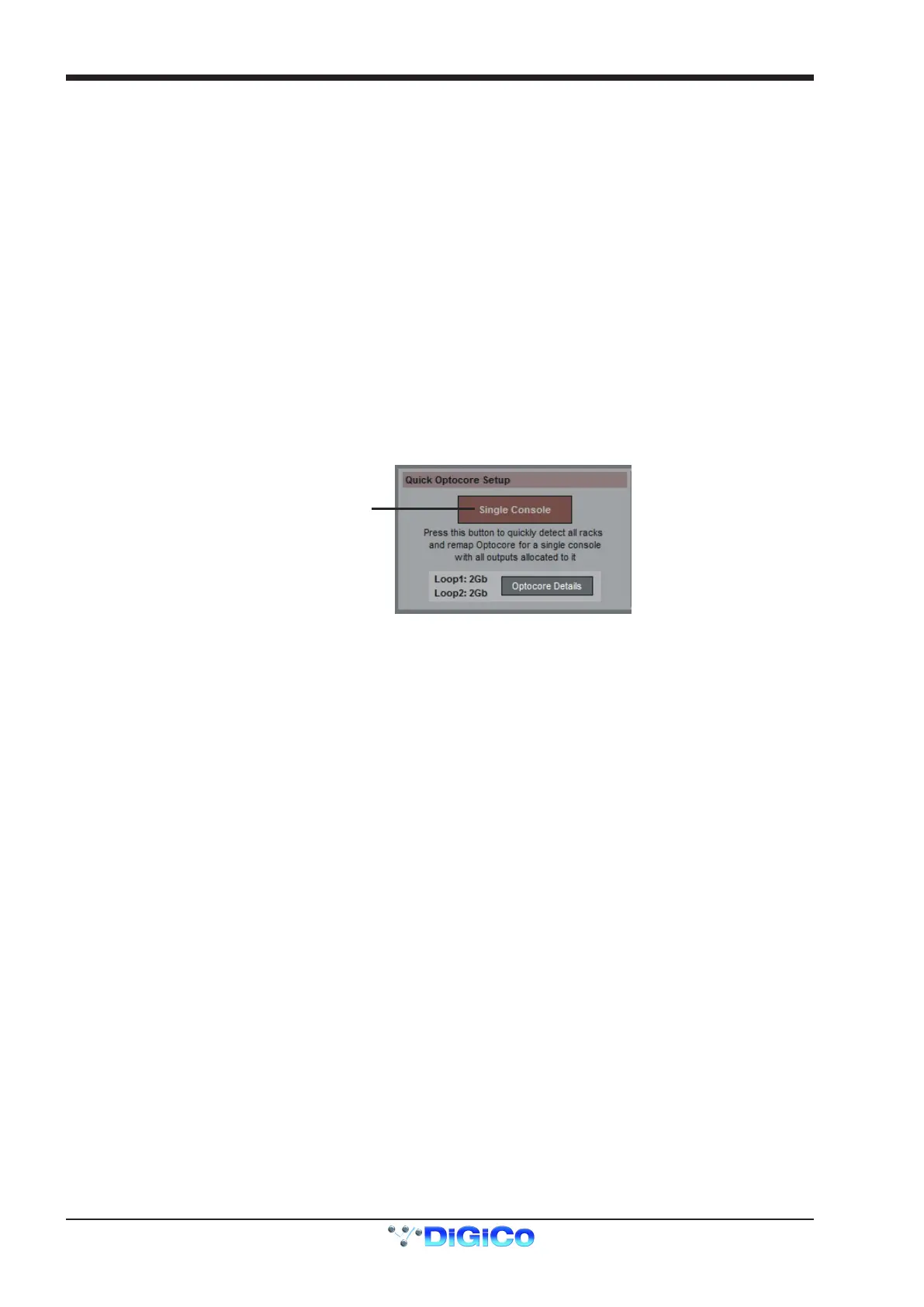
On an SD12, go to Setup/Audio I/O. Press the Setup Optocore button and the Single Console button will be shown with a bright red
background. Press this button, press Yes at the conrmation stage and the console will create ports for all connected racks, allocate all
output cards to your console and create the Optocore map. The system is now ready to use.
Audio I/O Panel
Optocore Setup
Single Console
1.5.6 Automatic Conforming ...........................................................
Once all hardware is connected, go to System/Diagnostics/Optocore. This will list all connected Optocore devices either SDeng (console
engines) to SDrack (SD Rack or D Rack) by ID. If any expected devices are not listed, please check all physical connections, Optocore
ID’s and Fibre Speeds. Once all devices are present, close the Diagnostics panel.
Irrespective of the type of rack being used, the system needs to be conformed. This involves the console checking the type of racks con-
nected and their I/O capability
There are three levels of automatic conforming:
1. - globally, using the red Conform All Ports button in the bottom left of the window;
2. - on a rack-by-rack basis, using the conform rack button just below the rack view section of the window;
3. - on a card-by-card basis, by selecting a socket from the card in the graphical display and using the conform card button next to
the Card/Slot type button selector in the lower section of the window. (Note that the Cards & Sockets button towards the bottom-left
should be selected)
Pressing any of these buttons will correctly select the card types for the range in question. Once complete, all of the Card Labels be-
neath each slot should turn green.



 To Next Page