SD12 - Getting Started
1-30
1.12 Multi-channel formats
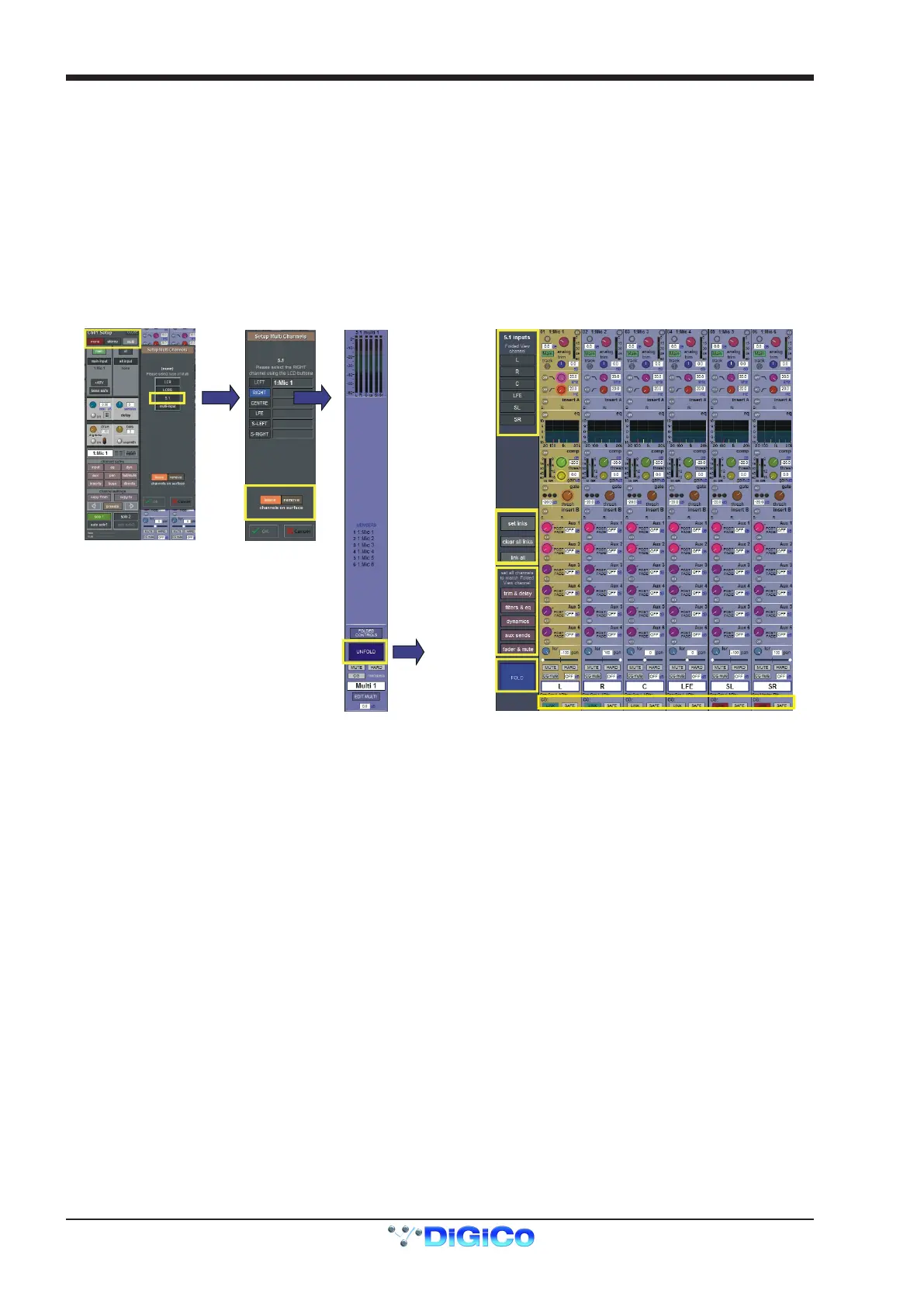
Multi-channel inputs are controlled by routing each component through a mono channel and then linking those channels via a 'Multi'
channel. To start with, use the normal input and output routing procedures to route each component through a channel. Then open the
Setup display for the rst component, and select Multi at the top, to open the Setup Multi Channels display. Select the format – LCR,
LCRS, 5.1 or multi-input (which allows you up to 11 components) – and then press the LCD buttons for the remaining component
channels, working down the displayed list in order. Channel names will appear against each component. Each channel can then be left
on the worksurface or removed using the buttons towards the base of the display. Finally, touch OK to close the display to link the chan-
nels together.
Note that you can also create Multis on a blank layer by selecting the Create Multi LCD function on the Layer you wish
to use, then pressing the LCD button for the required channel strip.
The included channels are shown in the Multi channel strip. Touching the Folded Controls button allows you to control which channel
elements are displayed in the folded channel strip – each element affects all linked components.
Folded View
Channel
Unfold
Multi
Button
Select
Type
Fold
Link Indicators
Link Control
Settings
Leave or Remove
Channels
If the Unfold button in the Multi or in a multi-channel buss channel strip is pressed, the component channels will be displayed, and more
detailed conguration can be made.
See the SD Series Software Reference Manual for more information on Multi Channel formats



 To Next Page