21
SD12 - Getting Started
1-21
1.6 Saving and Loading Sessions
1.6.1 Save As New File ....................................................................
When you change the conguration of a session you should save it to the console's ash drive under a new lename.
If the Save Session panel has not appeared automatically after a session restructure then touch the Files button on the Master screen
and then press Save As New File.
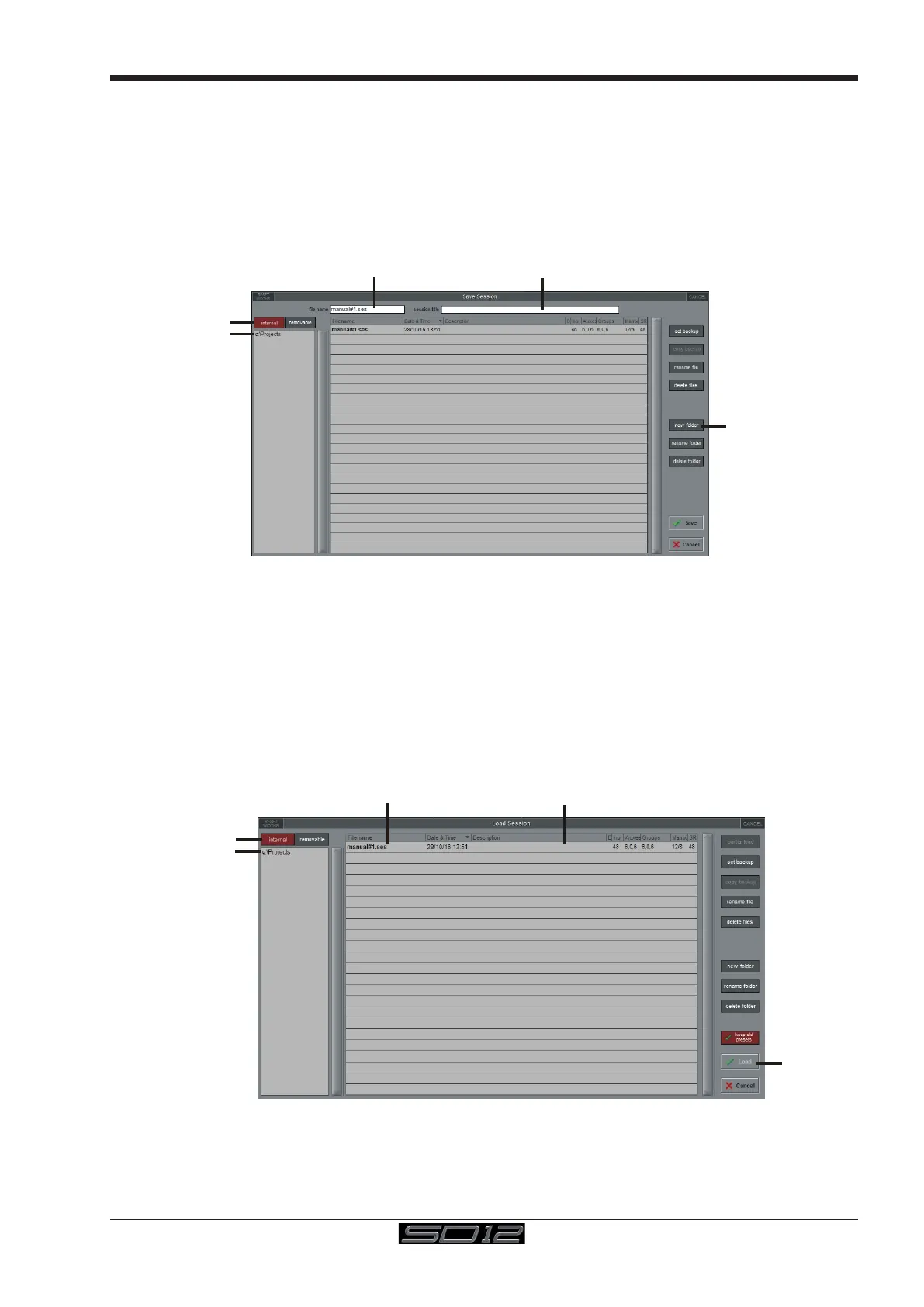
Select the destination drive (Internal or Removable) and le path and then enter a new le name and description for the le - then press
the Save button.
Note: If you touch a session name on the existing list, this name will automacally be selected as the new le name and touch-
ing Save will overwrite the old le.
Select Internal or
Removable USB
To create a new folder
in D:\Projects
Enter a Filename
Enter a Description
Internal Files saved
in D:\Projects
Note that column widths can be adjusted by dragging their borders within the title row. To return all columns to their
default widths, press RESET WIDTHS, in the top left-hand corner of the window.
1.6.2 Save Session ..........................................................................
This button which is found above the Save As New File button will save the existing session in the same location and under the same
le name as it was previously saved or loaded from. It therefore serves as a "Quick Save" option to update an existing session.
Remember that this function will overwrite your last saved version.
If you wish to save the session under a new name use the Files menu button and select Save As New File (See above).
1.6.3 Load Session ..........................................................................
To load a previously saved session:
Touch the Files button on the Master screen and then press Load Session.
Select the source drive (Internal or Removable) and the required le from the list - then press the Load button.
Select Internal or
Removable USB
Press Load
Select a File
File Details
Internal Files saved
in D:\Projects



 To Next Page