SD12 - Getting Started
1-10
1.3.3 Using the Control Surface .....................................................
There are two main ways in which all of the functions of the SD12 are accessed:
1. The touchscreen display, which can be controlled directly using a nger, or by using the keyboard and mouse
2. The physical encoders, switches and faders.
Note that when touching the screen directly, you may nd it easier to use a ner point than your nger. However, in
order to prevent damage to the screen, it is important that you only use devices specically designed for touching
screens (such as a pda stylus), and that you never press down hard on the screen.
A number of functions can be accessed in different ways, allowing users to operate the console using whichever interface they prefer.
This manual will describe accessing on-screen functions by touching the screen directly and not by using the mouse.
All of the physical controls are described in full within the relevant section of the manual and many require no further introduction.
The Master screen has a row of grey buttons across the top, which are used to access a range of conguration displays. Pressing these
buttons opens either a further drop-down sub-menu or a pop-up display. If a drop-down menu is opened, pressing on one of its entries
will open a pop-up display. The buttons lighten to indicate that their sub-menu or pop-up display is open. A number of the buttons within
each pop-up display generate further pop-ups.
Generally, buttons within the pop-ups are coloured grey when their function is inactive, switching to a colour when their function is
active. Pressing on a text box opens a numeric or QWERTY keypad which can be operated directly by pressing the screen or via the
console’s external keyboard.
Pop-ups are closed by pressing the box in the top right-hand corner of the pop-up, marked CLOSE or CANCEL (or by pressing CAN on
keypad pop-ups).
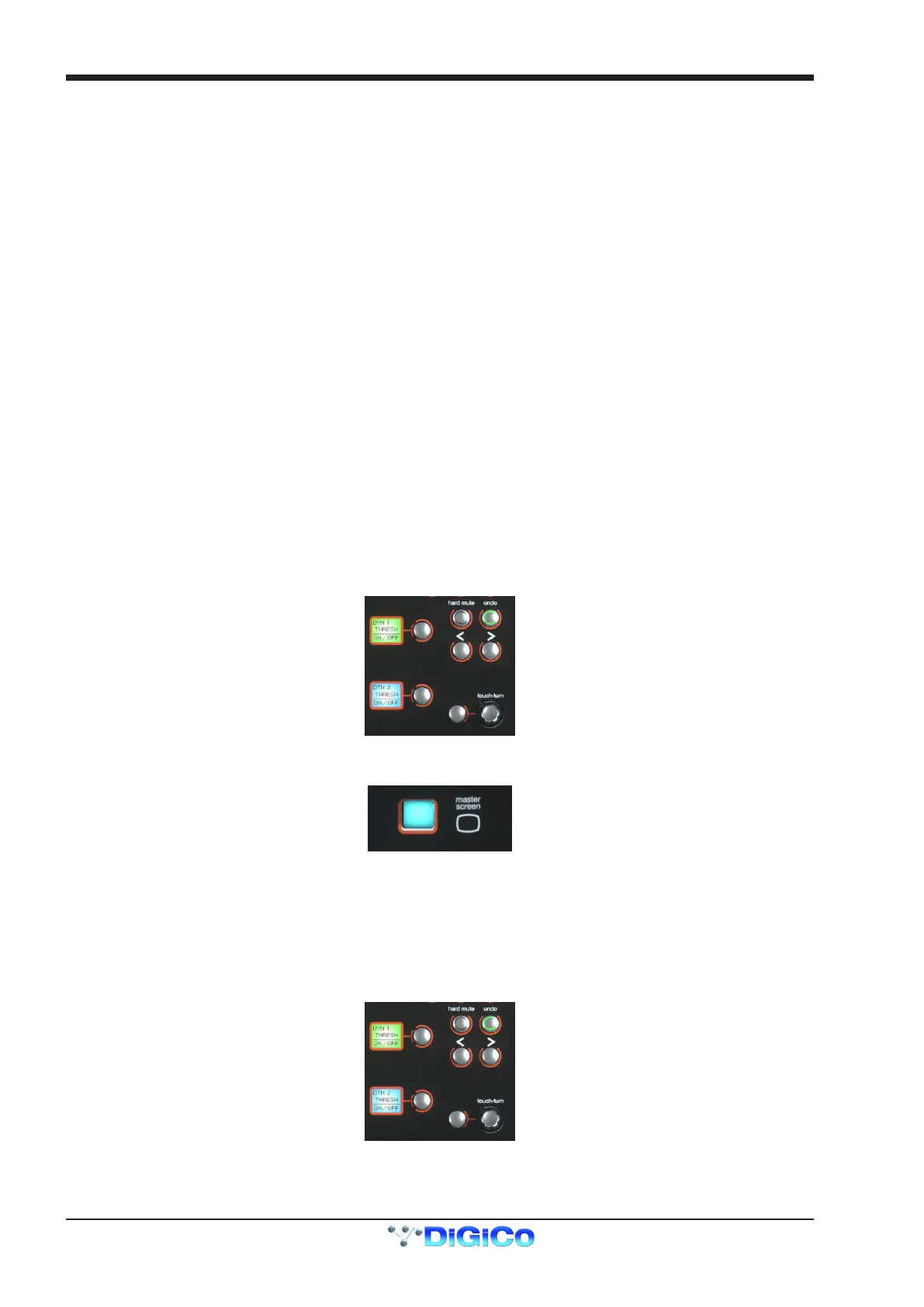
On the Right Panel is a single encoder marked Touch-Turn (shown below). This is used to access any rotary controls within the Master
Screen. To assign the Touch-Turn encoder to a particular on-screen pot, touch the pot to be assigned. You will notice that a coloured
ring appears around the on-screen pot, indicating that it is assigned to the Touch-Turn encoder. The colour of this ring is unique to that
control, and is also reected in the base of the Touch-Turn encoder, providing further indication of which pot is currently assigned to it.
The Master Screen button in the right section switches the right screen view from the Master Screen to the bank of channels which are
selected in the right section.
1.3.4 The Assigned Channel ...........................................................
One of the channels in the Channel Strip panel is displayed in gold, indicating that it is currently the Assigned Channel. This means
that it has been assigned to the worksurface controls and can be congured in detail, as described below. To Assign a channel, touch
anywhere in the channel on the screen (except the Aux Send area).
Alternatively, use the ch left and right buttons at the bottom of the channel worksurface controls to scroll through the channels in the
panel:
Note that these left and right arrows are duplicated in the channel Setup and Output displays.
Note also that the Channel List display provides another method for assigning a channel to the worksurface controls.



 To Next Page