19
SD12 - Getting Started
1-19
1.5.7 Manual Conforming of Racks ................................................
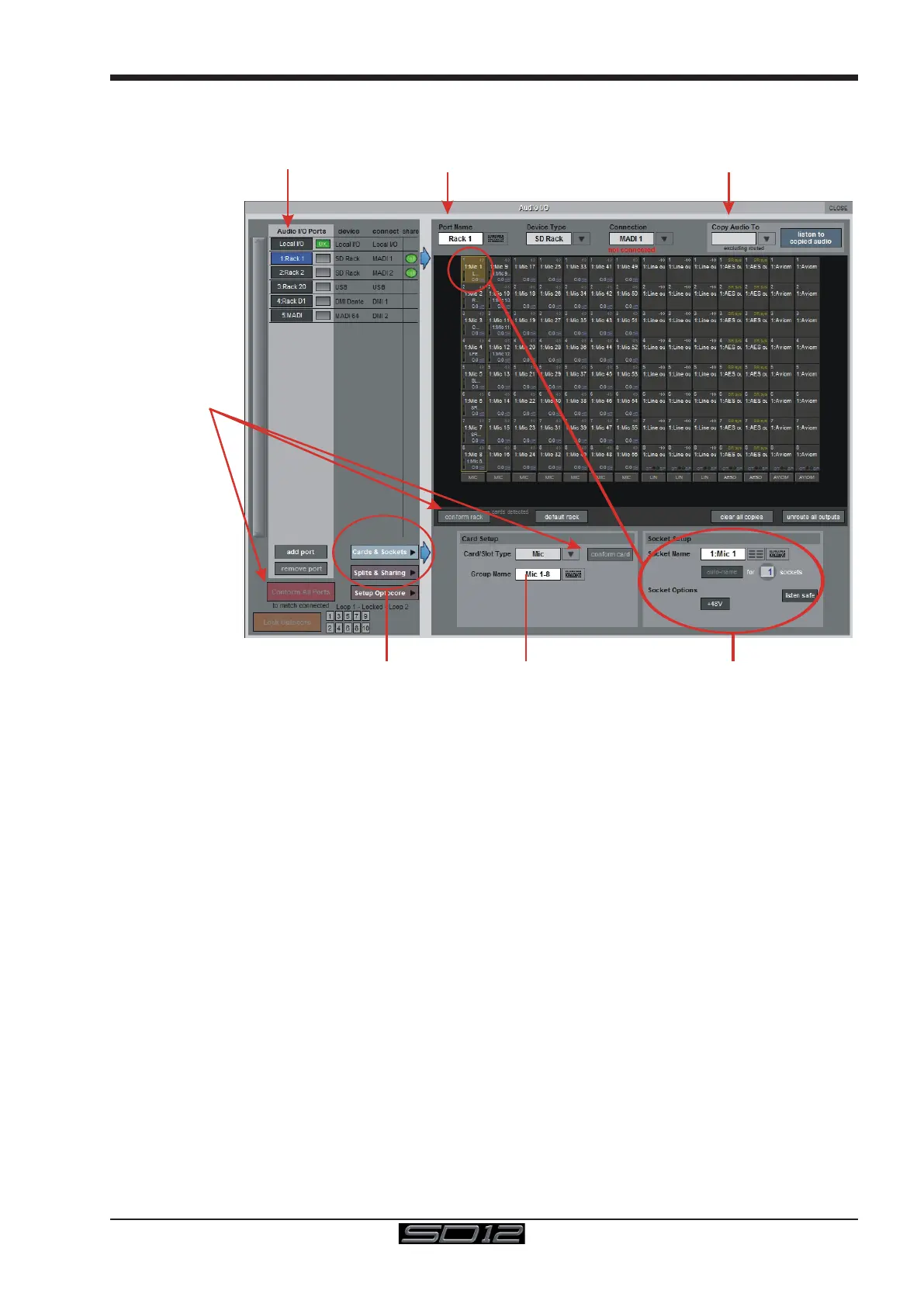
With a Rack selected in the left hand port selection list, the window will look something like the image below, depending on the cards
installed in the connected rack. The graphic shows the 14 available card slots, 7 input & 7 output.
Edit the Port Name here.
Eg. Stage Rack, Local Rack etc...
Select Card Type manually or
using Auto-Conform function,
and edit Group Name
Selected Socket Properties
Edit Name and Socket options.
Auto Conforming for all ports,
individual racks,
or individual cards
Select the contents of the bottom-right
corner of the Audio IO window
Select the port to be configured
Copy Rack Audio to another port
/
In order to use the rack, the on-screen contents of the rack must match the cards physically installed in the rack connected. This is
normally achieved by pressing the Conform All Ports button but can also be achieved manually if necessary.
Select each card (column) and manually select the appropriate card in the Card/Slot Type drop down menu in the lower section of the
window (displayed when the Cards & Sockets button towards the bottom-left is selected). Once the correct card type is selected, the
Label at the bottom the selected card will turn green, indicating the card type matches the card installed in the rack. If the Card Type
name is Red, then there is a mismatch, and the error should be corrected by selecting the correct card type.
Copying Audio and Listening to Copied Audio (MADI Recorder Setup)
Audio from a Rack can be copied to the MADI Port Output by selecting the incoming Port in the Ports list and using the Copy Audio To
drop down menu. For example, if you want to copy the Rack Audio Inputs to a recorder connected over MADI, select Rack 1 in the ports
list and then select MADI from the Copy Audio To drop down menu. The 56 inputs on Rack 1 will be copied to the SD12 MADI output.
In addition, by connecting the recorder's MADI Output to the SD12 MADI Input, the playback can be monitored in the same channels as
the original source material. Just press the Listen To Copied Audio button to monitor playback and press it again to return to monitor-
ing the live sources from the rack
Standard MADI Connections
If you have a standard MADI connection (not a DiGiCo Rack) to your SD12, you can set the console to display the MADI with generic
signal names, i.e. MADI 1, MADI 2.. etc. through to MADI 56 (or 64) instead of the usual rack style names. The naming does not affect
the signal, but makes routing signals easier.
Unrouting All Outputs
All outputs to the selected port can be unrouted at once by pressing the unroute all outputs button below the cards graphic and select-
ing yes in the warning pop-up which appears. "Copied" audio is not unrouted by this action.
Note that this will cancel all routing created in the channel screens and cannot be undone.



 To Next Page