Drobo 5D3 User Guide 63
Sort By
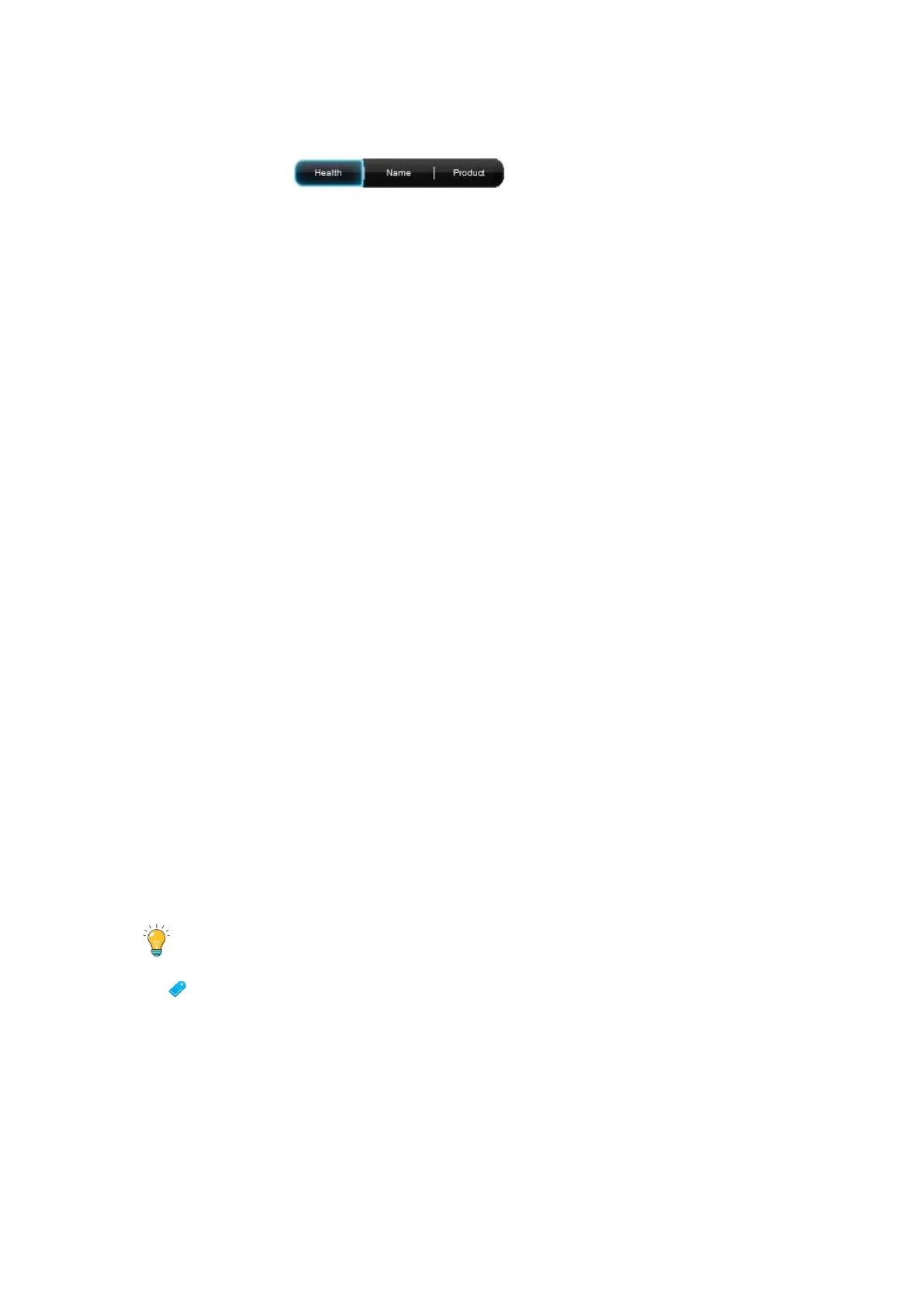
The Sort By buttons enable you to sort your Drobo devices
in one of the following ways:
● Health – This button sorts Drobo devices by their health, with Drobo devices in red
displayed first, followed by yellow, and then green. This is the default view.
● Red - indicates the Drobo device is 95% full and you need to add capacity (or
drives), or a drive needs to be replaced, or your data is currently busy working
to protect your data right now. Flashing red indicates that one of the drives
needs to be replaced immediately.
● Yellow - indicates the Drobo device is more than 85% full, but less than 95%
full.
● Green - indicates that the Drobo device is less than 85% full and that your
data is protected.
● Name – This button sorts Drobo devices alphabetically by the names you gave them,
with Drobo devices which are directly attached listed first.
● Product – This button sorts Drobo devices alphabetically by their model numbers or
product names, with Drobo devices which are directly attached listed first.
To select a Drobo device, just click on it once on the All Drobos page. All subsequent
commands in Drobo Dashboard (found on the Navigation menu on the left), will apply
to the selected device.
Tip:
You can double-click on a Drobo device on the All Drobos page to open the Status
page for that device.
Navigation Menu
The Navigation menu appears on the left side of the screen. Options and commands in
this menu apply to the currently selected Drobo device. (You can select a Drobo device
on the All Drobos page.)


 To Next Page