C. FILE SHARING
When integrating Eagle Eye Pro with meet management software (Hy-Tek, Race Tab,
RaceberryJAM, etc.) it is necessary to share the lynx.evt event file (created by the meet
management software) and the .lif results files (created by Eagle Eye Pro software).
1. Sharing Results File via USB Switch
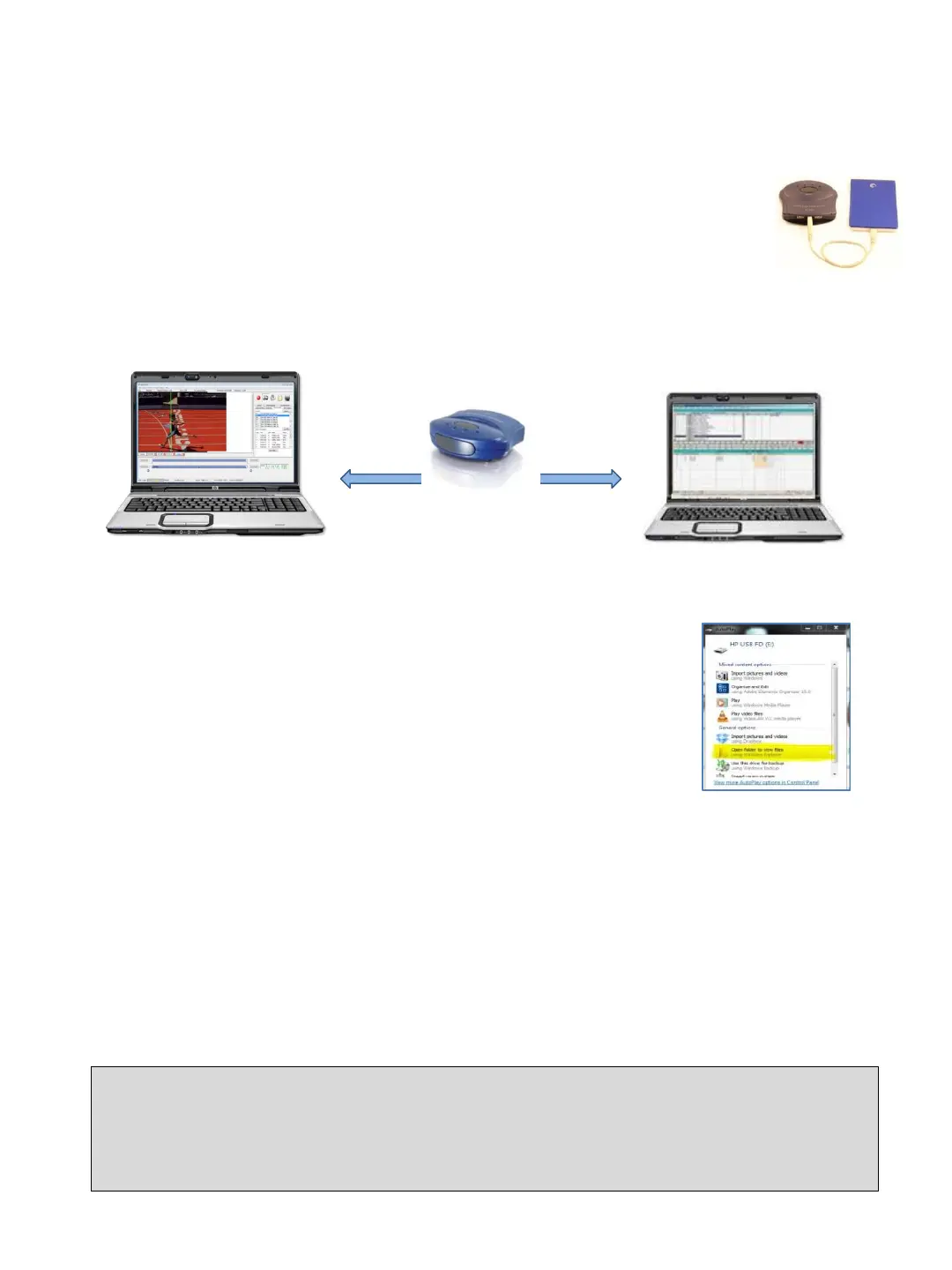
The included USB Switch allows each computer to access the same external
drive. The shared files remain on this drive while allowing each computer
access via the following process.
1. ➔ PLUG a USB storage device (such as a thumb drive) into the back of the USB Switch.
2. ➔ CONNECT the USB cables from the USB Switch to available USB ports on each
computer.
3. ➔ ACCEPT the USB storage device on computer one once it
is detected.
4. ➔ PRESS the RESET button on the USB Switch to connect
to computer two.
5. ➔ ACCEPT the USB storage device on computer two once it is
detected. You need only accept the thumb drive once on each
computer during initial set up.
6. ➔ Within the Eagle Eye Results Tab, SAVE a results file to the USB thumb drive
connected to the USB Switch. You need only map this drive once during set up.
7. ➔ Within the Meet Management software, CHOOSE to direct the .EVT file to the USB
storage device connected to the USB Switch. This should also be the location the meet
management software will receive the .lif results file generated by Eagle Eye. You need
only map to this drive once during set up.
Tip: It is recommended that the operator of the meet management software (results computer) operate
the USB Switch. This allows the timing operator to focus entirely on reading each race and preparing to
time the next event.
Eagle Eye Computer
Timing
Hy-Tek, etc. Computer
Results
USB Switch
USB Cable
USB Cable
Additional Wireless File Sharing Options
See pages 30-31 for additional file sharing options: 1) Free Dropbox internet file sharing
process used when wifi is available and 2) a Windows Ad Hoc computer to computer
wireless network which does not require an internet connection or wifi.
11
* Instructions for the discontinued USB file transfer cable can be found on page 34.


 To Next Page