.evt or .ppl? Both the lynx.evt and lynx.ppl are industry standard files created by common meet management software.
The .ppl file (“people” file) contains a list of participating athletes (assigned bib numbers, teams, etc.) and is the common
file used for cross country and road racing events. The .evt (“event” file) contains individual events and the entered
athletes for each event and is generally used for track and field or when a cross country event has been seeded like a track
meet within Hy-Tek Meet Manager, etc.
B. OPERATION INSTRUCTIONS
1. Time a Race
Follow the steps below to prepare both Eagle Eye Pro software and your preferred meet
management software for a cross country or road racing event.
Prepare the Software
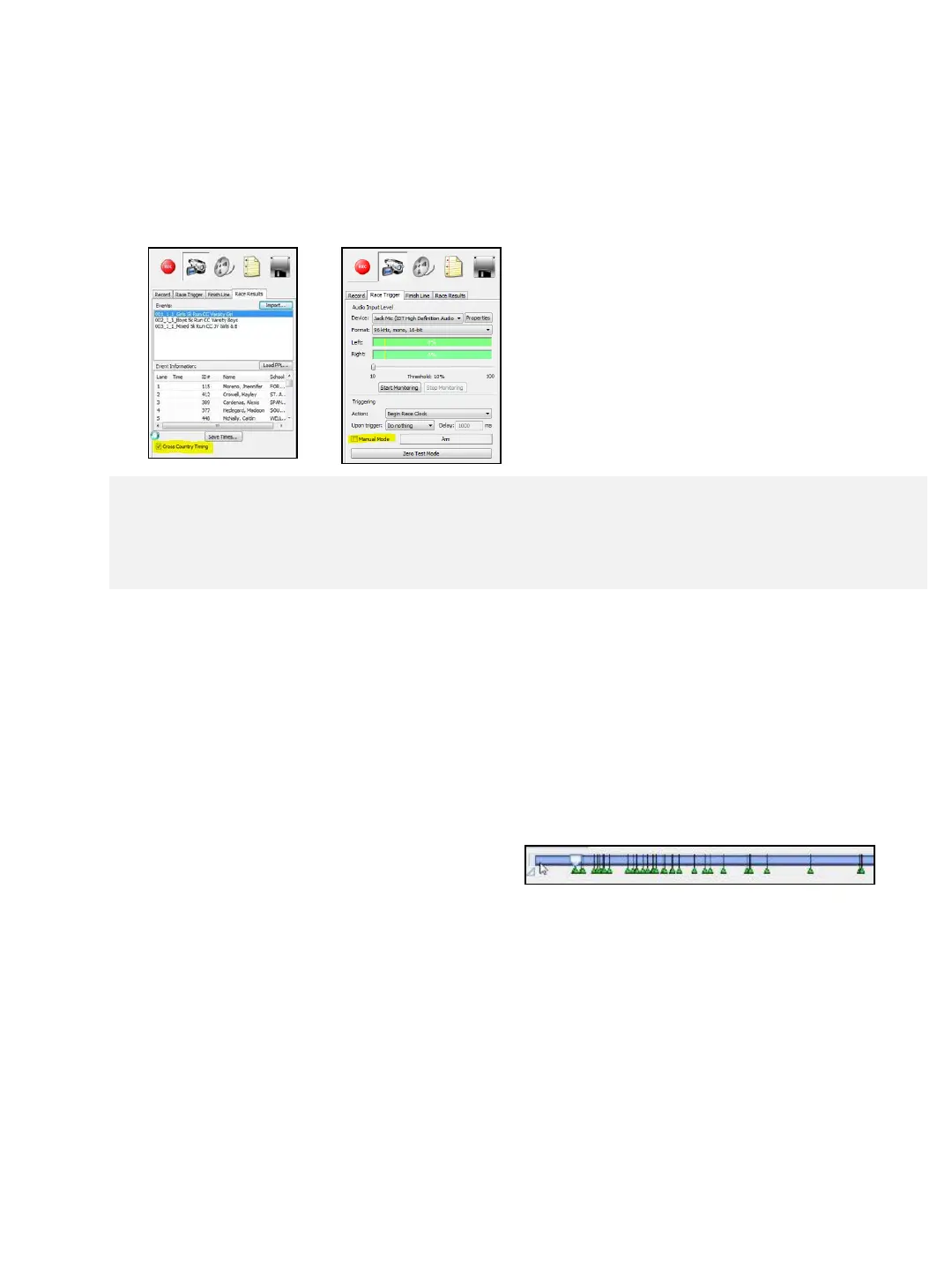
1. ➔ SELECT the Cross Country Timing
option within the Race Results tab.
2. ➔ SELECT the Manual Mode within the
Race Trigger tab.
3. ➔ From the Results tab, Import first
lynx.ppl file the and then the lynx.evt file
(created by your meet management
software).
Start the Race
4. ➔ PRESS the spacebar manually upon the firing of the starter pistol.
Record the Race
5. ➔ PRESS the RECORD button prior to the first finish place athlete crossing the finish
line.
Bookmark the Finishers
6. ➔ PRESS the SPACE-BAR just prior to each athlete crossing the finish-line. This will
create a green bookmark on the video time-line. Bookmarking each athlete is
not necessary, however bookmarks can significantly speed up the review process.
Read the Race
7. ➔ CLICK the STOP button after all
athletes have crossed the finish line.
8. ➔ ACTIVATE the video timeline by CLICKING your mouse anywhere on the timeline
9. ➔ HOLD the Ctrl button down and PRESS the RIGHT ARROW button (on the
computer keyboard) to jump forward to the first finishing athlete.
10. ➔ RIGHT-CLICK the video time line (scroll tab) to reveal a pop up and ENTER the bib
number of the finishing athlete. Repeat for all athletes. See image on page 24.
Save Results
11. ➔ CLICK the Save Times button when complete and save file in the appropriate
location. Within your meet management software, choose to Import the result file.
TIP: CORRECTING MISTAKEN ENTRY: Retype the correct HIP or LANE number. TIP: DELETING ENTRY:
Perform a RIGHT-CLICK > Clear on the cell you wish to delete the entry.
TIP: To reveal a list of participating athletes (that can be selected), Right-Click the athlete list from
within the Race Results tab
23


 To Next Page