4. Export .seq to .avi
The default video file created by Eagle Eye Pro Timing software is an .seq file. This file type will
not play in most third party software or video players. For this reason, follow the steps below
to export the .seq file to a common .avi format that will play in Windows Media Player, Eagle
Eye Pro Viewer, etc.
➔ File > Export To > Windows Movie
5. Play .avi Files
Eagle Eye Pro Timing software will play .avi files created by other cameras or software sources.
Perform the following to import and play .avi files:
➔ File > Open > Windows Movie > navigate to file
6. Motion Analysis Software
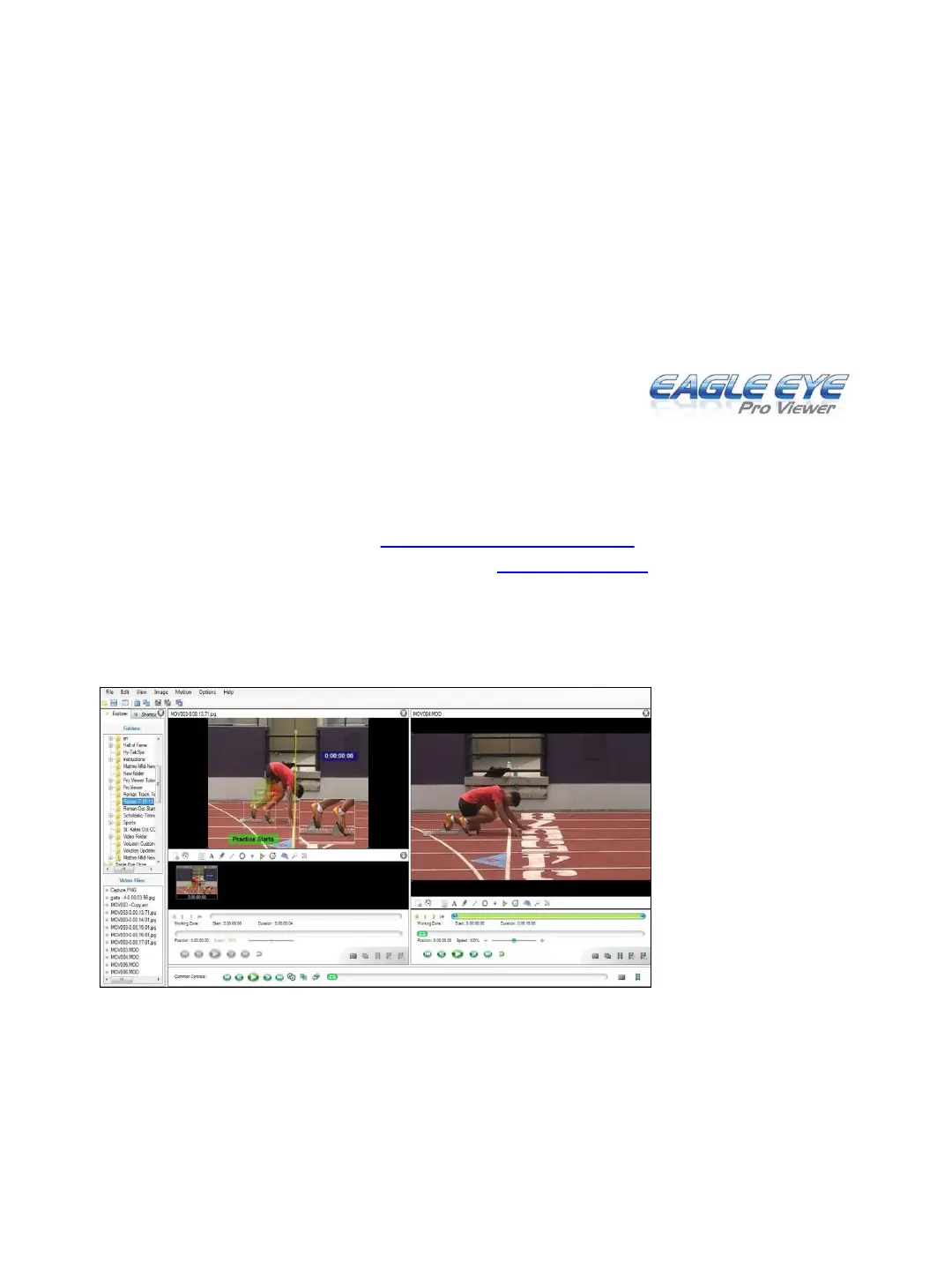
Eagle Eye Pro Viewer software is separate from Eagle Eye Pro Timing software and made
available free of charge at www.EagleEyeProViewer.com . Pro Viewer’s original source-
code project Kinovea is also available at www.Kinovea.org
Pro Viewer offers enhanced technical features such as on-screen overlays, magnification, side-
by-side comparison, angles, perspective grids, drawing tools, single or dual camera capture and
playback of standard or high speed video, and more.
Pro Viewer can operate
independently of Pro
Timing software or in
combination on the
same computer. To take
advantage of the
strengths of each, use
Pro Timing to capture at
100 fps and Pro Viewer
to playback the recorded
video for enhanced
analysis.
1. ➔ Within Pro Timing: Choose to Output Video to .avi as described on
the previous page.
2. ➔ Within Pro Viewer: Map the Explorer Window (left side of Pro Viewer
window) to the destination folder within Pro Timing (C: My Documents >
Sequences). If playing video recorded at over 30fps, from the top toolbar
choose Motion > High speed camera and enter the frame rate of the original
recorded video.
28


 To Next Page