I. MISC. FEATURES
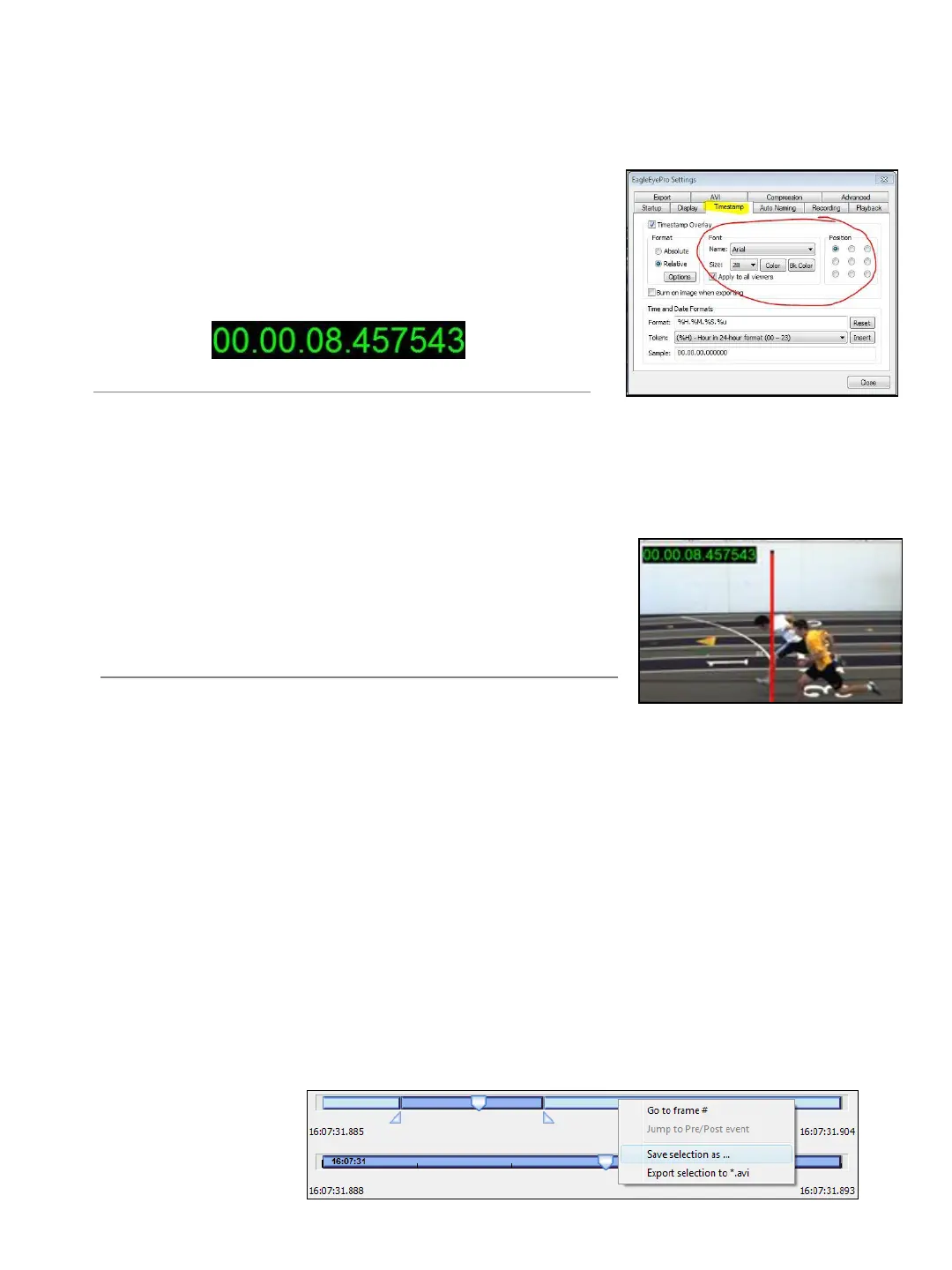
1. Change Race Clock Display
2. Print Proof of Performance / Images
Eagle Eye Pro supports printing images in several ways via the File menu.
For Proof of Performance images we recommend performing a PRINT SCREEN function
using the built in Windows print screen feature.
1. ➔ PRESS the PrntScr button located on the top row of
your keypad.
2. ➔ CHOOSE to Print or copy into a document of your
choice.
3. Save or Exporting Video
Occasionally you may want to save a small section of a race video. That section, called a
snippet can be saved while the remainder is discarded. Discarding the unnecessary portion
of video assures the resulting file is as small as possible.
If you have been recording a sequence and wish to save a snippet, click the Save button.
Remember that the whole sequence must be selected in order to save the entire sequence.
Saving can only be performed in Review or Playback mode, when the upper status bar
displays the range of frames in the current Selection. There are three ways to save a
snippet:
1. ➔ CLICK the Save button
2. ➔ SELECT File | Save As... from the main menu
3. ➔ RIGHT-CLICK on the Coarse Slider and select Save Selection As... OR Choose to
export to .avi
1. ➔ From the top toolbar, SELECT Tools > Eagle
Eye Pro Settings and CLICK the Timestamp Tab.
2. ➔ SELECT the font, size, color, & position as desired.
20


 To Next Page