D. CREATING FILES
1. Creating an .EVT File for Import (Option 1)
Used when using Meet Management Software
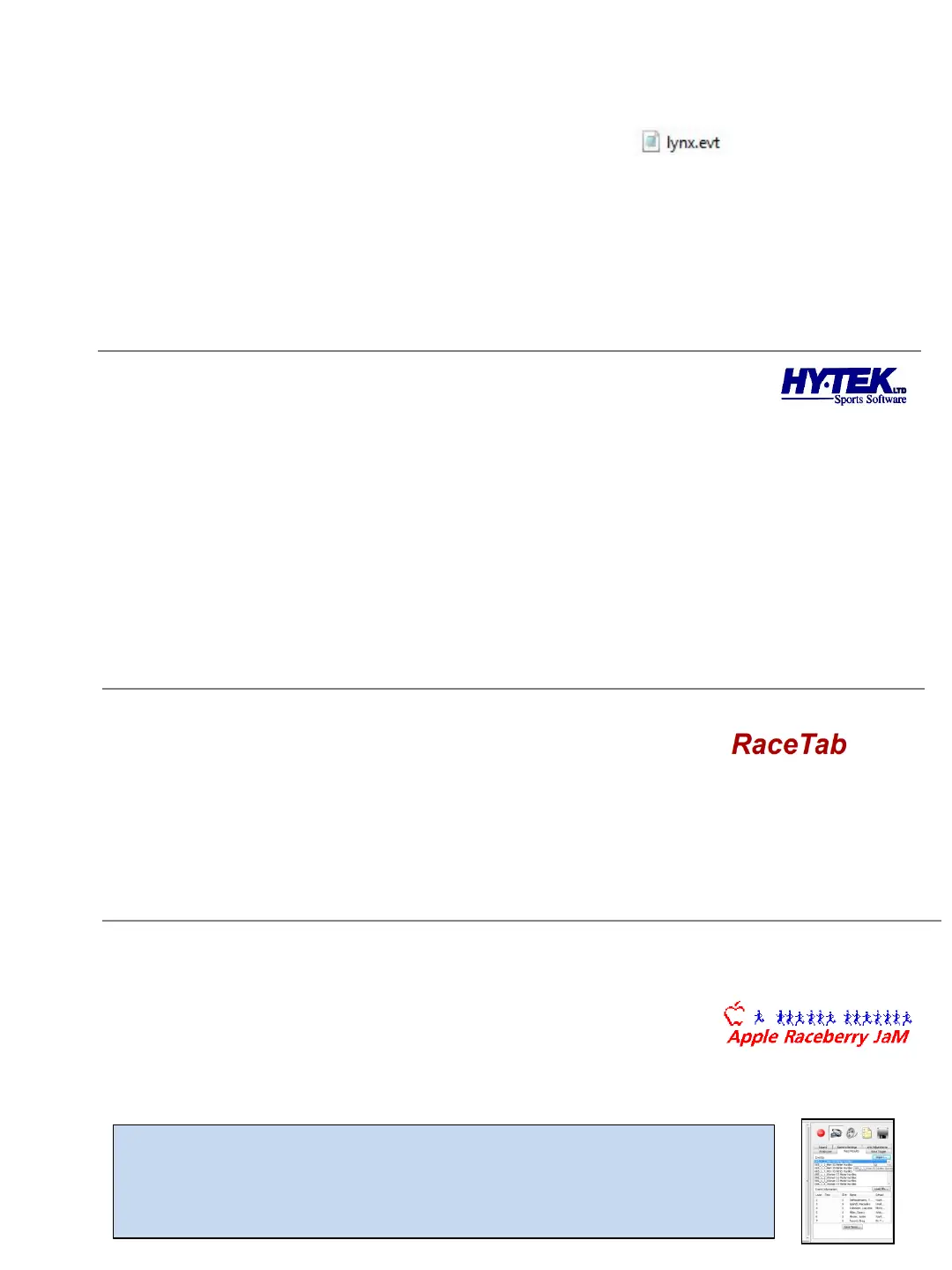
A lynx.evt file is an industry standard event file created by common meet management
software. This file contains information (heat, name, school and lane/position) for each seeded
event. In order to integrate with Eagle Eye Pro, this file must first be created by your meet
management software (Hy-Tek, Race Tab, RaceberryJaM, etc.) and imported into Eagle Eye Pro
via the Race Results tab. Follow the instructions below depending on the software you use.
Hy-Tek Meet Manager (version 4.0)
1. From the top menu go to Set-up > Photo Finish Interface > Eagle Pro Timing.*
2. Within the Run mode go to Interfaces > Photo Finish -Eagle Eye Pro > Update Start Lists.
-----------
If updating for the first time and or changing the file location.
3. SELECT the Activate update of start list checkbox (middle of screen) if updating for the first time.
4. SELECT the Change Data Location button and navigate to the destination folder you intend to share
between Hy-Tek and Eagle Eye.
5. CLICK the OK button. Hy-Tek will save the lynx.evt in the location chosen in step 4 .
6. Within Eagle Eye Pro >Results Tab > Choose the import button and navigate to the Lynx.evt file.
* If Eagle Eye is not an option in an earlier version, choose FinishLynx File Sharing. ** Hy-Tek requires their Photo Finish
Interface license for this feature to activate the Get Times button within the Run mode.
Race Tab (version 3.64)
1. Within the desired seeded meet, CHOOSE RaceTab from the upper left.
2. CHOOSE FAT Interfaces and BROWSE to a destination folder where the lynx.evt will save to.
3. CHOOSE Eagle Eye as the brand of FAT and CLICK Save and Done (lower right).
4. CHOOSE RaceTab (upper left) > Export > Lynx. (Note - no confirmation is indicated)
5. Within Eagle Eye Pro > Results Tab > CHOOSE import and navigate to the saved lynx.evt file.
Race Tab can be downloaded for FREE at http://racetab.milesplit.com/page/download
RaceberryJaM
1. PULL ScoreMeetLynx file down to Create Lynx/ Flash Timing file (if Eagle Eye is not listed).
2. CHOOSE the destination folder (meet directory).
3. CHOOSE an offset to the IDs to distinguish men's and women's events.
("0" for one division, "100" for the next, etc. are good options)
4. ACCEPT the defaults for the schedule file. Say "No: to finalize schedule.
5. SWITCH to next division (Ctrl-G). Repeat for all divisions and choose to finalize the schedule.
Importing the lynx.evt file into Eagle Eye Pro Software
1. SELECT the RESULTS TAB. 2. NAVIGATE to the location of the lynx.evt file
and CHOOSE Import. SELECT OPEN. 3. EVENTS and ATHLETES will appear in
the Race Results Tab.
12


 To Next Page