V. SUPPLEMENTS
A. ADDITIONAL FILE SHARING OPTIONS
1. Sharing Results File via Internet Dropbox
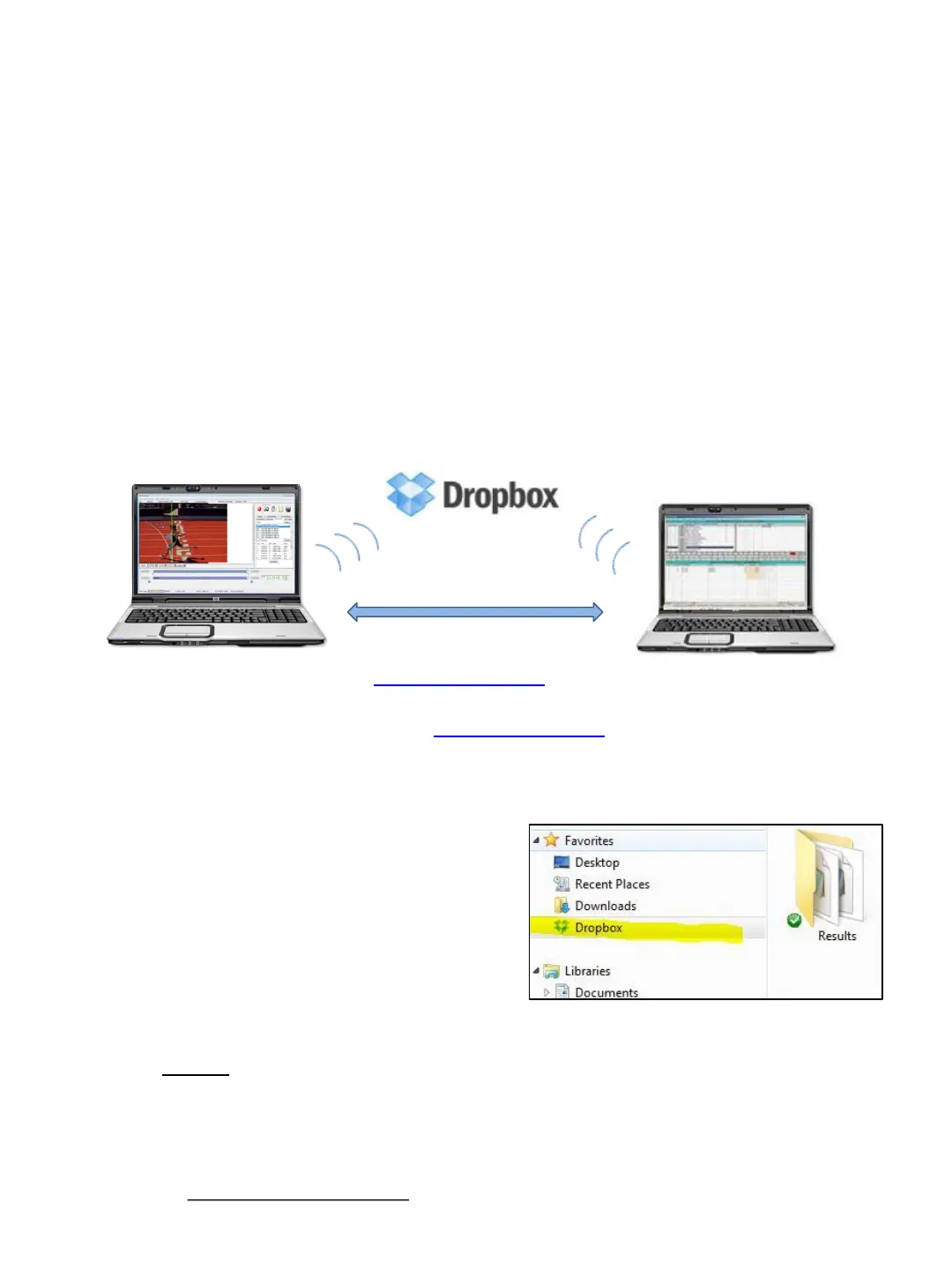
Dropbox is a FREE online file and storage solution that will allow you to easily share the file
(created by the meet management software) and the .lif results files (created by the Eagle Eye
software) between two or more computers. Sharing these files will allow auto-population of
the track times from Eagle Eye into Hy-Tek (or other meet management software) via the GET
TIMES feature.
Eagle Eye Computer
Timing
Hy-Tek, etc. Computer
Results
1. ➔ On one computer, go to www.Dropbox.com and choose SIGN UP.
2. ➔ CREATE an ACCOUNT and DOWNLOAD Dropbox as instructed.
3. ➔ On the second computer, go to www.Dropbox.com and DOWNLOAD Dropbox again.
4. ➔ Use the SAME Dropbox ACCOUNT on both computers.
5. ➔ While both computers are CONNECTED to the INTERNET, go to My Computer
and locate your Dropbox.
(This is your shared file location for both
the Eagle Eye and Hy-Tek computers.
The image at right shows the option of
creating a results folder).
6. ➔ Within the Eagle Eye Results Tab, SAVE
a results file to the Dropbox folder.
You need only map to this location
once during set up.
7. ➔ Within the Meet Management (Hy-Tek, etc.) software, CHOOSE to direct the
lynx.evt file to the Dropbox FOLDER. This will be the location the Meet
Management software will receive the .lif results file generated by Eagle Eye.
You need only map this location once during set up. BOTH computers can now
share and access the same files.
Tip: If you do not have Internet access in your press box or timing location, consider creating your
own Internet access via an Internet Hotspot (such as a Verizon Jet Pack) or enable your iPhone
to act as a Personal Hotspot.
30


 To Next Page