TIP: An athlete has crossed the finish line when the leading edge of their torso has met or exceeded
the finish line (the torso is considered the region between the neck and waist).
4. Assign Times
1. ➔ Be sure to first activate the time line region by clicking anywhere on the timeline bar.
2. ➔ TYPE the number key that corresponds to the finishing athlete’s HIP number or LANE
number. The time will automatically populate into the appropriate cell next to their
name. (as viewable in the results tab).
TIP: TIME REQUIREMENT: For double digit entries, press both numbers on the key pad within one second.
Example: For hip number 12, press the 1 and 2 keys consecutively. TIP: CORRECTING MISTAKEN ENTRY: Retype the
correct HIP or LANE number. TIP: DELETING ENTRY: Perform a RIGHT-CLICK on the cell you wish to delete the entry from.
5. Save Results File
After all times have been determined for each runner, EagleEye Pro
software generates (with the steps below) a results file that contains
the necessary information to integrate with Meet Management
software such as Hy-Tek, RaceberryJAM, Race Tab, etc.
1. ➔ CLICK the Save Times button.
2. ➔ CHOOSE the appropriate folder and SELECT Save
TIP: The folder you select to save the race file to will become the default folder for each
race to follow. Example: :C tfmeets folder is the default Hy-Tek folder.
TIP: The file name is defaulted and does not need to be manually typed.
Saved Video
Recorded sequences (race videos) do not need to be saved after each race. Each recording is
saved directly to the hard drive and labeled by event name. ACCESS recorded video with the
HISTORY REEL icon.
9
3. Read a Race
After stopping the record process, the captured video is immediately available for
review.
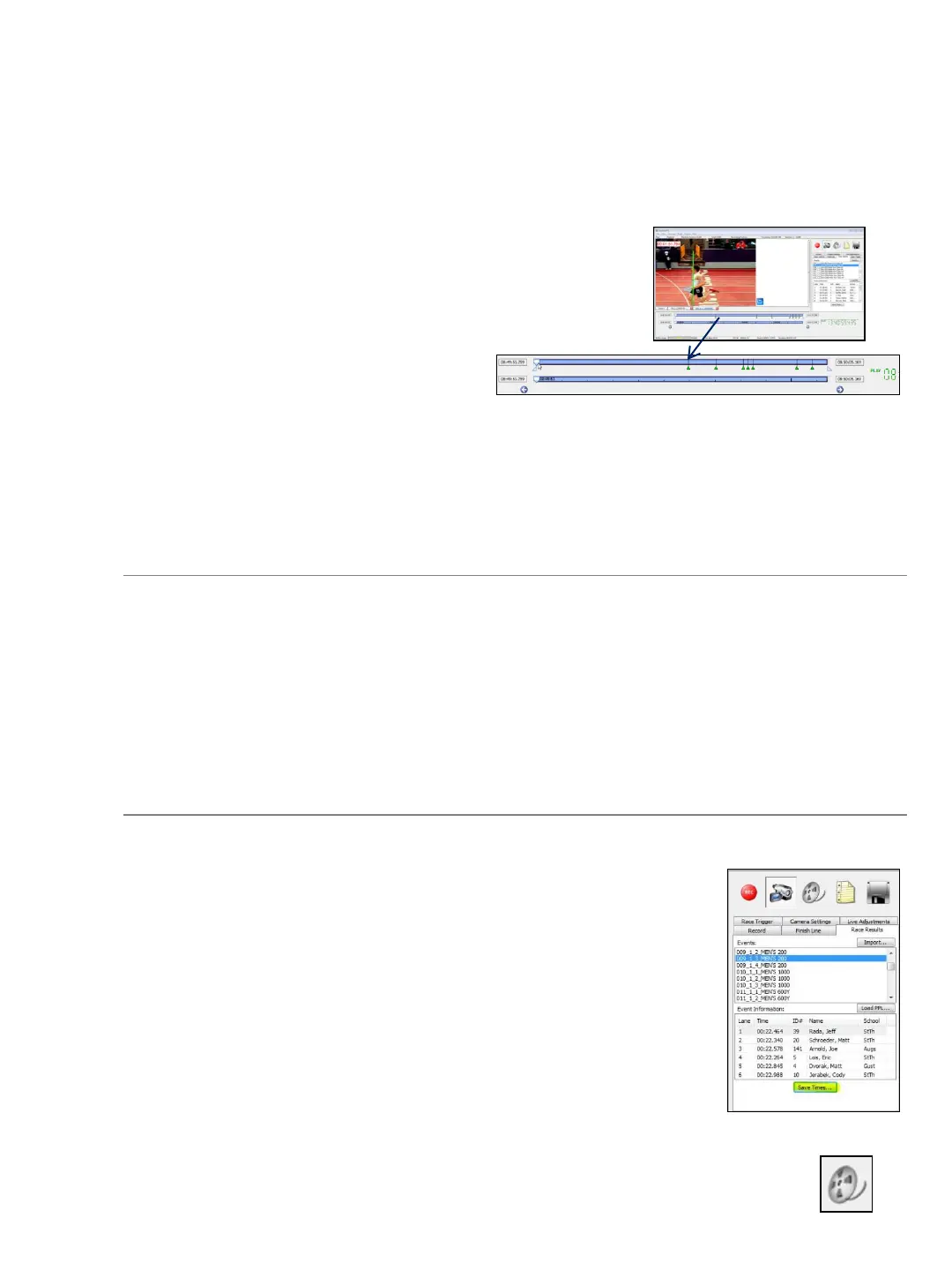
When NOT using Event Markers “bookmarks”
LEFT-CLICK and HOLD the timeline button with your mouse and proceed to drag the
video time-line left to right. Use arrow keys or mouse roller
wheel to make frame by frame adjustments as needed.
PAUSE to read the video as each athlete’s torso meets the
finish-line.
When using Event Markers “bookmarks”
ACTIVATE the video by CLICKING the
video scroll bar (any location on the
scroll bar). PRESS Ctrl + Arrow Key (left or right arrow key) to jump to each event
marker “bookmark”. Use arrow keys or mouse to make frame by frame adjustments
as needed. PAUSE to read the video as each athlete’s torso meets the finish-line
overlay.
GREEN Event Marker Represent finishing athletes


 To Next Page