4. Record & Review Simultaneously
The word “Review” refers to examining an earlier portion of what is currently being recorded.
This feature allows you to review the finishing times of athletes before other athletes have
crossed the finish line.
There are a few ways to switch to Review mode while recording:
1. ➔ DRAG the Coarse Slider to the left until you reach the area
you wish to review, or
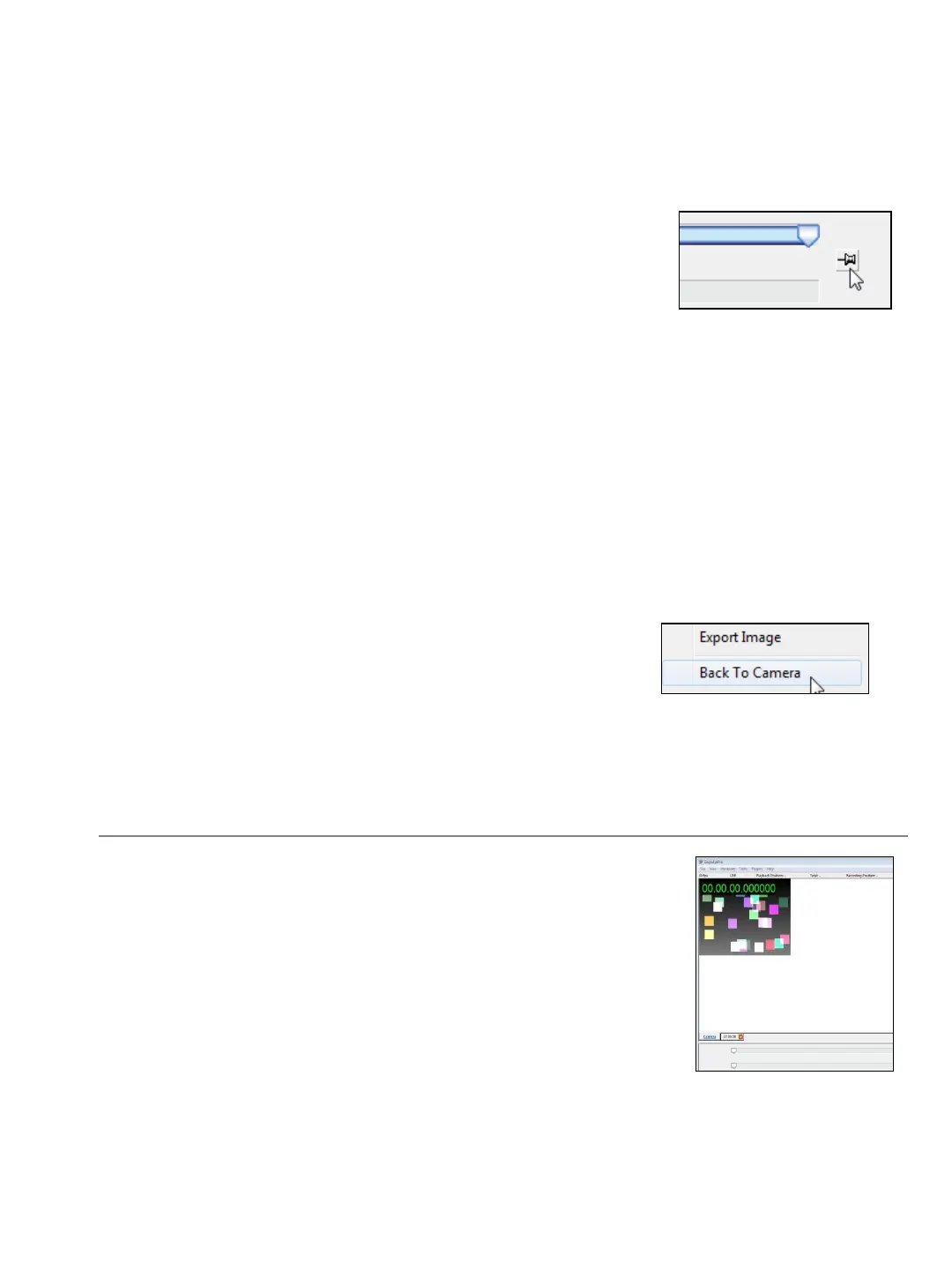
2. ➔ CLICK the Lock/Unlock pin button, or use F4 keyboard shortcut.
Dragging the Coarse Slider lets you select a review segment anywhere in the recorded stream.
Click the Lock pin to the right of the slider for immediate reviewing access to the frames that
were just recorded.
To return at any time to LIVE mode, use one of the methods below:
3. ➔ RIGHT-CLICK anywhere in a reviewed image and select Back To Camera, or
4. ➔ Click the Lock/Unlock pin button, or use F4 keyboard shortcut.
--------------------------------
There are a few ways to navigate through a sequence while
in Review or Playback:
1. ➔ DRAG the slider thumb button to the desired location;
2. ➔ Proceed frame by frame by pressing the right or left arrow keys or using your mouse
wheel.
3. ➔ Hold down the CTRL key and press the right or left arrow keys to jump to the next
bookmark.
5. Practice Mode – Virtual Grabber
Eagle Eye Pro software incorporates several options that allow
you to practice using the software without having to set up the
entire system. The Virtual Grabber as shown at the right, will act
as a live image that can be recorded and interacted with as if it
were an image from the camera.
1. ➔ INSERT the USB KEY into the computer.
2. ➔ OPEN Eagle Eye Pro Software.
3. ➔ Within the software go to the top toolbar and SELECT > Hardware > Load Grabber
and choose Virtual Grabber.
21


 To Next Page